Modem vs Router: What’s the Difference?

modem vs router

Modem vs router has somewhat disappeared in today’s technologically fierce age, as most people buy both for all-around connectivity. The Internet and the world today run on information and communication technology. We have several devices such as a modem and router to make communication easier and to provide access. There are so many discussions about the difference between a modem and a router on the market that it’s essential to know what the two are and how they differ.

We will explore the two devices and the differences in their operations and applications in this blog post. You will likely want to know what you’re getting into before you get a new router. There are many confusing terminologies out there, and it can totally oversell some products. Don’t worry, though. This 2-minute article will help you understand the difference between a router and a modem. Read our blog to understand Wi-Fi routers and modems.

What Is a Modem and What Does it Do?

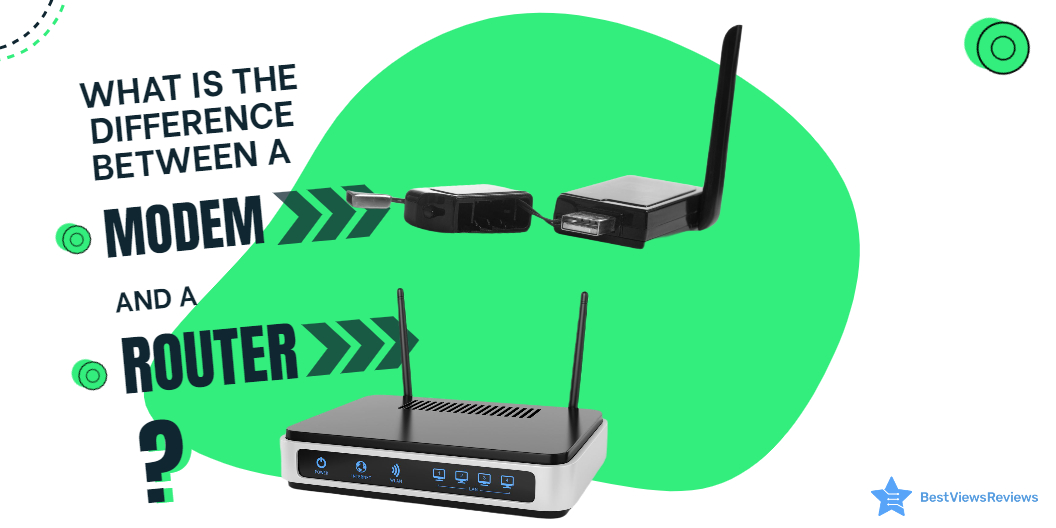
Modems are popular as a “modulator/demodulator” and “transceiver”, but they can have a variety of other names as well. Unlike routers, modems do not connect one computer to another. Instead, a modem can transmit and receive data over a telephone line. Modern modems can now connect via cables or fiber optics to improve the performance of the networks.

A modem like NETGEAR Cable Modem connects with an internet service provider (ISP) to receive analog signals and then converts those signals into digital form. Modems usually have three ports: one for the internet connection, one for power, and one for plugging in the computer or router.

What Is a Router and What Does It Do?

Routers like NETGEAR 4-Stream WiFi 6 Router (R6700AX) are computer network devices that route data packets, or datagrams, across connected networks. In simple terms, these devices sit between the local network and the Internet and ensure that data packets get to their destinations. With routers, you can connect networks with multiple devices and improve network efficiency by assigning each device a specific IP address.

You can use the ARRIS SURFboard SB8200 to divide a company’s network. That way, each of the company’s systems will have its own address. You can also manage each system individually from a single point of access.

Modem vs Router: What’s the Difference?

The modem is the gateway to your network; it’s the device that brings the Internet into your home or office. The router is the device that sits in between and distributes the network locally. It helps direct data from your modem to your devices, like computers, printers, and phones. By using a router, you can get a lot of benefits. You can, for example, send and receive data from and to the Internet more quickly, and you can do it more securely.

Do You Need a Modem or a Router?

When you are in the market for a new modem or router, you may wonder if you need both these devices or not. Well, the simple answer is yes. It would be best if you had both these devices. A modem and a router together can help you establish an active internet connection for multiple devices. The modem has only one LAN ethernet port. That means if you don’t buy a router, you will be able to connect to only one computer or laptop. You can easily set up multiple devices with best-rated routers.

Which Is Better: Modem vs Router?

There is no such thing as one being better than the other. Both devices perform different functions, and both offer distinct advantages. Nevertheless, if you purchase a modem only, you can connect to the Internet with any single device, and you can use it for multiple purposes. Alternatively, if you have only a router, you won’t be able to access the Internet. The reviews of Motorola MB8600 DOCSIS are good as they can support up to 1000 Mbps of internet speed.

The best-quality Speedefy AC2100 Smart Wi-Fi Router has dual-band gigabit Wi-Fi with a speed of 2100M (1733Mbps/5GHz + 300Mbps/2.4GHz). Using a dual-core processor lowers buffering and allows for faster online browsing, video streaming, and gaming.

Should I Rent or Buy a Modem and Router?

Modem and routers are undoubtedly an expensive investment, but they prove to be a cost-effective solution in the long run. Many companies are ready to offer their equipment for rent. The benefit of such equipment is that you get complimentary services and tech support too. But, monthly rental charges can cost you significantly high.

We recommend you buy your modem and router if you plan to use them for a long time. If you are going to use them just for several weeks or months, you can even consider preferring rented equipment too. Read our informative guide to buy the best modem and router combo.

When do I Need a Modem vs Router?

It solely depends on your purpose of use. If you are not planning to connect multiple devices to your internet connection, then just a modem will do the job well. But, if you are setting up a complete workstation with multiple devices and all of them require an internet connection. Then, in such a case, you need both devices. Remember, without a router; you can not distribute, manage and control your network.

You can also go with top-selling TP-Link AC1900 Smart WiFi Router. This model has got good reviews because of its dual-band frequency and a maximum speed of 1300 Mbps on the 5GHz band.

Conclusion

The router and modem are now a staple in most households too. It’s hard to imagine many offices and homes without them. Especially during the work from home scenes, routers and modems have been irreplaceable. So, whenever you are in the market for a new modem or the high-quality modem-router combo, make sure you know the difference between them.

You can troubleshoot Wi-Fi routers easily with a few simple hacks. Read our blog to know how to extend the Wi-Fi router.

BestViewsReviews rates and ranks hundreds of best modem and top-reviewed wireless routers on the basis of connectivity, installation, and build quality.
Know-How To Fix Wifi Routers?

wifi router

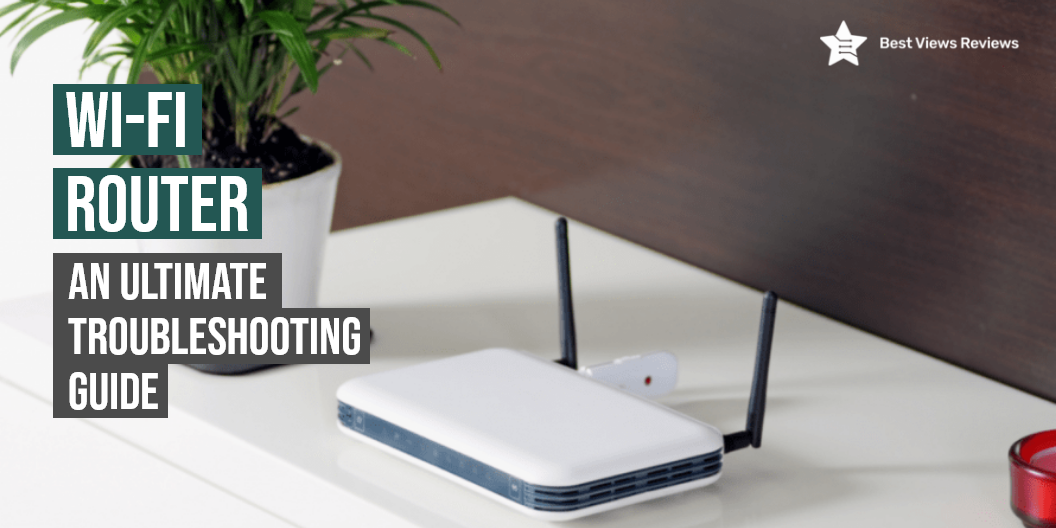
A wifi router is a device that allows you to connect your computers and other devices to the internet using wireless technology. Good wifi routers provide uninterrupted internet connectivity over a large area. The primary work of a router is to convert the signals of a modem to wireless ones. A Wi-Fi router provides you with strong connectivity over a large area efficiently.

Wifi Router Troubleshooting Guide

Check Your Wifi Router’s Lights

Most of the wifi routers come with multiple lights on the front. Each light indicates your network connections. Speedefy AC2100 Smart WiFi Router customer reviews claim that it is one of the best-rated wifi routers available. A green light indicates that your network is all fine. A red or orange light indicates that there is some problem. Most devices come with a WAN light that indicates an internet connection. You should check the network cable if the red light is blinking or off.

Reboot Your Router And Modem

Rebooting your router and modem is the first thing you should try if you’re facing a network problem. Unplug the power cord from the back of the device to reboot it. Wait for 30 seconds before plugging the cord back in. You should wait till 2 minutes after plugging the cord to test your wifi connection.

See if Your WiFi is Working on Other Devices

Sometimes the problem can be with your computer as well. You should connect the wifi to another device like a smartphone to check if it’s working or not. This way you will get to know whether there’s a problem with your router or computer.

Make Sure There Is Not an Internet Outage in Your Area

You should check if there’s an internet outage in your area if you’re still unable to fix the problem. It is good to go through the outage and type the name of your internet service provider. You can also call your ISP to get check if there’s an internet outage.

Connect to Your WiFi Router with an Ethernet Cable

You can try this method if other devices can connect to the wifi but your computer cannot. TP-Link AC1900 Smart WiFi Router’s reviews say that it comes with a built-in dual-band router that offers up to 1900 Mbps high-speed internet. Plug a separate ethernet cable into any of the ports on the back of your router. There might be a problem with your router if you are still not able to connect.

You can also read our Wifi router troubleshooting guide to gain more knowledge.

How to Set up a WiFi Routers?

Connect the Wi-Fi Router to your modem.

  • Connect your modem to the WAN port of the Router
  • Give your router some time to initialize and install the app in the meantime. Most Wi-Fi routers like NETGEAR Nighthawk get optimized and are set up through corresponding apps these days.
  • Enter the numerals 192.168.1.1 to the bar and your admin page should show up if your router brand does not have an app
  • Set up your username and password. The password should be unique and strong enough to discourage any hacks. You can change the password later. Then the password change option is shown to you on the admin page. You can enter your username and old password to change it and enter a new one

How to Maintain a WiFi Router?

You should reboot the router from time to time to maintain its smooth functioning. Doing it once every two months is a good practice that should be followed. This also protects your router from malicious attacks and ensures that the speed is optimum. Your router might stop connecting to the internet sometimes. A reboot comes really handy if that happens. Make sure to have a look at some of the best terminals and ends that helps you connect the cables of the Wi-Fi Router properly to use it continuously for a longer span of time,

What to Do if I Forget the Wifi Routers Password?

There is nothing to worry about in case you forget your password. The reset button on all routers allows you to reset your router to factory settings after being pressed for 30 seconds.

Read our blog to have a better understanding of wifi routers and modems in case you are confused between the two.

How Long Do Wifi Routers Last?

Wifi routers can last for a period of 5 years. You should get the router upgraded every after every 2-3 years if you use a lot of smart home gadgets. Upgrading the router after 2-3 years will let you enjoy the latest features and technology. You can also read our Wi-Fi router guard buying guide to make an informed choice.

Conclusion

A wifi router is a device that allows your Wi-Fi-enabled devices to connect to the internet. Routers are the primary way to connect all of your Wi-Fi-enabled devices in your home or office to the internet. They can also be used to create other types of networks and networks with different security levels. A good Wi-fi router can guide your wi-fi signals towards the device and offer a strong internet connection. There are many types available in the market that makes surfing comfortable for users.

BestViewsReviews rates and reviews hundreds of best wifi routers and top-selling wireless routers on the basis of their build quality, connectivity range, and tech support.

Wi-Fi Router: Troubleshooting Guide

wi-fi router

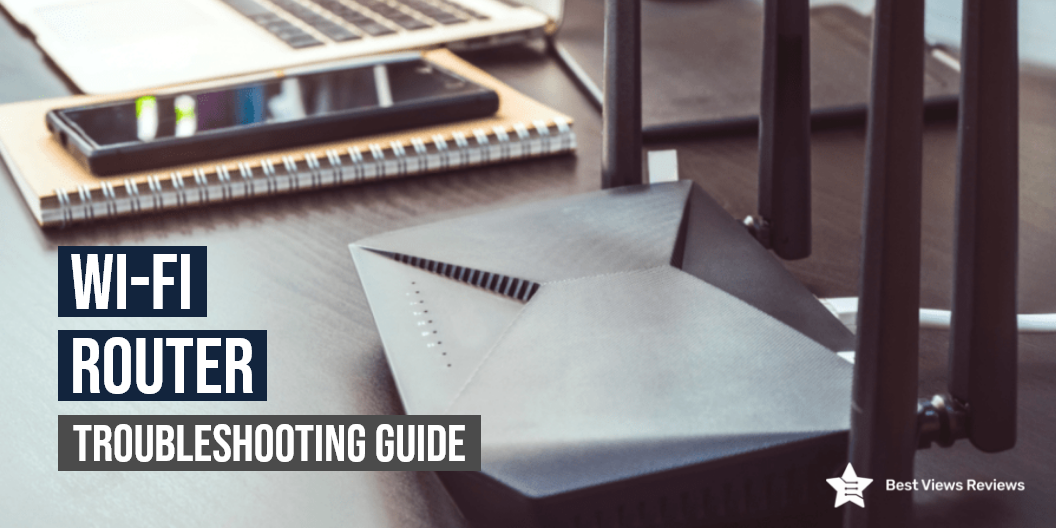
A Wi-Fi router is a device that allows multiple devices to connect to the Internet via a wireless connection. Some wireless routers have a dial-up interface that allows the user to connect to the internet over a modem. Others are wireless and have a wireless-enabled web server that allows remote access. Wireless routers are among the most important devices in your home.

Wi-Fi Router Troubleshooting Tips

Correct Your Wi-Fi Security Settings

You should test the following settings on Wi-Fi devices to make sure they are compatible:

Network Mode: The wireless router should be allowed to accommodate all Wi-Fi models used by network clients. Routers designed to run in 802.11g mode only will not support 802.11n models. You can adjust the router to run in mixed mode to fix this kind of network failure.

Security Mode: Usually most Wi-Fi devices support several network security protocols like WPA and WEP. All Wi-Fi devices including routers belonging to the same local network should use the same security mode.

Security Key: Wi-Fi security keys are generally phrases or sequences of letters and digits. All devices that enter the network should be configured to use the Wi-Fi key recognized by the router.

Update Your Hardware

The reason for updating your hardware is twofold. TP-Link AC1900 Smart WiFi Router is a nice option if you are looking for a device that features beamforming technology and delivers long-range Wi-Fi coverage. You can take benefit of any additional features also your router will receive any critical security updates. You can check the specifications of the router manufacturer’s support site for checking, evaluating, downloading, and installing the latest hardware.

Fix Overloading

You can set up a “Guest Network” option for your router or a different Wi-Fi router. You can also set up a separate SSID and password for your host. This will help you avoid issues with your main network. This segregation will also secure your key devices and work with smart appliances.

Check Wireless Signal Limitations

Check if your new router supports the 5GHz band or not. New routers generally have dual-band capabilities. NETGEAR Nighthawk reviews claim that it comes with geo-filtering that helps to connect the closest servers or players. You can hold older devices that only support slower G specifications on the 2.4GHz by allowing dual bands.

How To Access My Router From The Internet?

There’re a few apps in the market that allow you to access your router from the Internet. These apps require your PC to be always in the switched-on mode. You can insert the public IP address and the control port number of the router to access the router conveniently from an external internet connection cable. There are some of the Best Terminals and Ends available online that help you optimize the usage of the router by connecting the cables with fully secured terminal switches.

For example, If your IP address is 74.13.156.10,  and your control port number is 8080, you can type in 74.13.156.10:8080. This will give you direct access to your router. You can read our blog to have a better understanding of Wi-Fi routers and modems.

How To Know How Many Devices Are Connected To My Wi-Fi Router?

A Wi-Fi router like Speedefy AC2100 Smart Wi-Fi Router can connect many devices in the same network. More connections can hamper the speed and performance. The solution is to reduce the number of devices connected to the router. Identify the number of devices connected by the following steps if you are facing slow speed from the router. Select the devices you want to remove and make those undiscoverable once you figure it out.

  • Put the default IP address in the browser
  • Key in your Username and Password
  • Once you log in go to the page where you can see a list of all the devices. This page can be accessed differently for different brands
  • You can click on the status tab to find a list of all the wireless clients for D-Link routers.
  • You will find the information on the My Network page if you’re using a Verizon router. This information can be easily extracted
  • You can check them on the internet as well if you feel unsure of the steps

How to Extend the Wi-Fi Range with Another Router?

Many times, the strength of one Wi-Fi router is not enough to cover the entire space. Especially in commercial settings having good Wi-Fi strength is important. That is where Wi-Fi repeaters come in. You can easily extend its range over a larger area with them. You can also add Wi-Fi repeaters to your old router and can include them in the network by following the steps below.

  • Open the admin page on your primary router. Enter the username and password to access the settings
  • Note the details like Wireless mode, SSID, channel, and the security code
  • Reset your old router by pressing the main button for 30 seconds and connect this router to your computer with an Ethernet cable
  • Access the admin page of this router and insert all the details you noted down for your previous router
  • Connect both the routers with the help of a CAT-5 cable
  • You will get a strong range around the house once you switch on the router and the Wi-Fi repeater

Remember the number of Wi-Fi repeaters required will depend on the size of the place where you are intending to use Wi-Fi.

There are chances that you might get confused between a modem and a router. Read our blog to know about the difference between a router and a modem.

How to Check Browsing History on the Wi-Fi Router?

  • Put in your IP address in the browser tab
  • Sign in by putting in your credentials
  • On the dashboard, you’ll be able to locate the history tab

You can find the browsing history on the left side under the logs tab if you’re using a Netgear router. In case you have other brands and you are not able to check them we recommend you to call the customer service center or your internet provider.

You can also read our blog to know more about Wi-Fi router guards to make an informed choice.

How Often Should You Replace Your Wireless Router?

Wireless routers usually last for a span of 5 years. It is recommended to upgrade the router after every 3-4 years as the technology changes. You can enjoy the latest features and technology by replacing your wireless router after 3-4 years.

Conclusion

Modern devices like Inkjet Wi-Fi Routers can be tricky to choose sometimes. These troubleshooting tips can help you significantly and make your overall router usage quite convenient. The tips mentioned above can help you tremendously when you want to keep a track of certain things.

BestViewsReviews rates and reviews hundreds of top-quality Wi-Fi routers and best-rated wireless routers on the basis of their connectivity range, tech support, and build quality.

Wifi Router Guard: The Ultimate Buying Guide

wifi router guard

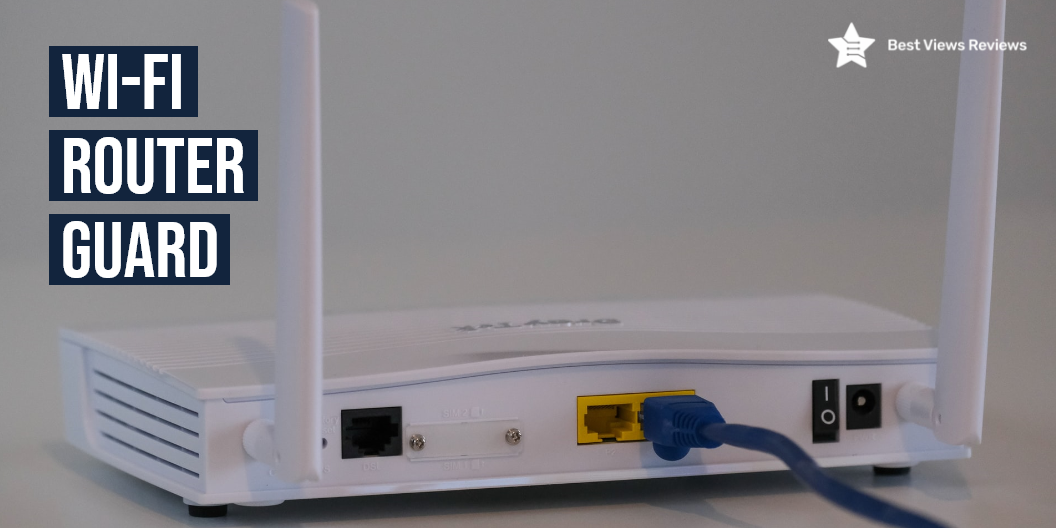
A Wi-Fi router helps in stabilizing and spreading the internet bandwidth around the area for easy access to the internet. A router guard is installed to block the harmful radiations emitted by it. It provides protection to your router and keeps you safe from RF radiation. Not all guards are as effective and the user should conduct proper research before buying. Wifi routers with a router guard provide safe network connectivity. You can read through our blog to get the solution to combat any errors or technical glitches.

What are Wifi Radiations?

A Wifi router emits certain radio frequencies that come in the low and non-ionizing range. These radiations are similar to the ones that your mobile phone emits. The only difference here is that these frequencies can work through walls. This means that these frequencies are emitted continuously and cause health hazards. Make sure you remember to install it away from the place where you usually work from.

Why is a Wifi Router Guard Important?

The radio frequencies emitted by a router can affect your sleep schedule badly. These radiations work against the sleep-inducing hormone- melatonin. The quality of your sleep might reduce significantly if you have the router in close proximity to your sleeping area. That is why having a guard is important because, with a guard, you can block these radiations and live comfortably.

A Wifi router guard like D-Link Wi-Fi Router acts as a shield against these harmful frequencies. Its shape is like a cage and your router can easily fit in. A guard can provide you up to 95% protection from such harmful radiations. It is easily available at sites like Amazon and is slowly taking over various markets.

Factors to Consider Before Buying a Wifi Router Guide

Size of Wifi Router Guard

The size should be well calculated and be according to the size of your router. If the router fits easily, all your subsequent tasks will get simple. We recommend you go with a big guard in case you are planning to switch to a larger router in the future. You can choose the ASUS AX6000 WiFi 6 Gaming Router that offers four antennas and eight LAN ports that allow for wider use and higher convenience.

You can also go with a portable router cover like NewBeau WiFi Router Cover to carry it anywhere and use it on any occasion.

Material of Wifi Router Guard

The router will last many years if its construction is of stainless steel. Unlike copper, stainless steel is durable and can efficiently block up to 95% of the radiation. You can consider going with stainless steel router guards for optimum performance.

Pouch

Some Router guards come in fabric pouches and can accommodate many devices inside your home. A pouch is easy to use and durable. Your antennas can be easily accommodated too and without hampering the speed of your Wi-Fi.

Ease of Use

The router guards that are easy to use require you to only plug and reboot your routers. You should look for such guards that don’t take a long time to set up. The WiFi Cover Emf Protection is a shield cover that is made of faraday fabric to provide 99% protection across the frequency range of 10MHz to 3GHz.

Protection of Wifi Router Guard

The guard should ensure at least 90% protection from harmful radiation. Anything below that is simply not worth your time and money. You can go with models like NobleKelly Guard Cover that offers up to 99.99% of protection. Reading the description of the product carefully before a purchase will help. It is good to know all about Wi-Fi routers and modems to avoid any network interruption.

How Far From a Wifi Router is Safe?

You can install a wifi router at a distance of around 20 feet. Keeping it too close to other gadgets may show some lag in performance and speed. It is not harmful to your body or health if you are using it with a router guard. You should still consider placing your routers on the bookshelf or hanging on the wall.

How Does WiFi Guard Work?

A wifi guard comes in a cage-like design that helps in blocking RF radiations being emitted by your wifi routers. You can place your routers inside the Faraday cage and it will reduce up to 90-percent electromagnetic radiation without affecting the wifi range. You can also look for models like NewMeil Router Cover that are designed to offer blockage while passing strong wifi signals.

Modem and routers are different devices with different operations. Read our blog to know the difference between modem vs router.

Conclusion

Modern devices like router guards are essential for sustaining a lifestyle that guards you against technological side effects. There are some Wi-Fi Routers that offer parental control to add to the security. This minimizes the occurrence of any errors or issues. A Wi-Fi router guard can save you from health risks. It is a must-have home essential, especially if you live with your family and friends.

BestViewsReviews rates and reviews the best-selling wireless routers based on their quality, performance, and durability to simplify your buying process.