How to Install a Wireless Keyboard?

wireless keyboard

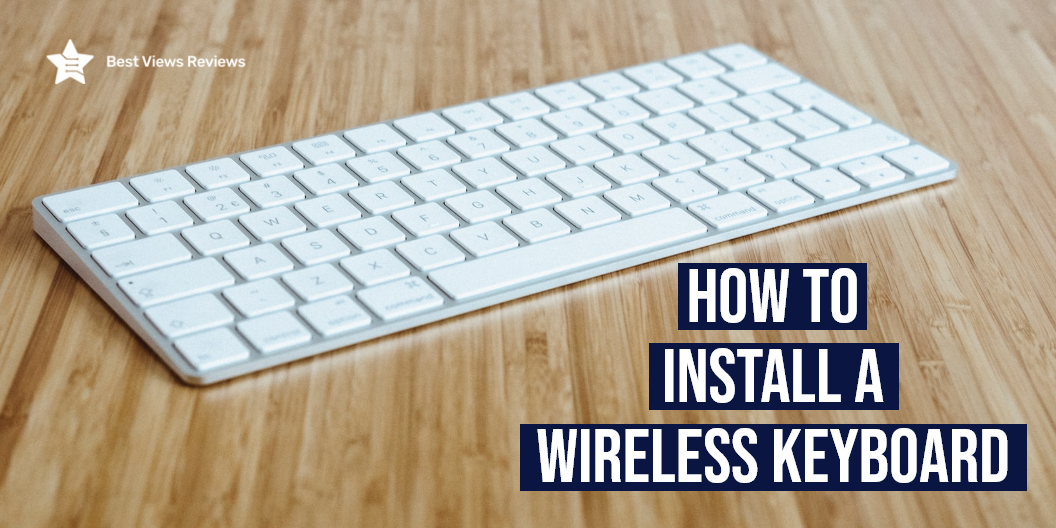
Wireless keyboards make it easy to type on your computer. These devices eliminate the need for tethering your computer. Installing a wireless keyboard often raises a lot of doubts and questions. Installing a wireless keyboard is a simple and straightforward process that anyone can carry out. Most products come with instruction manuals that explain the process step by step.

How to Install a Wireless Keyboard?

Unpack the Keyboard

Installing a wireless keyboard and mouse begins with unpacking all the equipment from the box. The product box will probably contain a wireless keyboard and mouse, wireless receivers, batteries, software which usually is given on a CD, and an instruction manual.

Different products have different requirements. It is therefore important for you to first read the entire manual to get a better understanding of the product.

The customer reviews of the OMOTON iPad Keyboard show that it offers a refined scissor mechanism that delivers a tactile, comfortable, and silent typing experience. It is a great option that you can look at if you are in search of a wireless keyboard.

Set Up The Keyboard And The Mouse

Wireless keyboards like Arteck 2.4G Wireless Keyboard and mice won’t receive power from the computer like wired keyboards and mice do which is why they require batteries. Turn the keyboard and mouse over and remove the battery compartment covers.

Positioning of the Wireless Receiver

A wireless receiver physically connects to your computer and picks up the wireless signals from your keyboard and mouse. Some keyboards also come with Bluetooth connectivity. OMOTON Bluetooth Keyboard’s reviews claim that it has built-in Bluetooth that makes it easy to connect with various devices. This allows seamless communication with your system. While the specific requirements vary from brand to brand, there are two considerations to keep in mind when choosing the place to position the receiver:

Distance from Interference

Keep the receiver at least 8 inches away from sources of interference such as the computer monitor and other items that may interfere like fans, etc. 

Distance from Keyboard and Mouse

The receiver should be positioned somewhere between 8 inches and 6 feet from the keyboard and mouse. Many of the receivers nowadays come in a USB dongle form as well. You need not worry too much about the interference with these models.

Arteck HB030B Universal’s customer reviews mark that it comes with a large capacity battery that offers up to 6 months of charge.

Installing the Software

The software contains drivers that tell the operating system on the computer how to work with the new hardware. The software provided for wireless keyboards and mice differs between manufacturers. It is imperative to check the instructions in the manual before connecting.

The installation process is rather straightforward. You just have to insert the disc into the drive and the installation should start automatically later. Read the on-screen instructions if you’re still not sure about how to go with the process. Accept the default suggestions also to be on the safer side.

Learning how to use an Xbox keyboard and mouse is also important if you love playing games. You can read our guide on how to use the Xbox keyboard and mouse to learn more.

Connect the Receiver

Your computer will configure the hardware for your it to use after plugging in the receiver. You’ll probably see a message on the screen stating the hardware is ready to use when the configuration is complete.

Check the Wireless Keyboard and Mouse

Open some programs with the mouse and type anything using the keyboard. You can always take help from the instruction manual and head to troubleshooting if the new device is not working properly. You can opt for having a word with the manufacturer/maker to get the issue resolved if it still doesn’t work.

It is also important to keep your keyboard clean in order to increase its lifespan. You can read our blog on computer keyboard cleaning to know more.

How Does Wireless Keyboard Work?

You just have to plug a receiver into the USB port on your computer. The receiver will then send signals to your battery-powered keyboard. The working of a wireless keyboard is similar to that of a wireless mouse. The Wireless Keyboard is simple to operate and is compatible with various computer systems.

Does Wireless Keyboard Need Batteries?

The answer is Yes. These wireless keyboards contain small radio transmitters and need some power source to operate. This power generally comes from the batteries. You won’t be able to use the keyboard if the battery is dead.

There are chances that you might face some issues while using a keyboard. You can read our blog on how to unlock a locked keyboard to get your issues solved.

Conclusion

Connecting a wireless keyboard-mouse combo is a simple task but even the simplest of the functions appear to be the toughest. A wireless keyboard is a useful tool for any laptop user. It is a small, portable and inexpensive device that can be easily attached to your device. Wireless keyboards also allow you to save space and time while you are working.

BestViewsReviews rates and reviews hundreds of keyboards and PC gaming keyboards on the basis of their size, connectivity and build quality.
How to Unlock a Locked Laptop Keyboard

Locked laptop keyboard

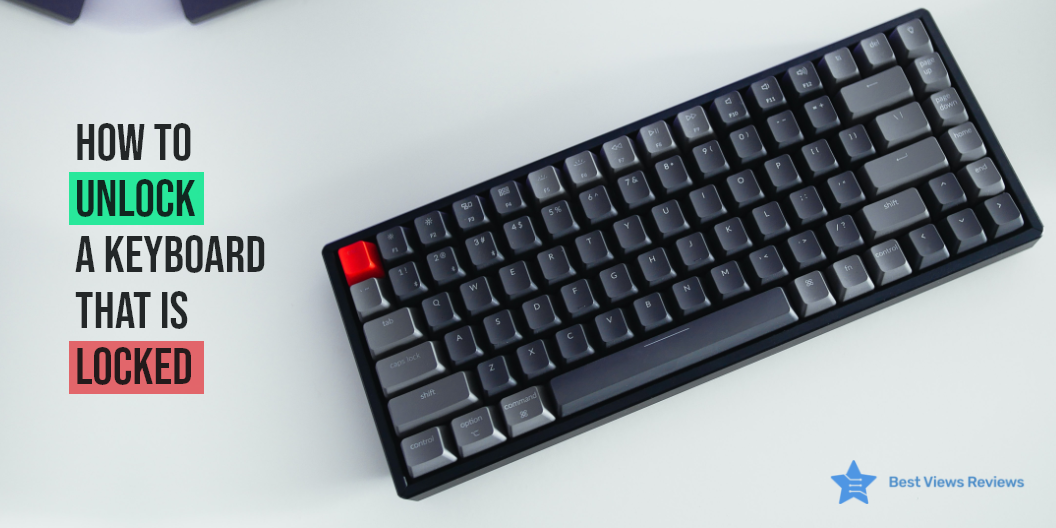
A keyboard is a hardware device that helps in providing the user input to the control unit of the computer or laptop. The best keyboards can freeze either due to accidentally pressing a key combination or if your keyboard is not properly connected to the system. Connection issues majorly arise with wireless variants as they use Bluetooth technology to connect. There are a few ways to unlock a locked laptop keyboard but it’s important to understand the cause first. You can also check our other blog on Xbox keyboard and mouse and know how to use them.

What Causes a Locked Laptop Keyboard?

Holding the Shift Key

Certain keys on your keyboard might get locked if you hold the shift key for a long while. This can happen if you press the shift key for around 8 seconds or more. It changes the keyboard settings that lock the entire keyboard. This problem can easily be solved by turning off the filter keys by again pressing the shift key.

Outdated Driver

Another reason for your keyboard getting locked is the outdated driver. The outdated drivers can result in the malfunction of your keyboard. You need to keep the latest drivers installed to ensure the proper working of your keyboard. Resetting a keyboard can also fix many keyboard problems.

You can consider having a look at the EPOMAKER AKKO keyboard if you are looking for a model made of high-quality PBT material that offers long-lasting usage.

Physical Damage

The most common reason for an unresponsive or locked keyboard is physical damage. Worn-out cords, depressed or broken keys, and housing cracks can cause mechanical failure and damage to the keyboard. You’ll need to replace the keyboard completely if you see that this is the problem.

Poor Connection

Bad plugs, loose USBs, and frayed USB cables can be a big factor if your keyboard is acting up. Check all these connections if you see your keyboard locked. A faulty connection can even result in circuit failures. It is always good to check the connection first before trying other unlocking methods.

Nowadays, wireless keyboards are dominating the market as their various connectivity options and efficiency make them better than traditional wired keyboards. The customer reviews of the FILCO Majestouch keyboard mark that it comes with a USB jack that offers a stable and reliable connection.

How To Fix A Locked Laptop Keyboard?

Reboot the Computer

One of the simplest fixes is to restart or reboot your computer. A simple restart function can clear all anomalies and can unlock a locked laptop keyboard. This step is helpful if you are having some issues with a program or application. Restarting the computer can close that program and unlock your keyboard easily.

Turn off Filter Keys

The Windows contain certain filter keys that slow down the repeat rate of the keyboard. Once the keys enable or disable, a beep and a brief message appear on the screen telling you about its status. If your keyboard becomes abruptly locked, try disabling the Filter keys to get its functionality back.

Pair your Keyboard with Another Computer

This is a smart and quick way of knowing and identifying the problem. Pair the keyboard with another computer. You can connect many keyboards with a USB cable. The Bluetooth feature is available in a wireless model like Arteck HB030B.

The problem lies with the machine and not the keyboard if the keyboard functions well with the other computer. Troubleshooting the problem in the device manager to see if the computer recognizes the keyboard is a good way of checking the keyboard’s response.

Replace the Batteries

You can replace the batteries of a wireless keyboard like Microsoft Type Cover for Surface Pro as this also helps to unlock a locked keyboard. Many new batteries can also fail at times. That is why replacing the battery if your keyboard freezes is a good way to unlock your keyboard. In wired keyboards, the USB point can be loose too. You should try unplugging and reconnecting it again.

Keep The Keyboard Clean

Many times, bigger particles or debris gets inside the keyboard, resulting in a poor response from the keys. It can also stick down the keys in a depressed position, preventing the other keys from responding. Keeping your computer keyboard clean is necessary for the proper functioning of your keyboard.

The reviews of Redragon K552 Mechanical Gaming Keyboard show that this model has a non-slip ergonomic shape and splash-proof design.  

Updating the Device Drivers

A corrupt device is often the source of maximum problems occurring in a computer or laptop. It is important to update/install or uninstall drivers accordingly to allow the computer and its many parts to work in perfect order. You can also browse through our blog to learn how to install a wireless keyboard.

When to Replace Your Keyboard?

The best time to replace a keyboard is when none of the above steps is working. Sometimes, seeking help from a technician may help, but most of the time, replacing the keyboard is the best option. Check a model like OMOTON Bluetooth Keyboard for iPad that comes with a compact and lightweight design that makes it easy to carry anywhere.

Gaming keyboards are a great device if you have a love for gaming. You can glance through our other blog to get the top 5 gaming keyboard options.

Conclusion

Keyboards are an integral part of a computer, and there is nothing more painful than working with a broken or inefficient keyboard. It is good to know the basics of unlocking a locked keyboard/. This will encourage productivity and will also keep the computer in better condition.

Get the best reviews and ratings on the products you’re interested in. BestViewsReviews helps you make the right purchasing decision. Whether you’re looking for the best PC gaming keyboards or the top-rated keyboards, we’ve got you covered.

Computer Keyboard Cleaning: How to do it?

keyboard

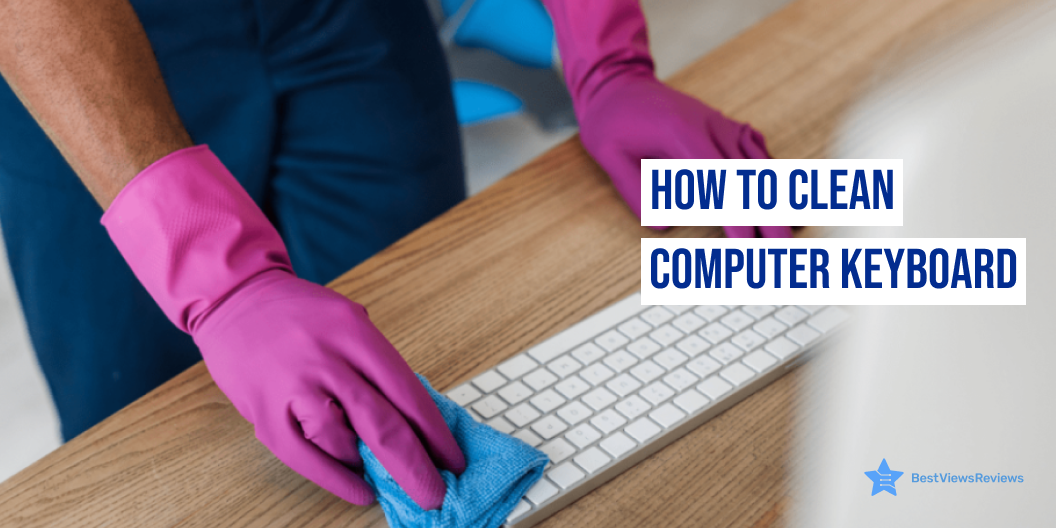
A keyboard is an important computer component that is used to give manual inputs. Keyboards are often prone to getting dirty and some chunks of dirt land inevitably in the gaps and crevices. It can hamper the efficiency of your keyboard and that is why you should keep your computer keyboards clean and well maintained. A deep cleanse with the appropriate cleaning supplies can help you scrub your keyboard inside out.

Steps on How to Clean a Computer Keyboard?

Turn it Upside Down

One of the most obvious steps is turning your keyboards upside down and tapping on the underside to get rid of all the easily removable junk.

Unplug your keyboard and hold it onto a surface where you want to collect the dirt and start tapping at different angles to get the loose stuff out. If you have a keyboard with removable keycaps, remove them and then shake the keyboard for efficient removal. 

Use a Brush

There are many cleaning kits available in the market to clean your dirty keyboards. One of the best tools is a nylon cleaning brush or simply a discarded standard toothbrush that can help you effectively remove the stubborn dust from in between the keys. 

You can use soft brushes to clean Bluetooth keyboards like seenda Backlit Keyboard. This wireless model has got good reviews for its quiet and comfortable keys. You can take a look at our blog to know how to install a wireless keyboard.

Use Canned Air 

Canned air is essential to blow out the dust without a lot of effort. You can eliminate the dust by blowing the air which gets stuck under the keys. You need to be careful while doing this so that the dust doesn’t splatter all across the place.

Remove the keycaps to force out the dust and repeat step one again so that the pieces which were left before come out now easily. 

Use Cleaning Gum

Cleaning gum with a strong adhesive picks up dust by easily reaching the smallest cracks. It can suction crumbles and other small bits and pieces of food. You can also reuse the blob until it turns gray. 

Wash Key Caps 

Mechanical keyboards with removable keycaps are simple to clean. Take a picture before removing the keycaps, so that you know which one to place where when you are done with the cleaning.

Soak keycaps in a container full of soapy water to clean them efficiently. Scrub them with a small piece of cloth after soaking them for a long time. You can let them air dry as you do not want any water to go into your keyboards. Only wipe the non-conductive parts whenever you are cleaning your keyboard or mouse so that you don’t get any water in the switches or the circuits. You can read through our blog to know how to unlock a locked laptop keyboard.

The reviews of Arteck HB030B show that it is easy to clean. You can use a soft towel dampened with alcohol to clean this model. Make sure you keep it off before cleaning.

What Happens When You Don’t Clean Your Keyboard?

Your keyboard can become a host of bacteria and germs when you don’t clean your keyboard. This bacteria can make you sick and if you touch your face after touching your keyboards, it can also cause skin infection. The proper cleaning is important for the proper functioning of your keyboard. The keys on keyboards can get clogged and may not work smoothly.

How Often to Clean the Keyboard?

You should clean your keyboard, like OMOTON iPad Keyboard at least once or twice a week. It is good to use a damp cloth to wipe off the keys when you are cleaning regularly. The deep cleaning can be done once a month, depending on your usage. You won’t require deep cleaning of your keyboards soon if you are cleaning your keyboards on a weekly basis.

What Can You Use to Lubricate a Keyboard?

You can use dielectric grease, lube dry film lubricant, and olive oil to lubricate your mechanical keyboards. Consider looking for lubricants that do not dry out soon after the application. It is not essential to lubricate your keyboards, but it will improve the performance of keyboard keys by reducing friction. Make sure you don’t over-lube your keyboards.

Conclusion

Cleaning a keyboard is fairly easy if you know all the right steps. You can look for substitutes for some cleaning tools and wipe your keyboard routinely for a clean and shiny appearance. Many tools are easily available inside our homes. Maintaining your computer peripherals is essential for its smooth functioning. You can also reset your keyboard to its default settings if it is not working smoothly.

BestViewsReviews rates and reviews the best PC gaming keyboards based on their popularity, quality, performance, and durability.

Resetting a Keyboard to Its Default Settings

how to reset keyboard

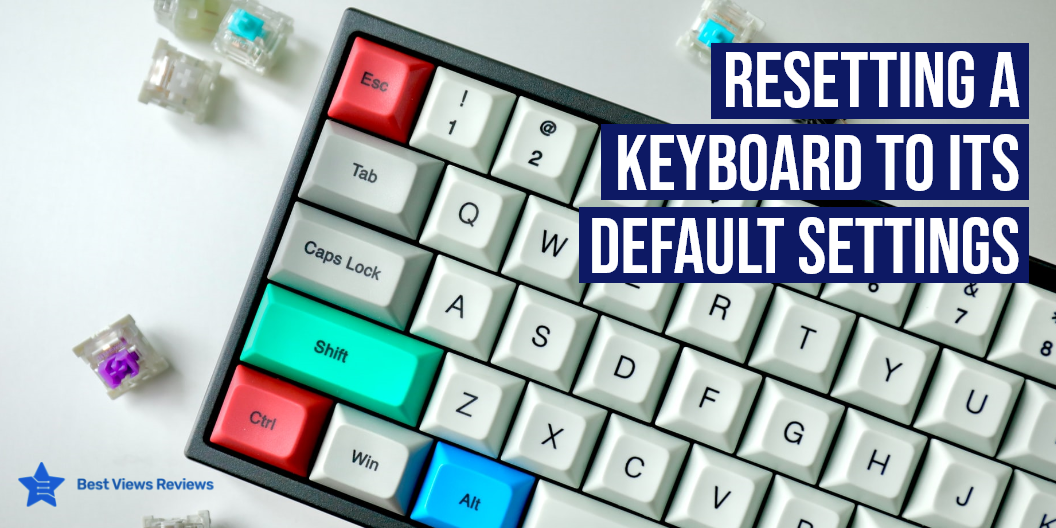
A keyboard is a flat piece of metal, plastic, or glass, with a bunch of keys that have specific symbols on them. Keyboards have been a part of computing since the start of the personal computer. A keyboard can be triggered by problems like the malfunctioning of the keys, unresponsive key functions, or other problems like lagging, etc. It is good to know how to reset the keyboard because resetting a keyboard to its default settings many times fixes such problems easily. Modern keyboards are easy to reset than best-quality traditional keyboards.

Sometimes you can even face problems like locked up laptop keyboards. To get this issue solved you can read our blog on how to unlock a locked laptop keyboard.

How To Reset A Keyboard To Its Default Settings?

Identify the Problem

You should identify the problem first before resetting. It could be a hardware problem or a software problem. Press Windows +R to check that. Type MSCONFIG and click OK once the run function starts. This will launch the configuration of the system. Press the boot options next under the boot tab and hit OK.

Your system may restart after this. This will place the windows in safe mode. The only essential program usually operates in this mode. The problem lies in the software if your keyboard is responsive under this mode.

We can reset the best-rated keyboard in the following ways. It comes with a refined scissor mechanism that delivers a tactile, comfortable, and silent typing experience. The FILCO Majestouch Ninja TKL Cherry MX Blue Keyboard is a good option that you can consider if you are looking to buy a keyboard.

Reinstall the Keyboard

  • Open control panel
  • Click on hardware and sound, then devices & printers
  • Click on the device manager
  • Once there, expand the keyboards and uninstall the device by right-clicking the icon.
  • Restart the system so that the changes can get reflected.
  • Installing the keyboard also has a simple process. You can read our blog to know how to install a keyboard in case you are facing any problems.

You can check model like Microsoft Type Cover for Surface Pro that features an improved design with slightly spread out keys that offers an efficient typing experience.

Adjusting the Settings

  • Open the control panel
  • Search the word keyboard
  • Use the keyboard properties button to adjust the response time of each key using the sliders
  • Click OK. For additional settings, you can go to window settings, ease of access, and keyboard.

Resetting the Language

  • Open the control panel and select the language
  • Select your default language
  • Select a new language and add it to the list if you have selected multiple languages
  • Make it a new language and then choose the old one again if you have one primary language
  • This will reset the keyboard to its default functions

Reviews of Logitech EasySwitch K811 Wireless Bluetooth Keyboard claim that it is one of the best portable and compact keyboards on the market.

How To Reset Keyboard Setting On MAC?

You can rest keyboard settings on MAC by following these steps:

  • Go to the upper left corner and click on the Apple icon. Select system preferences after that.
  • The next step is to click on the keyboard
  • Go to the bottom right corner of the keyboard and click on the modifier keys
  • Select restore defaults after that and click OK

How To Hard Reset Keyboard?

  • Unplug your top-quality keyboard and wait for 30 seconds
  • Press the Esc key after that and plug your keyboard back into the computer
  • Hold the Esc until you see your keyboard flashing
  • You should be able to perform a successful keyboard hard reset with these steps

There are many types of keyboards available these days with the latest technologies like the Logitech Illuminated Ultrathin Keyboard K740 comes with laser-etched backlit keys that make it easy to see in dark or low-light conditions.

Conclusion

Keyboard settings automatically change owing to software updates or changes. Changing the keyboard settings to default will set everything back to default and make unresponsive keyboards effective. Call a technician if none of the above works. Remember it is also important to keep your keyboard clean. You can also read our blog to know how to keep your keyboard clean.

BestViewsReviews rates and reviews the best-reviewed keyboard and top-selling PC gaming keyboards on the basis of quality, convenience, and durability.