Types of USB Printer Cable: How to Use Them

USB printer cable

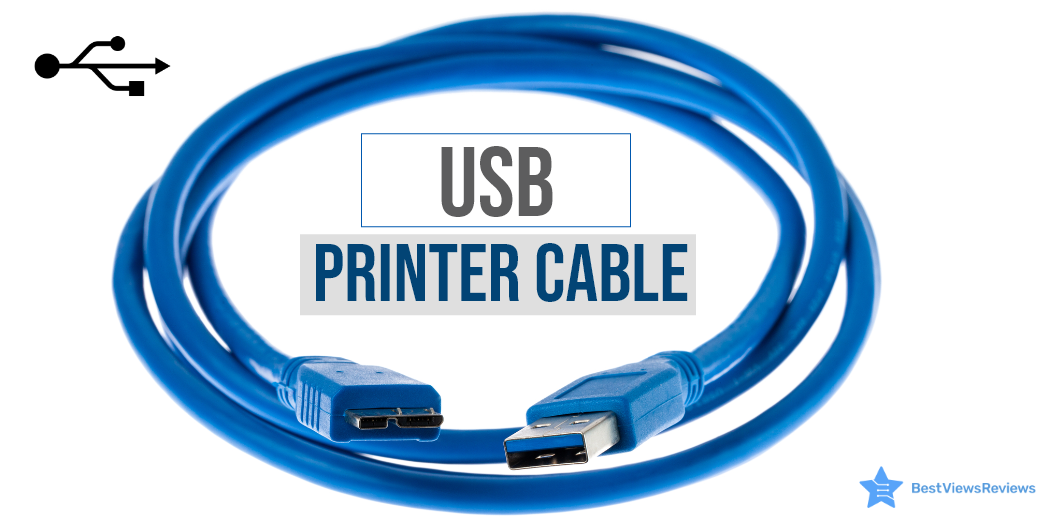
A USB printer cable is a type of printer cable that is used to connect a printer to your CPU or desktop computer. It transfers data and commands from the computer to the printer. This cable is an AB-type cable and has two connecting ends; A and B. The USB-A end is flat-shaped and can easily be plugged into the computer USB port. The USB-B end is for the printer and has a square-shaped structure with curved edges.

Most USB printer cables have USB 2.0 capability and can transfer data at a high speed of up to 480 Mbps. Printer cables come in different types. This blog intends to highlight the different types and uses of printer cables.

Printers are also useful devices that help you in your school and work projects. You can read our blog on everything about inkjet printers to learn more about them.

What Are the Types of Printer Cable?

Printer cables are available in mainly 3 types; the USB cable, the Parallel cable, and the Serial printer cable.

USB Printer Cable

The USB printer cable is widely used in modern printers and computer systems. It is easy to connect and transfer data at a much higher speed than its other types. This cable is compatible with operating systems like Mac, Linux, and others. It comes in different lengths and can be extended using a USB extender.

Parallel Printer Cable

The parallel printer cable is a little outdated but still used in many traditional printers. It has two ends, one is Centronics and another is DB-25. The Centronics end has a 26-pin plug, while the DB end has25 a pin plug. This cable is good for connecting dot matrix printers to your computer systems.

Serial Printer Cable

The Serial Printer Cable has a D-25 pin end that connects to the printer and a D-9 pin end that is connected to the computer. It transfers data seamlessly, but the speed of this cable is around 2mbps. The compatibility of this cable can also be a problem.

You can also read our blog to know about the Most Reliable Printer Brands available in the market in case you are looking for a printer. It will help you to make an informed buying decision.

How Do I Use a USB Printer Cable?

Connecting your printer to your computer is easy. You can set up your device in just a few minutes. Follow the below-listed steps.

  • Shut off your computer and keep the power button OFF
  • Hold the end that will go to your printer’s port. It is B-end
  • Firmly plug your cable into your printer
  • Plug the other end, i.e. A-end into your PC
  • Start your printer by pressing the power button

Can You Test a USB Printer Cable?

The answer is yes. You can test if your USB printer cable is in working condition or not. There can be many reasons for your printer to not connect to your PC. It can be a faulty slot, USB cable, or hardware device.

Your USB cable is working fine if your desktop pops up with a notification of a successful hardware connection. You should plug your USB cable into another port if you do not see any such notification. If this doesn’t work, you should try connecting with another USB cable.

You can also check with other hardware devices or printers to check for your printer failure. This will help you understand if the problem is with your cable, slot, or hardware.

Buy USB Printer Cables

Amazon Basics USB Cable***

The Amazon Basics USB Cable is a high-speed transfer cable that connects printers, cameras, and external hard drives to your computer system. This cable is  6-foot-long that allows you to set up your printer with ease. It has multi-layered, corrosion-resistant construction that minimizes external interference.

JSAUX 6.6FT USB Printer Cord

The JSAUX 6.6FT USB Printer Cord is an AB-type cable that is compatible with most printer brands including HP, Canon, Dell, Epson, and Samsung. This is a nylon braided cable that makes it tangle-free and ensures high durability. The length of this cable is  6.6ft and can connect with the scanner, printer, server, and camera.

NC XQIN USB Printer Cable

NC XQIN USB Printer Cable is compatible with common devices with USB type B connectors like Arduino, Blue, Brother, Canon, CyberPower, Dell, etc. The twisted-pair construction of this cable helps reduce cross talk thus ensuring high-speed, error-free data transfer. It also comes with foil and braid shielding reduces EMI/RFI interference.

UGREEN USB 2.0 Printer Cable

UGREEN USB 2.0 Printer Cable is ideal for connecting your scanner, printer, server, hard drive, camera, piano, and other USB devices. The foil/braid shielding of this cable makes the SB 2.0 Male to USB B Male cable cord offer long-term performance. It also provides a more stable data transmission as well as offers a more efficient work way for you.

Ruaeoda USB Printer Cable Cord

JSAUX Printer Cable is great for your scanner, printer, server, or camera. It is constructed with corrosion-resistant, gold-plated connectors for optimal signal clarity as well as shielding to minimize interference. This premium nylon braided cable adds additional durability and gives you a tangle-free experience.

Conclusion

A printer cable is an important unit to connect your printer to your computer device. Buying the right printer cable as well as the top-rated computer cable is crucial as it can affect your productivity and efficiency. A USB printer cable is popular for its speed and compatibility. You can go with any type based on your computer and printer requirements. Make sure you check the ports of your cable and printer, carefully.

Inkjet printers have added features like good printing quality, speed, technology, etc. which make them a quite sought-after option. Read our blog and know the best inkjet bluetooth printer of 2022.

BestViewsReviews rates and reviews hundreds of best USB hubs and top-rated USB adapters based on their connectivity, length, and compatibility.
Mini Printer: Do You Need One?

mini printer

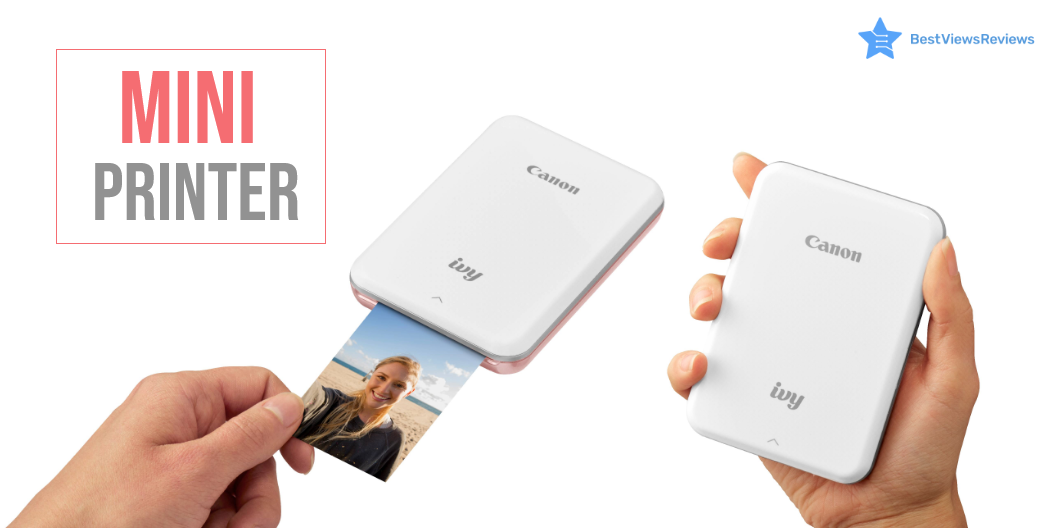
A mini printer is a common sight in retail, hospitality, transportation, or logistics. A printer pairs with a tablet or a card reader. It is small, portable, and connects to your smartphone or other devices. It allows you to print real copies of your digital images in seconds. There are various mini printers available. Some are superior to others in specific capabilities or applications. We have a dedicated blog on reliable printer brands. Visit our blog to discover an exciting list of reliable printer brands.

Is a Mini Printer Worth it?

Yes, a portable printer is worth the price as it fits in a coat pocket, purse, or handbag. It requires minimal setup. A mini printing machine allows you to print high-resolution tangible copies of images.

How Does a Mini Printer Work?

It operates in the same way as its larger counterparts. It relies on an operating system or drivers to function. The printer captures the data sent from devices like computers, smartphones, and cameras. It allows you to process and print instantly. It can print documents at a speed of 23ppm. The print resolution is usually higher than the standard 300 to 1200dpi (dots per inch). Read our blog on DIY printer repair hacks in case of troubleshooting the printer.

What Is the Size Of A Mini Printer?

A mini printer is available in a compact size of 8.5-inches x 11-inches. It is lightweight, portable and, compatible with the majority of your electronic devices.

Does a Mini Printer Need Ink?

A mini printer uses ZINK Zero Technology, which eliminates the need for ink in printers. They instead contain ink layers in the paper itself. When the image prints, the ink mixes through a pressure-based process. Zink creates prints that appear like the ones you get from a professional printer.

Buy the Best Mini Printers

Canon imageCLASS LBP6230dw

Canon imageCLASS LBP6230dw can print up to 26 pages per minute. The space-saving and compact design of this printer make it suitable for home and office purposes. The all-in-one single cartridge system of this printer combines the toner and drum into one unit that makes cartridge replacement simple. This printer is compatible with  Windows 8.1, Windows 7, Windows Server 2012, Windows Server 2008 R2, Windows Server 2008, Windows Vista, Linux, Citrix.

HP DeskJet 3755

HP DeskJet 3755 printer comes with instant Ink ready so you’ll never run out of ink. The smart app of this printer allows you to easily set up your printer and scan from your smartphone. The small size of this printer is designed to fit in compact spaces.

Canon Pixma TR150

The customer reviews of the Canon Pixma TR150 printer claim that its built-in wireless technology delivers seamless connectivity. It comes in a compact and lightweight design that makes it easy to store and carry. This printer features PIXMA TR150 that prints sharp documents and vibrant photos.  It also features a 1.44-inch OLED display.

HP OfficeJet 250 

HP OfficeJet 250’s reviews show that it comes in a portable design that makes it easy to store and carry. The built-in touchscreen of this printer allows you to print, scan and copy quickly and easily. It also features an HP ePrint app that helps to easily connect to the printer via Bluetooth or Wi-Fi. This printer is also compatible with Alexa.

Brother Compact Monochrome Laser Printer

Brother Compact Monochrome Laser Printer features flatbed scan glass that offers quick copying and scanning. The 250 sheet paper capacity of this printer improves efficiency due to less time spent refilling trays. The wireless technology of this device allows submitting the print jobs from the laptop, smartphone, desktop, etc.

Inkjet Bluetooth printers are capable of printing, scanning, faxing, copying, etc. They are wireless and convenient to use. Read our blog on inkjet Bluetooth printers to know more about them.

Conclusion

Mini printers have become useful in recent times owing to the work-from-home situation. Their portability, functionality, as well as efficiency, have made them popular with professional photographers. They are great for printing photos while you are traveling. They need less space in your suitcase.

BestViewsReviews rates and reviews hundreds of computer printers and inkjet printers on the basis of their compatibility, print quality and build quality.

All You Need to Know About Small Printer

small printer

A small printer is a portable device that works on the same principle as that of an inkjet or laser printer. It has small dimensions, measuring around 6 inches wide by 18 inches deep by 10 inches tall. The dimensions can vary as per brand and manufacturer. This device is easy to use and set up, which makes it an ideal buy for your home office space. The compact size, lightweight design, and connectivity features are the primary reason behind its increasing popularity.

Buying a small printer is not that easy. It requires considerable time, effort, and research. To make your shopping experience hassle-free, we have crafted an informative guide, below. Check it out.

What to Consider When Choosing the Best Small Printer

Wired vs. Wireless

A small printer is available in wired as well as wireless technology. The wireless connectivity is good for portable handling and keeps you away from the clutter of wires and cables. This device can be connected via Bluetooth or Wi-Fi. Some models also feature a Wi-Fi direct option that connects with local computers and smartphones easily.

Wireless connectivity is undoubtedly a convenient way of connecting your printers, but it can be slow too. There are always some chances of network interference, network error, or a lag in connection. A wired connection requires cables and wires, but it often delivers fast and accurate results.

Quality

The quality of the printer is denoted in Dpi terms. Dpi is dots per inch that a printer forms to create a good-resolution print. In simple words, a high dpi number will mean a higher print resolution. Inkjet printers usually have a dpi ranging from 300 to 720, while laser printers have better resolution capabilities with 600 to 2,400 dpi.

Inkjet printers can print colorful and high-quality photographs. Laser printers are ideal for printing detailed and precise text. Check the dpi of your chosen model before you purchase it. Choosing between laser and inkjet printers can be tough. Read our blog to know if a laser printer is better than an inkjet printer.

Speed

The printing speed matters in deciding the right model. Laser printers like Brother Compact have good printing speed and can print from 20 to 100 pages per minute depending upon the model and print size. The inkjet printer can print about 16 pages per minute. Check the tray space of the printer you want to purchase as well since a larger tray will result in less frequent reloading, but it may result in increased printer size.

Maintenance Cost

Maintenance cost mainly includes ink or toner replacement costs. The maintenance cost can be more with a laser printer, but the per-page cost for printing is comparatively less. This is because a laser printer can print up to 7000 pages in one toner, while an inkjet small printer can give only 135 to 1,000 pages. The reviews of Brother Compact Monochrome show that this model can easily print around 2000 pages in one toner. Whatever model you select, make sure you check the maintenance cost, running cost, and overall cost that you may have to face in the long run. Read our blog to know about common printer problems and their easy fixes.

Connectivity

Other than a wired and wireless connection, you should check some other connectivity features too. Some models can connect with smart home systems and audio control devices like Alexa. This offers better convenience and ease of use. They also have separate SD card ports to support external storage access. It allows you to print your photos directly from your SD card.

Portability

The main idea behind a small printer device is portability. You should look for models like Canon® SELPHY™ CP1300 that are easy to carry and have lightweight designs. You can check for exact dimensions in the product description section. The model you buy should not weigh more than 5 or 6 pounds.

What Smart Features Do a Small Printer Have?

A small printer can have a lot of advanced features depending on the brand and type. Some models can connect to built-in apps for providing convenient and wireless usage. The LED display with a touch control feature lets you give quick and accurate commands. You can also track and monitor ink levels in various small printer models.

How Long Does a Small Printer Last?

A small printer device can easily last around 3 to 5 years, but with proper care and maintenance, the overall lifespan can be increased. Most models come with a limited warranty of 1 year, but the premium models can include an extended warranty of up to 3 years.

What Is The Best Small Printer For Home Use?

The HP DeskJet 3755 is the best small printer for home use. It has a compact and lightweight design with Bluetooth and Wi-Fi-direct wireless connectivity features. This printer comes with a sheet output tray that can hold up to 25 sheets at a time. The input tray can contain up to 60 sheets. It measures 15.86 x 6.97 x 5.55 inches in size and weighs just 5.13 lb.

The Canon Pixma TR150 Wireless Mobile Printer has also got excellent reviews for convenient home usage. It comes with wireless capabilities and can print directly from your smart devices or phones. This model features a 1.44-inch OLED display and an optional battery.

Conclusion

A small printer is a compact, yet useful device for your regular home-office tasks. This printer fits in your compact workspace and quickly delivers high-quality prints. The operation is mostly smooth and quiet. It is good to know all about inkjet printers before choosing any model. We recommend you buy models that are from trusted and reputed brands.

BestViewsReviews rates and ranks hundreds of computer printers on the basis of build quality, print quality, and ease of use.

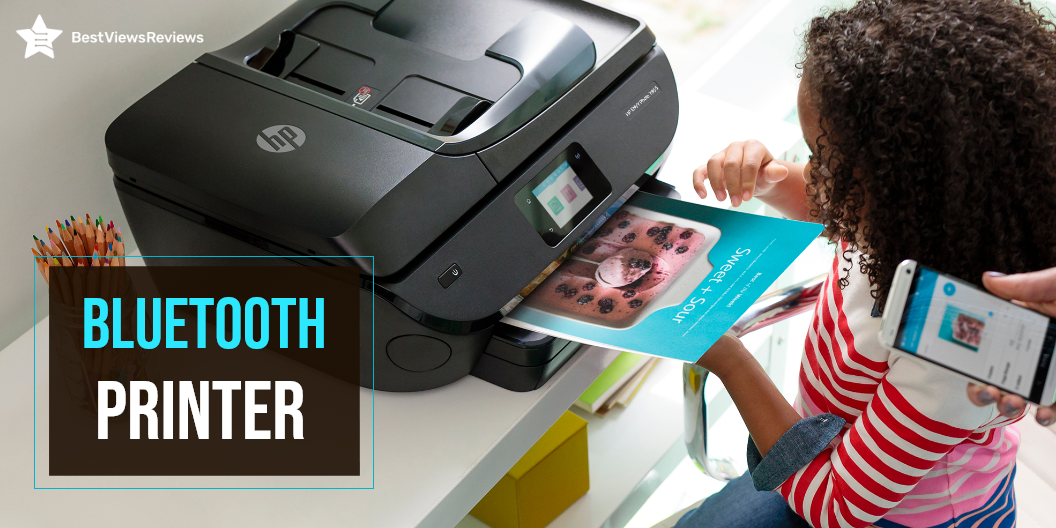
All You Need to Know About Bluetooth Printer

Bluetooth Printer

A Bluetooth printer is a wireless printer that connects to a computer or other Bluetooth device. It can then print conveniently. A Bluetooth printer is different from a printing device. A printing device connects to the computer via a USB cable.

The Bluetooth printers can print wirelessly from your computer. A printer connected via Bluetooth supports the ability to print to multiple devices at once. If you are on the lookout for a regular printer, BestViewsReviews has shortlisted the top-rated inkjet Bluetooth printers. They are reviewed on the basis of print quality, compatibility, and support.

How Does a Bluetooth Printer Work?

Printers use Bluetooth technology to enable wireless and cordless printing. The computer can send print jobs directly to the Bluetooth printer without wired connections. You may send print jobs at a data transmission speed of up to 3 Mbps. The speed is fast and can connect to any location. It will be possible to print from many PCs to a single printer using this Bluetooth network. This printer network will function similarly to a network created using your house Wi-Fi.

How Do I Connect to a Bluetooth Printer?

Step 1: Check the Compatibility

Check to see if your printer supports Bluetooth. There are printers that support Bluetooth, and there are others that require an adapter. You can buy Bluetooth printer adapters online or at electronics stores for an affordable price.

Step 2: Connect the Adapter

Set up your adapter. It will install itself to connect one end to your computer and the other end to your printer.

Step 3: Active the Printer

Activate the printer. Ensure it’s plugged into a functional socket and that the printer’s electricity is switched on ideally.

Step 4: Activate Bluetooth in the Computer

Switch On your computer and open Bluetooth devices. Next, move to the control panel and open Bluetooth Devices after you’ve installed your Bluetooth adapter.

Step 5: Connect the Printer to the Computer

Add a printer to connect to the Bluetooth printer. This method is less secure but is simple to understand. Tick the “Turn to discover on” and “Allow Bluetooth devices to connect to this computer” in the settings tab. The printer and computer should automatically detect each other and begin operating.

Step 6: Add the Device

Add the device manually. Select “Add Device” from the device’s menu and follow the installation tutorial to locate your printer.

Step 7: Final Installation

Use the wizard to “Add Printers.” You may also add a printer by going to “Start” and selecting “Printers and Faxes,” then “Add a Printer.” When the wizard appears, pick “Bluetooth printer,” and Windows will automatically look for your printer. If you are not able to connect, read our blog on how to troubleshoot a printer.

Can you Use a Bluetooth Printer without Wi-Fi?

You can use Bluetooth to transfer data from one device to another without a Wi-Fi connection. Several devices require Wi-Fi to function properly. There are some Bluetooth devices that do not work without Wi-Fi. You might need to use Wi-Fi to transfer documents from your computer to your printer over a LAN. You do not need a Wi-Fi connection if you have a Bluetooth printer.

What is the Cost of a Bluetooth Printer?

Bluetooth printers range in price from $25 to $75. You pay according to how much ink you put into your printer. Bluetooth and Wi-Fi are both wireless solutions. There are two primary reasons these technologies differ. You may get equivalent print output if you buy compatible ink cartridges – you could save up to 60% by doing so.

Check the type of ink cartridges–or refill options–available when buying a new Bluetooth printer. The alternatives you can choose from depending on the model and feature you are using. You may need a refilling kit for some ink cartridges. Kits like this can save you money while also serving as a fail-safe if you run out of ink when you least expect it.

Is a Wireless Printer the Same as a Bluetooth Printer?

No, they both differ in the following ways.

Range

Since Wi-Fi has a range of around 300 feet, you may put your printer in a central location where everyone can use it. It will allow you to keep your printer close to your Bluetooth-active devices. •

Transmission rate

Wi-Fi transmits data at a fast 55 Mbps. It allows you to print rapidly and deliver larger files to the printer without slowing down the network. Bluetooth is a little slower than Wi-Fi, but it’s widespread in portable devices like cell phones and digital cameras.

Buy Best Bluetooth Printers

The Kodak Bluetooth Printer

The Kodak Dock Plus lets you create and share with ease. Connect a compatible iOS or Android device and print directly from your phone or tablet. You can use the free Kodak Smile app to edit and enhance your photos. This instant printer uses 4pass technology to print flawless photos instantly. You can also print and share via text, email, or social media.

HP ENVY 5055

The HP ENVY 5055 is compatible with iOS and Android devices. You can print through your Smartphones and tablets. The printer supports Bluetooth and Wi-Fi and allows you to print directly from your computer or the cloud. It has a wide range of printing paper support, including 4 x 6 inches, 5 x 7 inches, and 8 x 10 inches. This printer has got good reviews for its Auto-Duplex technology that prints on both sides of the paper.

HP OfficeJet 250

The reviews of HP OfficeJet 250 show that it is an all-in-one portable printer that can scan, copy, and meet your portable printing needs. It supports various sizes to print letters, legal statements, envelopes, and photos. This printer has a 2. 65″ color touchscreen, auto document feeder, and more. The Bluetooth printer is compatible with Windows, Mac, and Linux.

Canon Pixma TS6320

The Canon Pixma TS6320 print, scans, and copies with ease and efficiency. This printer has a mobile printing solution that enables you to print directly from your Smartphone or tablet with the Canon PRINT app. The PIXMA printer can print up to 15 pages per minute in black and white. It also has auto 2-sided printing for convenient copying and scanning. The printer features an auto-duplex printing feature that saves paper and ink. It has got good reviews for its 1.44” OLED + LED status bar.

HP OfficeJet 5255 Wireless All-in-One Printer

The HP OfficeJet 5255 Wireless All-in-One Printer has a 35-page auto-document feeder and automatic two-sided printing that offers convenience. It comes with the HP Smart app that allows you to print and scan remotely. This model has Dual-band Wi-Fi for a stable and reliable wireless connection.

Key Takeaway

Bluetooth printers are convenient, easy to use, and efficient. It’s, however, important to be aware of security concerns. You must create your own Bluetooth password for every network you create. Data is only accessible to authorized users, thereby reducing the risk that sensitive information is lost or misused.

BestViewsReviews helps you find the best products on the market by rating and reviewing them on the basis of print quality, function, and user satisfaction. Get unbiased, honest reviews of products before you buy.

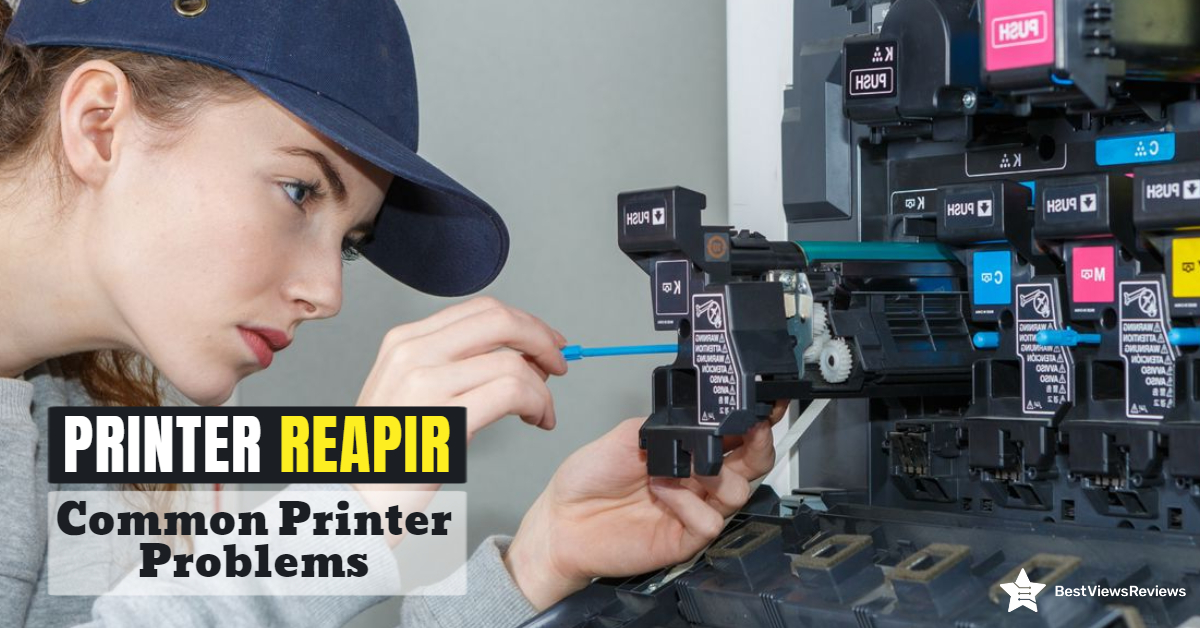
Printer Repair: Common Printer Problems

Printer repair

Businesses and households alike require printer repair services. The printer produces many items, including books, brochures, posters, and pamphlets. It can often experience common problems or can start malfunctioning. You can repair your printers even using basic troubleshooting methods in such cases. The printer’s improper operation can affect your productivity and work quality.

We have covered a variety of common printer problems and some easy printer repair methods in this blog. Reading this will help you fix your printer without any professional help.

What Are The Common Printer Problems And How To Troubleshoot These Printer Problems?

Printers can house so many problems but you can fix most of them with basic troubleshooting and printer repair methods. For example, when you are trying to print an important document, the printer can print blank pages. The printer can also take a long time to print your document. A list of common printer issues and the likely solutions are given below.

Printer Repair When the Printer Is Not Turning On

It can be a common problem with any branded printer. When the printer doesn’t turn on, it can be because of many reasons. First, you need to check if the wall outlet is working well. You can check it by plugging in some other electric device and see if it’s working. If your wall outlet is fine, you can try to restart your printer after 30 to 45 minutes. The problem can also be in your printer’s power cord.

Paper Jam

Printers are great until they jam. Sometimes an overfill paper tray can cause a paper jam. It is also possible for these errors to occur if we feed the paper incorrectly. Foreign particles like dust can also cause it. To treat this problem, you can fan your printer to clear out all the dust or dirt. You can remove the stack of paper and re-insert them manually. Feed thick sheets or papers through a bypass tray. You can read through our blog to learn about printer jam causes and solutions.

Reviews of Brother Compact Monochrome Laser Printer show that this model is less prone to frequent paper jams.

Prints Slowly

It is possible for the printer to print slowly if there is a lot of printing going on. There may also be another reason, such as setting the output print quality above the standard mark or using the printer in duplex mode. You can reset your printer’s settings from advanced to basic. Make sure your printer doesn’t take remote print commands from multiple devices at the same time. The Epson WorkForce WF-3520 has got good reviews for printing from multiple devices like tablets, computers, etc.

Printing Faded Documents

All printers, including inkjet printers like HP DeskJet 2755e, are prone to become less productive as time goes on. The ink runs out, the print heads start clogging, and you can no longer print high-quality print copies. Faded prints can be because of low toner level, low-density settings, or print head blockage. You should check if your ink cartridge is fully loaded.

Increase the toner density settings of your printer. If your printer is still printing faded documents, the possibility is high that the ink cartridge is blocked. You can clean the ink cartridge 3 or 4 times at an interval of 2 hours. Once done, re-install the ink cartridge properly.

Printer Repair if Not Connecting to Wi-Fi

There are plenty of reasons a printer like Epson EcoTank ET-2760 may not be connecting to your Wi-Fi network, but the most common reason is that the printer is on a different network than your router. Put the printer on the same network and it should connect with no problems. You should also check your router settings and specs. Make sure it supports 802.11n and offers connectivity of a 5GHz band. The reviews of Canon Pixma TR150 claim that this device supports USB and cloud printing.

Printer Repair when Printing Documents With Streaks

Printing documents with ink streaks is a common problem that many people have experienced. The basic cause of this problem is the use of low ink cartridges or improper release of ink from the ink cartridges. You can replace your low-ink cartridges. If it doesn’t help, you can clean your cartridge and then reinstall it.

Conclusion

A new printer can cause several problems. It can get clogged, it can start printing with streaks, and many more. When you know simple fixes to these problems, your life becomes easier. We have explained some common problems and printer repair methods. Following them will help you keep your printers in a well-working state.

We suggest if your printers do not get fixed with basic troubleshooting, replace them with a new inkjet printer model. Read our informative buying guide on the best inkjet printers.

BestViewsReviews rates and ranks hundreds of printers based on tech support, value for money, ease of use.

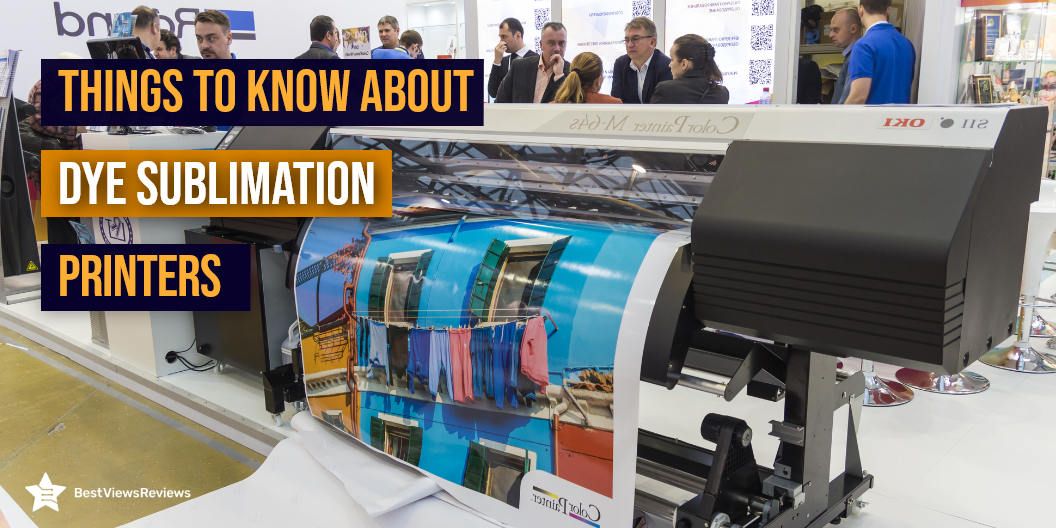
Things to Know about Dye Sublimation Printer

Dye Sublimation Printer

Dye Sublimation Printer (DSP) or Dye-Sub Printer is a type of digital printing machine. It uses a high-quality printing method and lower production costs. DSP offers high-quality images and is popular in textile printing, packaging, and label printing.

A Dye Sublimation Printer can print any image with the use of various inks. It is safe, low-cost, and reusable, so you do not need to buy new ink every time you want a new design. The print head on a DSP produces images with high resolution. This process produces detailed as well as realistic designs.

How to Choose the Best Dye Sublimation Printer?

Size

A Dye Sublimation Printer can print in sizes of 8.5″x11″, 8.5″x14″, 11″x17″, and 13″x19″. The larger ones can print on sublimation paper rolls with widths of 24″, 36″, 42″, 44″, 64″, and 104″.

Ink

The process for dye sublimation uses a specific ink called disperse dyes or dye-sub inks. When a Sublimation Printer transfers graphics from paper to fabric, the ink goes from a solid to a gas state.

Cost

A DSP is suitable for home and professional use and costs about $300 for a simple model. The high-end one can cost around $600. Larger printers used for mass production can cost up to $10,000.

Colors

Choose your printer based on the quality of your prints. The DSP printing colors are blue, magenta, yellow, black, light blue, and light magenta. All of them make sharp as well as clear digital images on special DSP-friendly paper.

What Material can You Sublimate On?

A DSP is ideal for printing on polyester as well as polyester blend clothes. The image will not be as persistent on other materials like cotton and silk. DSP printing on them is thus, not advisable.

How Long does Sublimation Ink Last?

A sublimation ink used by a DSP has a shelf life. Color shifting, head clogs, and banding can occur if you leave it unused for long. It is advisable to change the cartridge within six months of installing the ink. Printing past the use-by date is fine, but it may cause printing issues within a short period. Read our blog and know everything about inkjet printers in detail.

Is a Sublimation Printer Worth It?

Sublimation printing is an efficient and quick method of printing on fabrics. This process has been popular due to its low production costs and quick results. Although popular the process causes environmental deficits with the printing paper it uses. These papers come from trees causing an environmental imbalance and it is not recommended as a long-term solution.

How Much is a Dye Sublimation Printer?

A Dye Sublimation Printer can cost between $300 for a small home model to $600 or more for an advanced model. A commercial-grade DSP can cost up to $10,000.

Buy the Best Dye Sublimation Printer

We have a list of reliable printer brands that deliver quality products and satisfactory services.

Epson WorkForce WF-3520

The reviews of Epson WorkForce WF-3520 are positive because of its great price. It contains a 2.5-inch LCD display and a touch panel, making it simple to use. It has both wired and wireless connectivity, making it easy to connect. This printer has a 250-sheet paper capacity. It has 40% lower printing costs as compared to color laser printers.

Canon Pixma TR150 Wireless Mobile Printer

The Canon Pixma TR150 Wireless Portable Printer is a small and elegant portable printer designed for professionals to use at home, in the office, and on the move. These printer is lightweight and compact, making it easy to carry in bags and backpacks. It comes with a 1.44-inch OLED screen. The Pixma TR150 makes printing convenient at any time and from any location.

Brother HL-L2320D Mono Laser Printer

The Brother HL-L2320D Mono Laser Printer has a high tray capacity that takes up to 250 pages conveniently. It features a USB 2.0 port that enables local connectivity. It has a manual feed slot for printing envelopes. The print speed is 30 parts per million.

DNP QW410 Dye-Sublimation Printer

The DNP QW410 Dye-Sublimation Printer employs a proprietary 4.5-inch print head to allow consumers to now print 16:9 wide-ratio photos. As per the reviews, it ranks among the most compact and lightest printers available in the global market today. The QW410 is equipped with an innovative mechanism that reduces the curl of the print, even while maintaining a smaller, compact footprint.

Mitsubishi Compact Digital Dye Sublimation Thermal Photo Printer

The Mitsubishi Thermal Photo Printer shows that it has an ultrafine matte finish feature that creates high-resolution, studio-quality, matte-finish photos on-site or in the studio. It is lightning fast which creates a 4×6-inch high-quality photo print in only 8.4 seconds. The printer’s efficiency is increased with a unique cooling system that helps regulate the temperature of the print head and the internal power supply.

Mitsubishi CP-K60DW-S Dye-Sublimation Printer

The Mitsubishi CP-K60DW-S Dye Sub Photo Printer is a compact and lightweight dye-sublimation printer. It requires minimal installation space and also incorporates the latest developments for the generation of high-resolution prints. This printer can automatically switch between 4×6″ and 6×8″ prints without any need to exchange the paper roll or ink ribbon.

You can visit our blog with tips on how to buy suitable inkjet printers that will help you choose the best printer.

Conclusion

Dye-sublimation printing is no more a complex and expensive process. The market has grown with more options and the equipment costs have dropped. Technology has also advanced, making the sublimation process easier. Today, you can find better printing quality at an affordable cost. Read our blog on the best inkjet printers and know about all the best inkjet printers in 2022.

BestViewsReviews ranks and reviews hundreds of top-quality photo printers and inkjet printers based on quality, convenience, and durability. Visit us to know your buying options.

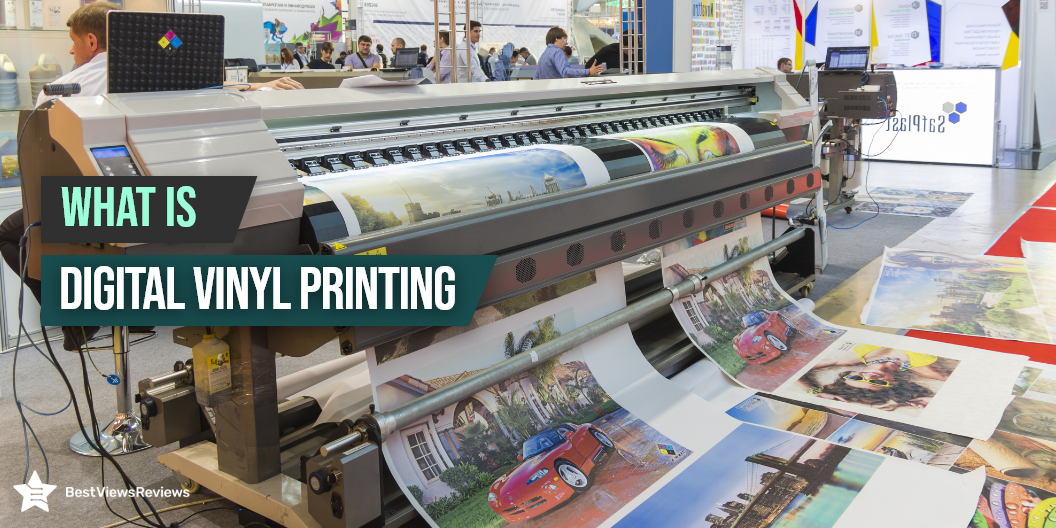
What is Digital Vinyl Printing?

Digital Vinyl Printing

Digital vinyl printing involves printing large images onto a substrate by using a computer-aided design program. You can get large prints on printable vinyl, cardstock, cardboard, and adhesive paper. Digital vinyl printing is a popular and growing technology. It uses wide-format inkjet printers as well as large rolls of printable vinyl sheets. They often have adhesive backs that can stick to walls or car surfaces.

Inkjet printers are also an essential office item. You can also read our blog to learn about the best inkjet printer.

Uses of Vinyl Printing

Large-scale printing makes it the ideal solution for printing banners up to a length of 200 feet. The technology is used to print sheets for car wraps, wall coverings, as well as home décor. Vinyl has a glossy finish. The prints are displayed in HD with crisp details. The printing of vinyl can also be used for floor laminates, stand-alone banners, and also as screen backgrounds.

Advantages of Vinyl Printing

Using vinyl printing has increased over the past few years. Printing vinyl has many advantages because of its various properties.

Vinyl printing uses waterproof ink that is durable. The prints are scratch-resistant and withstand heat, cold and harsh weather. It is a cost-effective advertising solution for most businesses as well as organizations. High-quality prints are produced by vinyl printing. Colors, as well as images, can be printed in sharp detail.

What Printer Do You Need for Vinyl?

Vinyl printing needs special printers or vinyl cutting machines for printing on large-sized sheets or rolls. It uses wide-format printers that work on inkjet printing and laser printing technology. Inkjet printers spray ink through nozzles to produce their prints. The laser printer also uses a beam of light for printing high-quality images at 600dpi.

Inkjet Bluetooth printers come with features such as printing, scanning, faxing, and copying as well as are perfect for small offices or homes. Go through our blog to know more about the best inkjet Bluetooth printers.

Which is Better Vinyl or Screen Printing?

There are many benefits of both screen printing and vinyl printing. Screen printing is the process of applying ink to a supporting substrate using a mesh screen. This method produces high-quality print on T-shirts, canvas, and also fabric. Vinyl printing can produce banners and durable prints for advertising and décor.

Difference Between Printable Vinyl And Regular Vinyl?

Printable vinyl and regular vinyl are used for vinyl printing. You can use any vinyl to get high-quality prints but the major difference comes during the installation. Printable vinyl comprises an adhesive back sheet with a white background. It is easy to install and affix to walls or other surfaces. Regular vinyl includes no adhesive back or surface background.

Can You Print on Vinyl With a Regular Printer?

The answer is yes. Printing on vinyl paper at home needs no special machine. You can use regular printers. The vinyl paper should have a coating that can hold ink colors. The size, as well as thickness of vinyl, are also important considerations.

We recommend using special vinyl printers for large banners and stickers. We have listed the top vinyl printers below.

Buy Digital Vinyl Printers

Delclynee High Pressure Heat Press Machine

Delclynee High Pressure Heat Press Machine comes with an ARM motherboard and 4M high-speed cache memory. It offers double spring pinch-rollers, and roughened steel roller to ensure that the paper feed will not deviate by a long distance. It also offers cutting speed with 20-800mm per second adjustable. You can also use it in the advertisement field, various decorations, handcraft, etc.

VEVOR Vinyl Cutter 34 Inch

VEVOR Vinyl Cutter 34 Inches comes with an illuminated LED screen and a large control panel. This device will offer you a sensitive as well as intelligent operation with an adjustable cutting pressure of 20 – 500 g, and an adjustable cutting speed of 20 – 800 mm / s.

Mophorn Heat Press Machine

Mophorn Heat Press Machine has a cutting speed of 10-800 mm per second. It comes with a backlight LCD display for easier handling of the working process of the sign cutting machine. The 2 pinch-rollers on this vinyl cutter plotter machine can be adjusted on the guide rail according to the different paper widths.

Dollate 12″ x 10″ Heat Press Machine

Dollate 12″ x 10″ Heat Press Machine is easy to operate. The odorless hotpress mat has a smooth surface that can be applied to various hot pressing work. It also comes with a Teflon sheet. The swing-away arm of this device makes the pressure be applied vertical as well as evenly on the T-shirts.

Conclusion

Digital vinyl printing is a cost-effective as well as an easy way to replicate artwork on vinyl records and sheets. The most common type of vinyl printer is an inkjet printer. Separate ink cartridges enable high-quality printing of colorful pictures on cardboard as well as vinyl.

Digital vinyl printing is a growing technology so, you can also start your business. You can also take help from mobile advertising platforms as they offer you a great way to reach potential customers and promote your business.

BestViewsReviews offers comprehensive and unbiased reviews of the top-quality computer printers, best inkjet printers and more. We’ll help you find the perfect device, appliances, products, essentials, gadgets, and sports equipment for your needs!

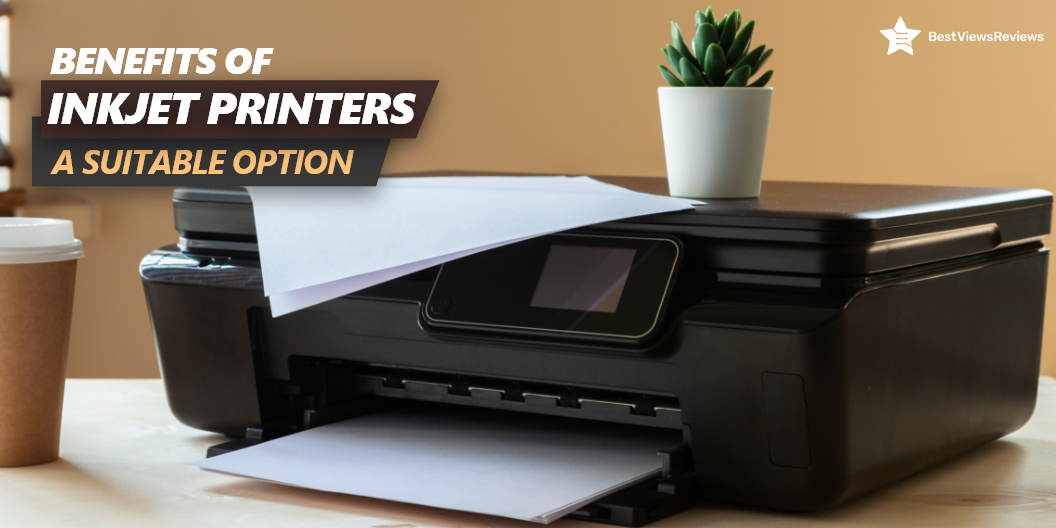
What Factors Make Inkjet Printer a Suitable Option?

Inkjet printer

An inkjet printer is a type of printer that works on inkjet printing technology. It prints digital pictures onto paper using ink droplets. The machine ejects the right amount of ink through nozzles or jets to get the required prints and texture. An Ink printer can print sharp and crisp images, matching the professional printing standards. It usually has a small-size toner as compared to laser printers, but often uses a continuous stream of ink.

This blog intends on focusing on some features of inkjet printers and the benefits you can reap by investing in a good inkjet printer. Know what to look for while investing, if you are planning to buy an inkjet printer. 

What is an Inkjet Printer Used For?

Inkjet printer is the common type of printer used in homes and offices. It is used to print colorful prints on adhesive sheets, hard vinyl substrate, or any other paper. The inkjet printer is popular in commercial printing, like printing advertisements and brochures. You can also use this printer to print college assignments, business documents, or a home shopping list.

Benefits Offered by Inkjet Printer

Affordable and Efficient 

The cost per page of an inkjet printer is less than other printers. The nozzle of the inkjet printer sprays the ink in a denser form to form an image or text. It results in less ink requirement and reduces operational costs of using the printer. To reduce your printing costs, it’s important to know how to fix common printer problems.

Ink Compatibility 

Most inkjet printers allow you to use alternate options of ink cartridges without compromising on quality. This reduces your operational cost as you don’t have to stick to original cartridges that come at a higher cost. 

Quality

Inkjet printers have a good name for being fast, reliable, and producing high-quality prints with crisp details. The ink-based prints of images and texts, created by the inkjet printers are often of high resolution.

Less Startup Time

An inkjet printer is a ready-to-print device. It doesn’t require preheating time to prepare ink cartridges. You can start using this printer, right after turning it ON.

Compact Size

The inkjet printer is available in a compact-size design. It is lightweight and portable, making it convenient to move from one workspace to another. It can easily fit in your small size workspace.

Buy Best Inkjet Printers

Epson Workforce Pro WF-3820

The reviews of Epson WorkForce WF-3520 show that it is a wireless inkjet all-in-one color printer that features print, copy, scan, and fax capabilities. It also comes with a 30-page automatic document feeder that lets you scan and copy multiple pictures or documents. It has an Ethernet port, a 2.7-inch LCD display, and a 250-sheet paper tray.

Brother MFC-J1205W

The Brother MFC-J1205W is a compact, high-quality desktop printer enhanced with features designed to deliver high-quality, professional documents, reports, and photos. It features a high-yield ink cartridge and a 150-sheet paper tray for perfect paper handling. This model has a printing speed of 16 ppm.

Canon Pixma TR150

The Canon Pixma TR150 is a compact, stylish, and all-in-one printer. It allows you to enjoy wireless freedom and easily print from your smartphone or tablet with the Canon Print App, Apple AirPrint(R), Mopria(R) Print Service, and Google Cloud Print (TM). The machine has an intuitive interface that features a 1.44-inch OLED display to make printing, a hassle-free task. It has got positive reviews because it allows you to print anytime, anywhere.

Brother HL-L2320D Mono Laser Printer

The reviews of Brother HL-L2320D Mono Laser Printer mark it as the ideal choice for the home or small office user. It has a 250-sheet capacity tray that is adjustable for letter or legal, and also a manual feed slot for envelope printing. It can print up to 3 pages per minute in black and white. The device uses laser printing technology and supports duplex printing.

HP DeskJet 27 42e

The HP DeskJet 27 42e is an all-in-one printer that can print, scan and copy. It offers a maximum picture resolution of 4800 x 1200 dpi and can print from various memory cards, mobile phones, and tablets. This model comes with a built-in wireless adapter to print from mobile phones. It also includes an Auto-Duplex feature that allows you to print on both sides of the paper.

What is the Difference Between an Inkjet Printer And a Regular Printer?

The two common printers used are laser printers and inkjet printers. Inkjet printers use ink toners and nozzles to spray the right amount of ink on paper to create highly detailed prints. Laser printers operate differently. They create precise and crisp prints using laser technology. These printers include a roller, tonner, and a photoreceptor drum that revolves and contains an electrical charge.

To know more about the difference between laser and Inkjet printers, read our blog on Laser Vs. Inkjet Printers.

Conclusion 

Investing in an efficient yet affordable inkjet printer is crucial. You should not buy a printer that demands frequent repairing and maintenance. Another factor to look for while buying a good inkjet printer is the availability of spare parts. The market today has various options, and finding a good and ergonomic option is easy. If you are looking to multitask, then you can go with laser printers. Read our blog to know all about laser printers.

BestViewsReviews rates and ranks hundreds of inkjet printers based on ease of use, technical support, and print quality.

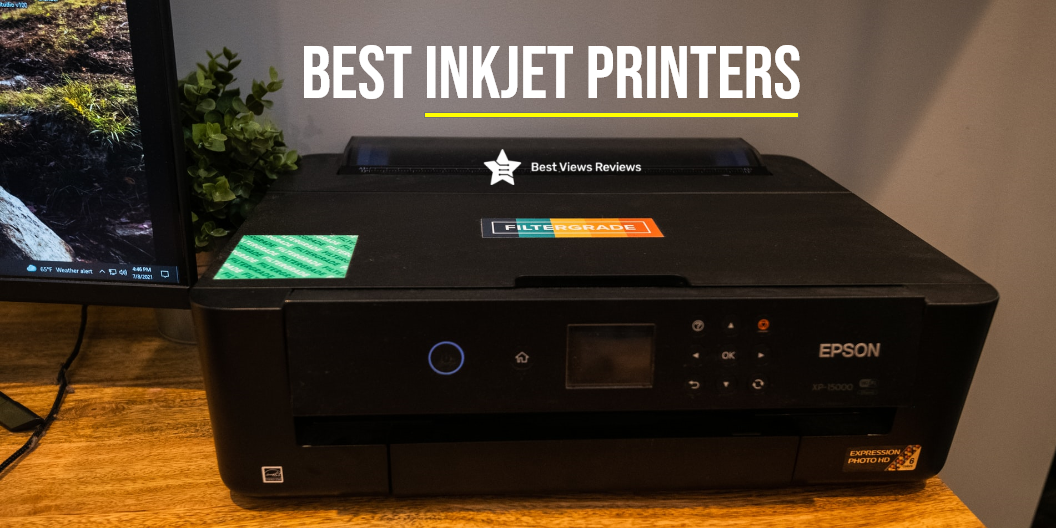
Best Inkjet Printers 2022 : An All-Inclusive Guide

best-inkjet-printers

Inkjet printers are innovative devices that propel microscopic drops of ink on the paper to form images or letters. While inkjet printers use liquid or pigmented ink to print the content, laser printers use a toner in the powdered form of an electrostatic charge to print the content. Although inkjet printers print accurate and sharp images, the printing cost per page is high as compared to laser printers. That is why inkjet printers are majorly used to print photos while laser printers are used to print content or texts.  

Due to our COVID crisis, we have seen a rising demand for printers. More and more people who are working from home are looking for printers to complete their day-to-day office tasks. This blog intends on highlighting some of the best inkjet printers that we have reviewed for you. If you are on the lookout for a brand new Inkjet printer, it is advisable that you read through our blog and know everything about inkjet printers for more clarity and understanding. Although there are many branded variants available with the best features, there are certain important factors that you should consider before buying them. Identifying Inkjet or computer printers will help you make the right buying choice. These top variants are ergonomic, functional, convenient, and easy to use. 

Top 10 Inkjet Printers

We’ve listed a few of our top picks for inkjet printers below. There are certain budget models also available that delivers outstanding performance with advanced features and are popular among its users. When choosing a new printer, the most basic question is whether you should get a laser printer or an inkjet printer. Read our blog on the basic difference between HP Deskjet Vs HP inkjet printer to better understand and learn about them.

Epson WorkForce WF-3520

The reviews of Epson WorkForce WF-3520 inkjet all-in-one printer are good because it has a built-in rear paper feed that accommodates envelopes, labels, and other specialty media. This model comes with wired and wireless connectivity that allows for convenient connection. It features an LCD display and touch panel that makes it easy to operate. This model has 250-sheet paper capacity.

Epson EcoTank Monochrome Supertank Inkjet Printer 

This innovative Epson Monochrome printer gets good reviews because it can save up to 75 percent of your ink with low-cost replacement bottles and mono laser toner. This device is majorly popular for its precision core printing technology that allows it to print extra sharp images with a rapid printing speed. Priced at $229.99, this wireless printer can easily print images seamlessly.

Canon Pixma TR150 All-in-one Inkjet Wireless Printer 

This wireless Canon PIXMA printer gets positive reviews because it comes in a compact and lightweight design that makes it easy to store and carry. This model features PIXMA TR150 that prints sharp documents and vibrant photos. It has built-in wireless technology that delivers seamless connectivity. Priced at $244.63, this device can print up to 330 pages on a single charge.

Brother MFC-J995DW INKvestmentTank Color Inkjet All-in-One Printer  

This new model from Brother comes with an ink box for one year and promotes economic printing. It also re-engineered ink cartridges, along with an internal ink storage tank for continuous printing. It uses Airprint technology, and google cloud print to print remotely through its near-field communications. This device is also equipped with Amazon dash replenishment technology that allows the printer to pre-order ink, in case the levels are low.   

Brother HL-L2320D Mono Laser Printer

This Brother HL-L2320D printer features large tray capacity that easily accommodates up to 250 sheets. This model is equipped with a manual feed slot that helps in envelope printing. It comes with a USB 2.0 interface that allows for local connectivity. It also has a manual feed slot for envelope printing.

HP ENVY 5055 Wireless All-in-One Photo Printer 

This HP Envy printer with its artificially integrated technology, features the favorite voice-assistant Alexa to control the functions. This all-in-one compact printer can perform all functions like printing, scanning, and copying with ease. With a powerful printing app, and optional HP instant ink subscription, this printer never runs out of ink. It is also easily compatible with remote devices like mobile and tablets due to its dual-band wi-fi technology. 

HP OfficeJet Pro 8025 

This HP office JetPro, although priced at a higher cost of $369.89 offers multi-functional features like printing, scanning, and copying efficiently. Its smart home office productivity offers quick printing services at 20 pages a minute. The HP smart access app allows you to pre-order ink with a negligible subscription cost of $2.99 per month. It also features a self-healing wi-fi technology that undergoes 3 steps of reconnecting technology to stabilize any internet connection disruptions. 

Epson WorkForce WF-3540

Epson WorkForce WF-3540 has a built-in intuitive touchscreen with gesture navigation that makes it easy to operate. This model features EPSON connect that offers convenient printing from smartphones. It comes with a 500-sheet paper capacity that avoids frequent reloading of papers. It has a 3.5-inch touchscreen with gesture navigation.

Canon Pixma Pro-100 Professional Inkjet Printer

Canon Pixma Pro-100 Professional Inkjet Printer comes with eight dye-based inks for wonderful gradients and colour, as well as three dedicated gray scale inks for stunning black-and-white prints. This model offers 4800 x 2400 dots per inch with fine technology for stunning detail. Print high-resolution photographs up to 13″ x 19″ on a variety of mediums.

HP OfficeJet 250 All-in-One Portable Printer

HP OfficeJet 250 All-in-One Portable Printer is reasonable, especially if you are an HP person. These HP printers are famous for their reliability and ease of use, and the HP OfficeJet 250 All-in-One Portable Printer is no exception. This printer is a reliable printer that prints fast and is backed by a good warranty.

Conclusion 

Inkjet printing is a very delicate process and depends on factors like the quality of the ink, speed of printing, ink compatibility, and resolution, among many others. If you are new to the concept of such printers, then knowing how an inkjet printer works are crucial. It will help you put your printer to max use. Buying a good quality printer is very crucial for fine printing jobs.

Pocket printers are an ideal choice when you have to print documents or photos anytime and anywhere. Read our blog on pocket photo printer and get the top 10 options for yourself.

BestViewsReviews reviews and recommends the best laser printers based on the quality, performance, and reliability of each product.

The Right Way to Perform Printer Ink Refill

printer ink refill

Performing printer ink refills properly is important for every printer owner, since it is something you will need to do on a regular basis. This may lead to the printer malfunctioning and not being able to print anything until it is properly fixed. This blog explains how to place ink cartridges into printers correctly. Pigment-based inks are fade-resistant and show more vibrant colors. Check out our blog to learn how to choose the right printer ink or printer cartridge for high-quality printing.

Is Printer Ink Refill Worth It?

Genuine Original HP 63 Black Ink Cartridge will always surpass refill ink cartridges in terms of print quality. Use genuine HP toner cartridges and authentic HP paper if you want the highest printing quality. Original equipment manufacturers devote a great deal of time and effort to match the ink. The original HP supplies will give you the same results, but they will be more expensive. It’s sometimes worth sacrificing print quality when it comes to saving money. Even though it may seem to save you money to refill your old ink cartridges. The final results are undoubtedly mixed and messy.

Is It Cheaper to Refill Printer Ink Cartridges or Buy New Ones?

The cost of refilling ink cartridges like E-Z Ink is less than purchasing new ones. This is a great way to save money if you wear gloves and don’t spill ink on your clothes.

Advantages of Refill Printer Ink

Better for the environment — When you replace a cartridge, you must throw away the old one because cartridges are made of plastic. This adds to the waste in landfills. You will keep the cartridge out of the landfill longer if you opt to refill your cartridges three to four times before buying a new one.

Lower Cost- The most common reason for refilling cartridges is to save money. Savings are significant. When compared to purchasing a new cartridge, refilling cartridges can save you nearly half the cost.

Refilling cartridges are a great alternative for inkjet printers – These printers use liquid ink, a reputable cartridge refill company would ensure that they use premium and approved inks. Most of the laser printers are compatible with refilled cartridges.

Availability – This is a problem that most people experience when they least expect it. Purchasing a new cartridge may appear to be the more convenient option. The cartridge that you use may be out of stock or unavailable. You can avoid purchasing a new printer by refilling your cartridge at this time.

Disadvantages of Refill Printer Ink

Printer damage — You may run the danger of permanently damaging your printer if you refill cartridges without seeking professional help. It has the potential to leak or clog your print head. Your printer warranty may be voided if you break your printer when replacing cartridges.

Ink quality – It is still an acceptable solution if you intend to use it for a brief read or any other personal purpose. The end results might not be as pleasing if you want to utilize the ink to print high-quality photographs. You may anticipate high-quality printing if done correctly and with the proper equipment.

How to Do Printer Ink Refill?

Buy an ink refill-kit for your printer

  • Some ink refill kits are universal, which means they’ll operate with any brand of inkjet printer. The others are model or manufacturer specific.
  • The majority of printer manufacturers advise against refilling your own ink cartridges. Instead, they urge that you buy new cartridges straight from them.
  • You may lose your ability to receive tech help from the printer manufacturer if you refill your own cartridges.

Make Sure Your Workspace Is Ready

The ink may be messy, cover your work surface with newspaper or paper towels. Then gather your ink kit, additional paper towels, a pair of gloves you don’t mind getting messy. Printer ink will leave lasting stains on garments and surfaces. Put on the gloves to protect your hands.  Though ink stains on your skin aren’t permanent, they might remain for quite some time.

Remove the Printer Cartridge.

  • The processes differ depending on the printer removing the cartridges is usually not difficult. You may need to switch on the printer to get the cartridges to shift to a more accessible area. 
  • Check your printer’s manual for information on where the cartridges are stored and how to remove them.
  • On a folded paper towel, place the empty cartridge. Fold the paper towel in half twice and place it over the spill. Create a spill barrier that works well.

Read the Refill Kit’s, Instruction Manual.

The manual will include instructions on the kit as well as information on how to utilize the tools that come with it. 

You can also check the Epson WorkForce All-in-One Color Inkjet Printer comes with wired and wireless connectivity that allows for a convenient connection. It also comes with an LCD display and touch panel that makes it easy to operate.

Find the Ink Fill Hole on the Cartridge

  • Some cartridges, like HP’s, already feature a fill hole that eliminates the need to puncture the cartridge. 
  • Remove the top label of the cartridge to check for potential fill holes. Each color will have its own fill hole if you’re using a cartridge with multiple inks in one unit.
  • Only one leads to the ink reservoir even if you find multiple holes. Examine each hole until you discover one that has a spongy substance inside—this is the fill hole.
  • You can test this by using the syringe supplied in the kit to erase some previous ink.
    Each cartridge may come with a twist-off cap that must be removed to reveal the fill hole.

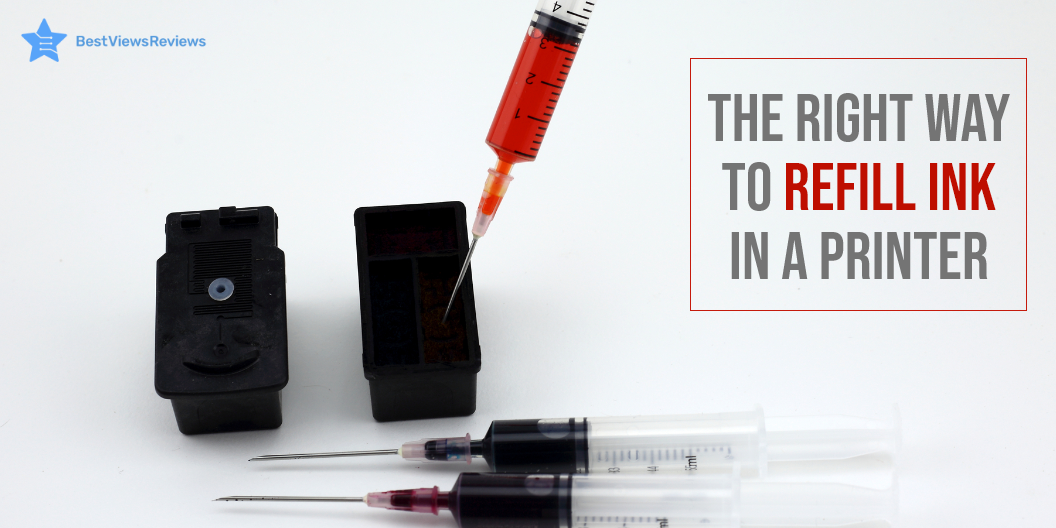
Using the syringe, fill it with ink.

Begin by pushing the plunger of the syringe all the way in. Pull the plunger carefully out of the replacement ink bottle and place it into the long end of the new bottle. Fill the ink chamber with ink.

Slowly Add the Ink to the Cartridge.

Insert the syringe’s long end into the cartridge’s fill hole until you reach the spongy bottom. Then, to add ink, gently press the plunger down. Air bubbles can break the cartridge, so push slowly to avoid them.

Fill in with more colors.

Use a different syringe for each color if your kit came with more than one to avoid mixing colors. Before reinstalling the cartridges in the printer, make sure they are clean and free of excess ink.

Reinsert the Cartridge and Print a Test Page.

Create a printout to get the ink flowing. It is recommended that you reprint something in both black-and-white and full color if you have filled more than one color. This will ensure that all ink is properly absorbed. You may need to print a few test pages to get things working properly.

Conclusion

Each brand has its own instructions regarding how to install ink cartridges, and that can be confusing. A branded printer of an inkjet printer or a computer printer usually comes with a detailed instruction manual to help you with the installation. If you are planning to buy ink online, make sure to read the return policy, in case you order the wrong size. We also suggest you read through the blog that lists some of the mistakes that people make while buying printer inks.

BestViewsReviews rates and ranks some of the best inkjet printer ink and top-rated inkjet printers based on their quality, performance, and durability.

Happy shopping to you!