Inkjet Printers vs Laser Printers: Which One Is Right for You?

Inkjet Printers

Laser and Inkjet printers are two of the most common printers available today, each offering distinct advantages depending on your needs. Inkjet printers can produce vibrant colors and fine details, making them ideal for photo printing and graphic-heavy documents. In contrast, laser printers are preferred for their speed, efficiency, and lower cost per page, especially when handling large volumes of text.

Whether you need to print high-quality photos, important documents, or professional reports, choosing the right type of printer can make all the difference. By understanding the differences between inkjet and laser printers can decide which one is best fit for your needs.

Understanding Inkjet and Laser Printers

Inkjet printers like Epson EcoTank Pro ET-5850 spray tiny droplets of liquid ink onto paper through microscopic nozzles, producing high-quality prints with vibrant colors and fine details. Their versatility allows them to print on various paper types, from plain sheets to glossy photo paper, making them a popular choice for home users and photographers. With multiple color cartridges (cyan, magenta, yellow, and black), inkjet printers deliver detailed and accurate color prints, making them ideal for photos, artwork, marketing materials, and documents where color precision matters.

Laser printers like HP Color LaserJet Pro use toner powder and a laser beam to create prints, which differs from inkjet technology. The laser beam forms an image on a drum, which is then transferred onto paper using electrostatic charges. Known for their fast printing speeds and ability to handle high volumes, laser printers are ideal for offices where efficiency and cost-effectiveness are key.

Key Differences Between Inkjet and Laser Printers

ParticularsInkjet PrintersLaser Printers
Print QualityEpson EcoTank ET-15000 excels at producing high-quality color prints, delivering sharp, detailed images and vibrant colors. They handle color gradients and subtle hues better, making them ideal for photos, artwork, and graphics-heavy documents.Brother HL-L3290CDW focuses on high-volume text printing, producing sharp, clear black-and-white text. While their color reproduction isn’t as vibrant as inkjet printers, recent models have significantly improved, offering more accurate color prints.
SpeedThey are compact and smaller in size, so they are ideal for home use or small offices. Many also offer all-in-one features like scanning, copying, and faxing, enhancing their versatility.Canon ImageCLASS LBP6030 is known for its speed, especially with large text volumes. Their toner and laser technology enable faster page production, making them ideal for high-demand office environments.
Cost per PageA major drawback of inkjet printers is the higher cost per page. Ink cartridges are expensive and deplete quickly, especially with frequent printing, leading to higher long-term costs.Laser printers have a higher upfront cost but a significantly lower cost per page. Toner cartridges last much longer, reducing the overall cost of printing over time.
Initial CostThey typically come with a lower initial cost, making them a budget-friendly option for home users and small businesses with limited budgets.They usually have a higher initial cost but offer better long-term value due to lower printing costs and greater longevity in high-volume settings.
Size and DesignThey are compact and smaller in size, ideal for home use or small offices. Many also offer all-in-one features like scanning, copying, and faxing, enhancing their versatility.They are larger and bulkier, taking up more space. However, their size has been decreasing, and many compact models are now available for home offices and small businesses.
Durability and MaintenanceThey require more maintenance as ink cartridges may dry out or clog if not used regularly. They also need more frequent ink refills and occasional cleaning for efficient operation.They are more durable and require less maintenance. Toner doesn’t dry out, and with fewer moving parts, laser printers are more reliable for environments where the printer isn’t used daily.

Are There Any Multi-Functional Printers That Combine Inkjet and Laser Features?

Some multi-functional printers combine inkjet and laser features, offering the best of both technologies. These printers handle various tasks, such as printing, scanning, copying, and sometimes even faxing. While less common than single-function models, some modern multi-functional printers use inkjet technology for high-quality color prints, such as photos and graphics, while utilizing laser technology for fast, efficient text printing.

These all-in-one devices are useful in environments where both color prints and fast, large-scale text printing are necessary. However, they are more expensive and may require more maintenance than single-function inkjet or laser printers. If you want both features in one device, a hybrid printer offers the right balance of quality, speed, and cost-efficiency.

Maintenance Tips for Printers

Inkjet Printers

  • Keep the ink cartridges clean: Regularly run cleaning cycles to prevent ink buildup and keep the nozzles free from clogs, especially if the printer is left unused for long periods.
  • Use high-quality paper: Always use the recommended paper type for your inkjet printer. Low-quality paper can damage the printhead and lead to paper jams.
  • Store ink cartridges properly: If you don’t use the printer often, store the ink cartridges in a cool, dry place to prevent them from drying out.

Laser Printers

  • Clean the toner cartridge: Dust and debris can accumulate on the toner cartridge. Clean it regularly to avoid printing issues.
  • Use quality paper: Poor-quality paper can cause paper jams and toner smudging. Ensure you use the correct paper type for laser printing.
  • Keep the printer in a dust-free environment: Dust can damage the sensitive components of the laser printer. Place the printer in a clean, dust-free area.

Commonly Asked Questions

1. Do laser printers require more toner than inkjet printers need ink?

Laser printers typically use less toner than inkjet printers use ink, particularly when printing high volumes. Toner cartridges for laser printers last much longer than ink cartridges for inkjets, allowing laser printers to produce more pages before needing a replacement. Since toner is designed for high-speed, high-volume printing, laser printers are more efficient for text-heavy documents.

On the other hand, inkjet printers tend to consume ink more quickly, especially when printing photos or color-rich documents. This results in more frequent ink cartridge replacements. However, the toner or ink used can vary depending on factors like print volume, the type of print job, and the specific printer model.

2. How does a printer’s print resolution impact output quality?

A printer’s print resolution directly impacts output quality by determining the sharpness and detail of images and text. Measured in dots per inch (DPI), higher DPI values result in more detail and clarity. Printers with higher DPI produce sharper images and smoother gradients, ideal for photos and fine text, while lower DPI may lead to less sharp prints with visible pixelation.

For those needing precise prints, such as photographers, a higher resolution is crucial. However, higher DPI can slow printing speeds and use more ink or toner. Balancing resolution and efficiency is key, depending on your printing needs.

3. Can a laser printer print high volumes of text without slowing down?

Yes, a laser printer Canon imageCLASS MF3010VP can handle high volumes of text without slowing down. Designed for efficiency and speed, laser printers excel in printing large jobs quickly. Unlike inkjet printers, which may slow down with higher volumes due to the ink application process, laser printers use toner and a laser beam to transfer images to paper, enabling fast and consistent printing.

This makes laser printers ideal for environments that require high-speed, high-volume text printing, such as offices or businesses. Their ability to maintain speed during large print jobs is a significant advantage over inkjet printers.

4. How do inkjet printers handle color gradients and subtle hues?

Inkjet printers handle color gradients and subtle hues exceptionally well by mixing ink from multiple color cartridges. By spraying tiny droplets of ink, inkjet printers create smooth color transitions, producing rich gradients and intricate hues. This ability makes inkjet printers perfect for printing images with soft color transitions, such as photographs or artwork, where precision and subtlety are crucial.

Furthermore, the precision of inkjet nozzles allows the printer to capture a wide range of shades and tones, reproducing even the most delicate color variations. As a result, inkjet printers are the preferred choice for projects that require high-quality color accuracy and detailed gradients.


11 New Year Deals You Don’t Want To Miss

deals for new years

As we enter 2025, it’s time to start planning for New Year’s best deals. From travel and entertainment deals to discounts on some of your favorite products, these 11 deals will help you get the most out of your New Year’s shopping list. Whether you’re looking for the latest tech gadgets, cozy apparel, or even home decor, you’ll find the best deals for New Year here.

Home and Kitchen

Masticating Juicers

It’s the perfect time to take advantage of some of the best New Year’s deals on masticating juicers. Masticating juicers like Elite Gourmet EJX600 are a great way to make healthy, nutrient-rich juices in the comfort of your own home. These juicers work by slowly crushing and pressing fruits and vegetables to extract the juice, leaving behind the pulp.

Food Container Sets

When it comes to preparing meals ahead of time, Joseph Nest Lock food container sets are a must-have kitchen item. With the New Year approaching, now is the perfect time to find the best deals on food container sets. Having food container sets in the kitchen will not only save you time and money but also make meal preparation easier. You’ll find plenty of options if you’re looking for glass, stainless steel, or plastic food containers.

Coffee Makers

Coffee makers are one of the most sought-after items during this time of year. They offer a unique and delicious way to enjoy a cup of coffee. They are perfect for those who enjoy a smooth and refreshing cup of coffee, without the bitterness and acidity of traditional hot coffee. Elite Gourmet Coffee Maker reviews show that the compact design of this coffee maker makes it easy to store.

Comforter Sets

A comforter set is a great way to start the new year off right. Whether you are looking for a traditional quilt or a modern comforter set, there are a lot of options to choose from to set the perfect holiday mood. Shopping for the perfect comforter set such as the Sweet Home Collection can be an enjoyable experience when you find the right store with the best deals.

Home Accessories

Home cabinet accessories are designed to help you spruce up your home and make it look more stylish and inviting. You can find great deals on cabinet hardware such as handles, knobs, pulls, and hinges. Many of these items come in various styles and finishes so you can match them to your existing décor. Pipishell 3 Tier Mesh Utility Cart reviews claim that this 3-tier organizer is a great way to organize your things. You can also find special deals on organizers and racks that allow you to maximize the storage space in your cabinets.

Garment Steamers

These versatile tools are designed to quickly and safely remove wrinkles and odors from most fabrics, and they work well with everything from suits and slacks to curtains and tablecloths. Garment steamers like Conair Handheld Garment Steamer come in a variety of sizes and prices, so you’re sure to find one that fits your budget.

Electronics

Dome surveillance cameras

New Year’s is the perfect time to upgrade your home security system. Dome surveillance cameras like eufy Security Solo IndoorCam are an excellent way to keep your family and possessions safe. The indoor cameras provide 360-degree coverage of your home. The system allows you to monitor both inside and outside your home without having to install several cameras. In addition, they have night vision capabilities and can detect motion and sound, so you are alerted to any suspicious activity.

Smartwatches

Smartwatches like the SAMSUNG Galaxy watch are becoming increasingly popular and more affordable. They are a great gift for any occasion, including New Year’s. Whether you’re looking for a fitness-focused watch that tracks your daily steps, a stylish device for keeping up with notifications, or a full-featured watch with the latest features, plenty of options are available.

Inkjet printers

An inkjet printer is a type of printer that uses droplets of heated or electrically charged ink to create an image on paper or other media. Inkjet printers are the most common type of consumer and home office printer due to their affordability and versatility. Inkjet printers can print high-resolution images and text. You can use them for a variety of applications, including printing documents, photos, and graphic designs. If a printer is on your wishlist you can look for the HP Officejet Pro. Its user reviews claim that its built-in smart app allows one to print, scan, and copy from anywhere.

Video Projectors

A projector is a device that projects an image, typically onto a screen or wall, from a computer, DVD player, or another video source. You can use projectors for a variety of applications, including business presentations, home theater, gaming, and educational purposes. Native 1080P WiFi Bluetooth Projector is a notable model available at a huge discount during the New Year sale.

Bluetooth speakers

Bluetooth speakers are ideal for people who want to listen to their favorite music while traveling or in outdoor settings. It is easy to transport and place them at different locations since they are highly portable. Bluetooth speakers like Bose SoundLink offer great sound quality, allowing you to enjoy your favorite songs in crystal clear audio.

Conclusion

Research and planning can help you save money and have an amazing New Year’s celebration. These 11 New Year deals will help you make the most of the new year, whether you are looking for a great gift for a loved one or a way to make your home more comfortable.

BestViewsReviews helps you find the best products like top-rated smartwatches on the market. We review these products on the basis of quality, convenience, and durability. Get unbiased, honest reviews of products before you buy.

Top Must Have Election Rally Essentials 2024

Election Rally Essentials

As we gear up for the 2024 election season, rallies continue to be an integral part of political campaigns. Whether small gatherings or large, organized events, rallies bring supporters together to generate momentum, promote key messages, and energize voters. However, to ensure that your rally runs smoothly, certain essential items are necessary to enhance the experience for both campaigners and attendees. These items range from safety supplies like face masks and sanitizers to practical needs such as tents, speakers, and bottled water. In this comprehensive guide, we’ll cover the top must-have election rally essentials for 2024.

1. Pens and Markers for Campaigns

One of the key components of any rally is its visual impact, and nothing creates this better than bold, striking campaign signs. Whether it’s volunteers holding signs or attendees creating their own messages, pens, and markers are vital tools for campaigns.

Why Pens and Markers are Election Rally Essentials:

  • Pens and markers ensure that every supporter has the tools they need to create effective signs or fill out any necessary paperwork during rallies.
  • Markers, particularly permanent and waterproof ones, help create legible, bold signs that can withstand weather conditions.

Types of Markers to Use:

  • Waterproof and Smudge-Free Markers: For outdoor rallies, these markers ensure that signs remain intact and visible even if it rains.
  • High-Contrast Colors: Bright colors such as red, blue, and black stand out the most, making it easier for signs to be noticed by cameras and passersby.

2. Printers

Election rallies generate a lot of printed materials—from flyers and banners to voter information pamphlets. Having a reliable printer on hand ensures that your campaign materials are ready to go, even at a moment’s notice.

Portable Printers are Election Rally Essentials:

  • At larger rallies, you may need to print additional materials on the spot. Portable, wireless printers allow campaigns to react quickly to changing needs.
  • Printers can also be used to generate voting information sheets, contact details, or rally itineraries in real time.

Types of Printers to Consider:

  • Wireless Printers: Compact, wireless printers that connect via WiFi are easy to transport and set up at rally sites.
  • Ink-Efficient Models: With high output at a low cost, ink-efficient printers are ideal for printing large volumes of materials without running up costs.

Best Practices:

  • Ensure you bring extra ink and paper to the rally, especially if you expect a high turnout.
  • Have digital versions of your flyers ready to email to attendees as an eco-friendly alternative.

3. Hand Sanitizers

In the current climate, health and safety remain paramount, and hand sanitizers are an essential item for any election rally. Providing them ensures that hygiene is maintained, especially when large crowds gather.

Health and Hygiene at Rallies:

  • Election rallies often involve physical contact, from shaking hands to passing out flyers, making it crucial to have sanitation measures in place.
  • Sanitizers also help attendees feel comfortable, knowing that the campaign prioritizes their health and safety.

Types of Hand Sanitizers to Use:

  • Alcohol-Based Sanitizers: These offer the highest level of germ-killing efficiency and dry quickly, making them the most practical choice.
  • Portable Dispensers: Set up portable hand sanitizer stations at entrances, near food areas, and at key points around the rally.

Where to Place Them:
Position sanitizers in areas where there’s high traffic, such as entrances, restrooms, and near folding tables distributing campaign materials.

4. Face Masks

While rallies are a great way to show unity and support, it’s important to prioritize safety by providing or requiring face masks for participants.

Ensuring Participant Safety:

  • Masks help reduce the spread of airborne viruses, especially in crowded settings where social distancing might not always be possible.
  • Even as public health guidelines change, many participants will still appreciate having access to masks as a precaution.

Choosing the Right Masks:

  • Comfortable and Breathable: Look for masks that provide both safety and comfort, particularly if the rally is outdoors in warm weather.
  • Branded Masks: Custom masks with campaign logos can serve both as a protective measure and a promotional tool.

Custom Face Masks for Campaigns:
Branded face masks not only keep participants safe but also promote the campaign. Consider giving out custom masks as rally souvenirs to increase visibility long after the event.

5. Gloves

Gloves are another essential item, particularly for volunteers handling food, distributing campaign materials, or setting up equipment.

When Gloves Are Election Rally Essentials:

  • Gloves are useful for any task where hygiene is a concern, such as distributing snacks, handling cash, or managing shared items.
  • They can also be worn by rally staff setting up chairs, folding tables, and sound equipment, minimizing hand-to-hand contact.

Best Types of Gloves:

  • Latex-Free and Hypoallergenic: This ensures that gloves can be worn by everyone, including those with latex allergies. You can check Supmedic Latex-Free disposable gloves.
  • Durable Yet Lightweight: Opt for gloves that are durable enough for handling heavier items but won’t impede movement.

6. Tents for Rallies

Whether you’re sheltering from the sun or rain, tents are an indispensable part of outdoor rallies. They provide much-needed cover and serve as focal points for campaign activities.

Importance of Shelter:

  • Tents protect attendees and campaign workers from unpredictable weather, ensuring that the rally can continue smoothly, rain or shine.
  • They also create centralized areas where volunteers can gather, speakers can prepare, and campaign materials can be distributed.

Size and Durability Considerations:

  • Durable Materials: Look for tents made from water-resistant, UV-protected fabrics that can withstand weather conditions.
  • Size and Placement: Choose the size of your tents based on the expected turnout. Larger rallies may need multiple tents placed strategically to accommodate different groups of people.

Customizable Tents:
Branded tents featuring the campaign’s colors and logo can help your rally stand out and create a more professional, organized atmosphere.

7. Folding Chairs

Comfort is key during long election rallies, and providing attendees with folding chairs ensures they can relax and enjoy the event.

Comfort for Rally Attendees:

  • Long speeches and events can be physically tiring, and folding chairs offer attendees a break while still allowing them to stay engaged.
  • They are especially important for elderly attendees or those with physical limitations who need seating to participate fully.

Choosing Durable and Lightweight Chairs:

  • Look for chairs that are easy to transport and set up, but durable enough to withstand repeated use throughout the campaign.
  • Consider lightweight materials such as aluminum or plastic that are easy to carry and quick to assemble.

8. Foldable Tables

Foldable tables serve multiple purposes during election rallies, from distributing campaign materials to setting up snack stations.

Utility of Foldable Tables:

  • Foldable tables provide space for handing out flyers, collecting signatures, and setting up merchandise stands.
  • They can also be used for organizing food and drink stations, making it easier for attendees to access refreshments.

Choosing the Right Size:

  • Consider smaller, more compact tables for tighter spaces or larger, heavy-duty tables for areas with significant foot traffic.
  • Ensure that the tables are easy to transport and sturdy enough to handle various tasks.

Organizational Tips:
Position tables strategically around the rally site to maximize accessibility and ensure a smooth flow of people.

9. Speakers

Effective communication is vital at any rally, and having a reliable set of speakers ensures that your message is heard loud and clear.

Amplifying Campaign Messages:

  • Whether you’re addressing a small group or a large crowd, quality sound equipment ensures that everyone can hear speeches, announcements, and campaign messaging.
  • Speakers also set the tone with music or campaign jingles, helping to keep energy levels high.

Choosing the Right Speakers:

  • Portable and Battery-Powered: Look for lightweight speakers that can be easily transported and run on rechargeable batteries, especially for outdoor events.
  • Strong Sound Projection: Make sure the speakers are powerful enough to cover the entire area, so even those in the back can hear clearly.

Backup Power:

  • Ensure you have backup power sources, such as portable generators, to keep the sound system running throughout the rally.

10. Bottled Water

Keeping rally attendees hydrated is crucial, especially during long, hot campaign days. Offering bottled water is an easy and effective way to ensure participants stay refreshed.

Keeping Participants Hydrated:

  • Staying hydrated is essential, especially for outdoor rallies where attendees may be exposed to the sun for extended periods.
  • Offering water also shows that the campaign cares about the comfort and well-being of its supporters.

11. Energy Drinks

For those attending all-day rallies or volunteering behind the scenes, maintaining energy levels is important. Providing energy drinks is a quick way to give participants a boost.

Boosting Energy for Long Campaign Days:

  • Election rallies can be physically and mentally exhausting, especially for those who are involved in organizing or speaking. Energy drinks provide an immediate source of vitality, keeping people alert and engaged throughout the event.

Why Energy Drinks are Election Rally Essentials:

  • They help combat fatigue during long hours of speeches, setting up, and managing the crowd.
  • Volunteers and staff, who are often working behind the scenes for hours on end, can benefit from the quick energy boost that these drinks provide.

Choosing the Right Energy Drinks:

  • Caffeine-Based Drinks: Popular options like Red Bull or Monster offer a quick energy boost for participants needing a little extra stamina.
  • Health-Conscious Alternatives: For those who prefer lower-caffeine or natural energy drinks, consider options with less sugar and more natural ingredients, such as tea-based or electrolyte-focused drinks.

FAQs

Q1: Why are tents important for election rallies?

Tents are essential because they provide shelter from the elements—whether it’s protecting participants from rain, sun, or wind. Tents also serve as organizational hubs, offering a place to distribute materials, shelter speakers and campaign staff, and serve refreshments.

Q2: How can I ensure that my rally’s message is clearly heard by all attendees?

Investing in quality speakers is key to ensuring your message reaches everyone in attendance. Portable and battery-powered speakers with strong sound projection are ideal for outdoor settings, where there may be competing noise. Position speakers at multiple points around the rally site for even coverage.

Q3: Are face masks still necessary at rallies?

While health guidelines have shifted, many people still appreciate the option to wear masks in crowded spaces. Providing face masks at your rally is a simple way to cater to everyone’s comfort and ensure a safe environment.

Q4: How do I keep the rally organized with so many people attending?

Having a solid plan in place with essential items like foldable tables, clear signage (created with markers and pens), and designated areas for key activities (refreshment stations, information booths) will help keep things organized. Volunteer teams can use gloves to safely handle materials, and portable printers ensure you can print additional materials as needed.

Q5: What refreshments should I offer at an election rally?

Staying hydrated is crucial, so bottled water should be available throughout the event. Additionally, energy drinks can provide a quick boost for those who need it during long rallies. You might also consider offering healthy snacks or light refreshments.

Q6: How can I promote my campaign while keeping attendees safe?

Branded items like face masks, gloves, and water bottles can serve dual purposes—promoting the campaign and providing practical benefits to attendees. These items ensure that health and safety are prioritized while reinforcing your campaign’s visibility.

Conclusion

Election rallies in 2024 a set to be high-energy, impactful events, and ensuring you’re prepared with the right election rally essentials is crucial to their success. From the practical needs of chairs, tables, and tents to health-focused supplies like face masks, gloves, and hand sanitizers, these items are integral to creating a seamless, engaging, and safe experience for everyone involved. With clear sound systems, effective signage tools, and energy-boosting refreshments, your rally will be a powerful platform for your campaign.

By investing in these essentials, you’re not only ensuring a well-organized and successful rally, but you’re also showing your supporters that their comfort, health, and engagement matter. With the right preparation, your election rally can inspire, energize, and mobilize voters, making a lasting impression on the road to election day. Learn more about Election Rally Essentials

How to Connect Brother Printer to WiFi

how to connect a Brother printer to WiFi

The convenience of using your printer is maximum when you can connect your printer to WiFi. And, that is why top brands like Brother offer printers with Wi-Fi connectivity. Setting up a Wi-Fi connection in your Brother is easy and can be done in just some minutes when you follow the right steps. This article helps you know how to connect your Brother printer to Wi-Fi, along with offering some easy troubleshooting methods for common connection problems.

How to connect a Brother printer to WiFi?

Follow the below-listed steps to connect the Brother printer to WiFi:

  1. Turn on your Brother printer by connecting it to an electrical socket using the power cord.
  2. Click on the Menu option, present on the control panel.
  3. Navigate to the Network setting using the Up and Down arrow keys. Press Ok to select.
  4. Again, use the Up and Down arrow keys to select the WLAN option
  5. Now, select Setup Wizard and press Ok.
  6. Select “Yes” when the prompt “WLAN Enable?” appears to activate the wireless network. Doing so will start the wireless setup wizard.
  7. The printer will scan for your network and present a selection of Network Names (SSIDs). Once the list of SSIDs appears, select the pre-recorded SSID, then press OK.
  8. There are two methods to authenticate: open system and through network key.
  9. To authenticate with the network key, you can enter the key and then press Ok.
  10. With an open system, there is no encryption mode involved, so you can go to the next step.
  11. Your printer will now get connected to your selected wireless network.

How to connect a Brother printer to WiFi without cable?

You can easily configure your Brother printer for a wireless network using the CD-ROM without cable. This you can achieve when your computer is connected to a wifi and you know the network name (SSID) and WLAN access point/router settings.

Make sure when you install the printer driver through CD-ROM, your printer is placed close to the router and computer, and you are logged in to the computer with admin rights.

  1. Once you proceed with the driver installation, an installation dialogue box will appear
  2. Click Yes on the license agreement window
  3. Select Wireless Network Connection and click on Next
  4. Select Brother Peer-to-Peer Network Printer, and click Next
  5. The wireless device setup dialogue box will appear. Select ‘No, I don’t have a USB cable’, and click Next
  6. Select the checked and confirmed box and click Next for confirmation
  7. The SSID (Network Name) will be displayed on the next screen. Select Yes
  8. The ‘Enable Wireless Screen’ will appear. Use the control panel for the setup
  9. Keep pressing the WiFi button on the printer for nearly 2 seconds until the light blinks
  10. The WiFi button will light up after the successful connection

Why is Brother printer not connecting to Wi-Fi?

There can be several reasons your wireless Brother printer is not connecting to WiFi. Understanding these reasons will help you troubleshoot your printer easily. The main reasons are listed below:

  1. Poor WiFi Connection: You can restart your modem/router and reboot other connected devices, including your computer and printer. Bring your Brother printer closer to your router.
  2. Incorrect WiFi Settings: You need to ensure that your network settings are accurate and your printer is configured with your wireless network connection. You can also connect other devices to the same wifi to check if there is some problem with your wifi settings.
  3. Software/Driver Issues: If the problem is with your printer setup, you need to look for the WLAN report you can get from your printer. You can print the WLAN report from the settings or the menu of the printer.

How do I reset my Brother wireless printer to connect to Wi-Fi?

If you have already configured the printer with the Wifi, or have attempted to configure it, then you may require resetting it for setting up again. Resetting your Brother printer is easy and simple, follow the below-listed steps:

  1. Power ON your printer and click on the Menu button
  2. Navigate to the menu options, select Network, and click OK
  3. Now, select Network Reset and press Ok
  4. Select Reset and click Yes
  5. Your printer will reset to the default settings

Conclusion

Wireless technology undoubtedly adds more convenience to your daily printing operations, but when it fails or needs troubleshooting, it can become equally tiresome. From knowing how to connect a Brother printer to WiFi to understanding the reset process, this guide helps you use your Brother printer effectively. The above-mentioned steps will help you deal with all issues that you may face during the wireless setup.

From reliable driver support to a faster printing rate, there are many advantages of buying a Brother printer for your home or even for your office. Read another blog to know these benefits.

BestViewsReviews helps you find the best inkjet printers on the market by rating and reviewing them on the basis of quality, convenience, and durability. Get unbiased, honest reviews of products before you buy.

Best Budget Epson Printer For Sublimation In 2023

Epson Printer for Sublimation

As a business owner in 2023, it is important to stay up to date with the latest technology to maximize efficiency and reduce costs. Having the best budget Epson printer for sublimation will help you meet the demands of customers and increase profitability. With the wide variety of printers available on the market, it can be difficult to know which one is the most suitable for your business. Explore different options to find the best budget Epson printers that meet your needs.

A dye-sublimation printer can print any image with the use of various inks. This printer also offers amazing performance and print quality. Visit our blog on dye sublimation printers to know more.

What do I need to convert Epson to sublimation?

To convert an Epson printer to sublimation printing, you will need a few key items. Firstly, you will need special sublimation ink for your printer. Sublimation ink is a special type of dye-based ink designed specifically for sublimation printing and is not compatible with traditional inkjet printers.

You will also need a special sublimation paper that is designed for sublimation printing. This paper is thinner and more absorbent than regular paper, which helps the ink to transfer to the media more effectively.

A heat press is another important item that you will need in order to transfer the ink onto the media. The heat press is used to heat the ink and press it permanently onto the media.

Which Epson printer is best for sublimation printing?

Below are some of the best-budget Epson printers that are best for sublimation printing.

Best Budget Epson Printer for Sublimation in 2023

Epson Premium EcoTank

Epson Premium EcoTank’s reviews claim that it comes with a 1.44″ colored LCD display that makes it easy to see the photos and operate. This model comes with a large input paper tray that holds up to 100 sheets. This printer features an automatic document feeder that allows it to process up to 30-sheet paper at a time.

Epson EcoTank ET-2760 Wireless Inkjet Printer

Epson EcoTank ET-2760 Wireless Inkjet Printer easily prints borderless 4″ x 6″ photos. It also comes with up to 2 years of ink with each included or a replacement ink set. Each replacement ink bottle set includes enough ink to print up to 4,500 pages equivalent to about 80 individual cartridges. This model comes with USB connectivity technology.

Epson EcoTank ET-2720

Epson EcoTank ET-2720 comes with a high-capacity refillable ink tank that offers a cartridge-free solution. It also features unique micro piezo heat-free technology that produces sharp text and impressive color photos on virtually any paper type. This model also comes with a stress-free printing experience that makes it easy to use.

Epson EcoTank Photo ET-8550

Epson EcoTank Photo ET-8550’s reviews show that it ensures optimal print quality and performance. This printer comes with high-yield ink bottles. Each replacement ink bottle set is equivalent to about 100 individual ink cartridges. You can set up, monitor, and operate your printer directly from your mobile device.

Epson EcoTank ET-2800

Epson EcoTank ET-2800 features wireless voice-activated printing that makes it easy to print from anywhere in the house. This model also comes with micro piezo heat-free technology that produces sharp text plus impressive color photos. The built-in color display of this printer allows for easy and quick document copying and navigation.

We also have a detailed blog on the best sublimation printers for beginners that you can read to choose the best model for yourself.

Can you sublimate without an ICC profile?

Yes, you can sublimate without an ICC profile. While an ICC profile is beneficial for providing consistent and accurate color reproduction, it is not a requirement for sublimation. However, without an ICC profile, you may experience a lack of color consistency and accuracy when sublimating. Without the profile, there is no assurance that the colors you see on your monitor or printer will be the same as the color produced on your substrate.

FAQs

Is Epson EcoTank ET 2800 good for sublimation?

The Epson EcoTank ET 2800 is an excellent choice for sublimation printing. This printer comes with a robust and reliable ink delivery system, allowing you to produce vibrant and long-lasting prints. The Epson EcoTank ET 2800 also offers a highly efficient sublimation ink system, which provides users with reliable and consistent results.

Can Epson EcoTank 4800 be used for sublimation?

Yes, the Epson EcoTank 4800 can be used for sublimation. It is an inkjet printer with an eight-color ink system that offers high-quality, vibrant images. The ink is water-resistant and has been formulated to produce superior results when used with sublimation paper.

Can I use the same printer for sublimation and regular printing?

Yes, it is possible to use the same printer for both sublimation as well as regular printing provided that the printer is equipped with the appropriate technology. Sublimation printing is the process of transferring a digital image onto a substrate such as fabric or paper using heat, pressure, and a transfer medium such as sublimation ink. Regular printing, on the other hand, is the process of transferring an image onto a substrate such as paper or canvas using a variety of print media. In order for a printer to be able to perform both sublimation and regular printing, it must be equipped with both sublimation ink and other types of print media, as well as specialized software designed for both types of printing.

Can you use a sublimation printer for shirts?

Yes, sublimation printing is an excellent choice for customizing t-shirts. Sublimation printing is a special type of printing that uses heat to transfer dyes onto materials like t-shirts, mugs, and more. It offers great durability and color variation, making it a great choice for customizing apparel. The process is relatively simple and cost-effective, allowing you to quickly and easily create unique t-shirts with high-quality results.

You can also read our blog all about sublimation printer for shirts to learn more.

Conclusion

Epson’s range of budget printers offers an excellent choice for anyone looking to get started with sublimation printing. Their printers feature top-of-the-line technology for unbeatable performance and quality, as well as cost-effective options for those on a budget. This makes them the perfect choice for any budding sublimation printer.

BestViewsReviews helps you find the best Epson inkjet printers on the market by rating and reviewing them on the basis of quality, convenience, and durability. Get unbiased, honest reviews of products before you buy.

5 Best Canon Inkjet Printers: Quality Meets Affordability

Canon Inkjet Printers

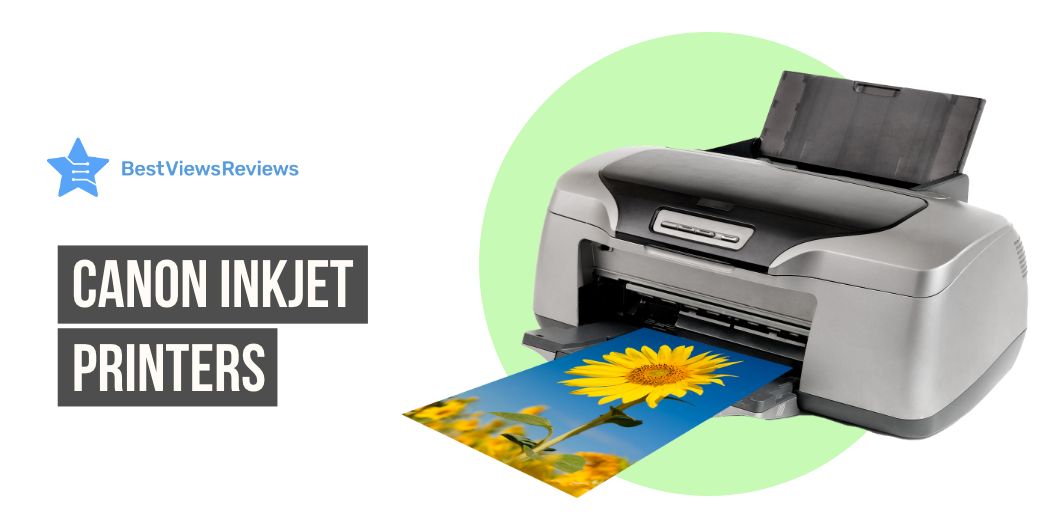
Canon Inkjet Printers are renowned for their quality, affordability, and reliability. Businesses, students, and home users can use these printers alike. The inkjet printers by Canon provide superior printing performance and offer a wide range of features and options to meet the needs of any user. Canon inkjet printers are easy to use, reliable, and cost-effective. These devices also offer a variety of features, such as two-sided printing, wireless connectivity, and mobile printing.

Does Canon make an inkjet printer?

Yes, Canon does make inkjet printers. Canon has a wide range of inkjet printers, ranging from single-function models to all-in-one models that can scan, copy, and fax. These printers use thermal bubble inkjet technology to produce clear and vibrant prints. They come in a variety of sizes and price ranges, so you can find a model that fits your budget and needs. Canon inkjet printers are designed with advanced technologies such as AirPrint, Google Cloud Print, and Wi-Fi Direct, making it easy to connect and print from any device.

Are Canon Inkjet printers good?

Yes, Canon printers are generally considered to be good inkjet printers. They offer a wide range of models suitable for both home and office use, with a variety of features and capabilities. Canon printers are known for their reliability, high-quality output, and ease of use. They are also usually more affordable than other leading printer brands.

5 Best Canon Inkjet Printers

Canon MX922 Inkjet Office All-in-ONE Printer

Canon MX922 Inkjet Office All-in-ONE Printer offers a high-performance individual ink system. It is a wireless printer suitable for both home and office use. This model also offers up to 9600 x 2400 max color dpi. This printer is versatile and can print, copy, scan, and fax.

Canon PIXMA TR7020a

Canon PIXMA TR7020a comes with a 1.44” OLED display and LED display bar that lets you easily see and navigate your printer. This model offers a compact and stylish design that will enhance the look of your workspace. It also offers an easy setup for smartphones and computers and a hassle-free printing experience.

Canon Wireless Pixma

Canon Wireless Pixma delivers exceptional results and looks great with its multiple color options. It is an all-in-one that fits perfectly anywhere in the home, is simple to use, and delivers outstanding quality results every time. You can easily connect this printer to your smartphone or tablet.

Wireless Color Professional Inkjet Printer

Wireless Color Professional Inkjet Printer’s reviews claim that it is equipped with 8 dye-based inks that provide amazing gradients and colors in the photos. This model features an optimum image-generating system that reproduces colors by logically selecting the ink. This printer has fine technology that prints 4800 x 2400 dots per inch for incredible detail. It is also available at a discount of up to $20 during the sale.

Wireless Inkjet Printer

Wireless Inkjet Printer is compact and lightweight. It easily lets you print right from your iPhone, iPad, and Mac. You can also scan and copy documents with a smartphone easily using this printer. It also comes with a quiet mode that lets you reduce printer noise when you are worried about disturbing others.

You can also have a look at our blog on the best inkjet printers to make an informed buying decision.

Compare to other brands why Canon is better?

Photo printing quality

Canon produces high-quality, vibrant printouts that bring out the best in photographs. This brand’s inkjet printers use a combination of specialized inks and printhead technology to produce stunning results.

Higher color page yield

Canon printers have a higher color page yield than other brands. Canon’s individual ink cartridges last longer, meaning you don’t have to replace them as often. This results in a lower cost-per-page and higher value for your money.

Many affordable options

Canon offers a wide range of affordable printers that have great features and capabilities. This means that users can find a printer that fits their budget and still get great-quality prints.

Which ink is better Canon or Epson?

Canon printers use dye-based inks, while Epson printers use pigment-based inks. Dye-based inks tend to be more vibrant and offer more vivid colors than pigment-based inks. Dye-based inks, however, also tend to fade more quickly than pigment-based inks.

Pigment-based inks, on the other hand, produce more subtle, muted colors, but are much more resistant to fading and smudging. These inks are generally better suited for professional or archival prints.

In terms of cost, Canon inks tend to be more expensive than Epson inks. However, Epson inks are often more widely available and easier to find.

If you are looking for vibrant, long-lasting prints, then Canon may be the better option. Epson may be the better choice if you are looking for a more subtle, professional look.

You might also get confused between Canon vs HP printers while making your decision. Go through our blog on Canon vs Hp printers to make a detailed choice.

How long do Canon Inkjet printers last?

The life expectancy of a Canon printer depends on many factors, including the model, usage, and maintenance. Generally, a Canon printer should last between 2-5 years with regular use, while a laser printer can last up to 10 years.

Conclusion

Canon inkjet printers offer a great combination of quality and affordability. They are engineered to meet the needs of both home and business users, with features designed for ease of use and reliability. Canon’s commitment to quality and innovation, combined with a wide range of models and price points, makes them a great choice for anyone looking for a reliable printer. Whether you need a basic printer for occasional home use or a powerful machine for a more demanding professional environment, Canon inkjet printers have you covered. You can also read our blog on best-selling inkjet printers to know everything about other printer options.

BestViewsReviews helps you find the best inkjet printers on the market by rating and reviewing them on the basis of quality, convenience, and durability. Get unbiased, honest reviews of products before you buy.

How Do Inkjet Printers Work

how do inkjet printers work

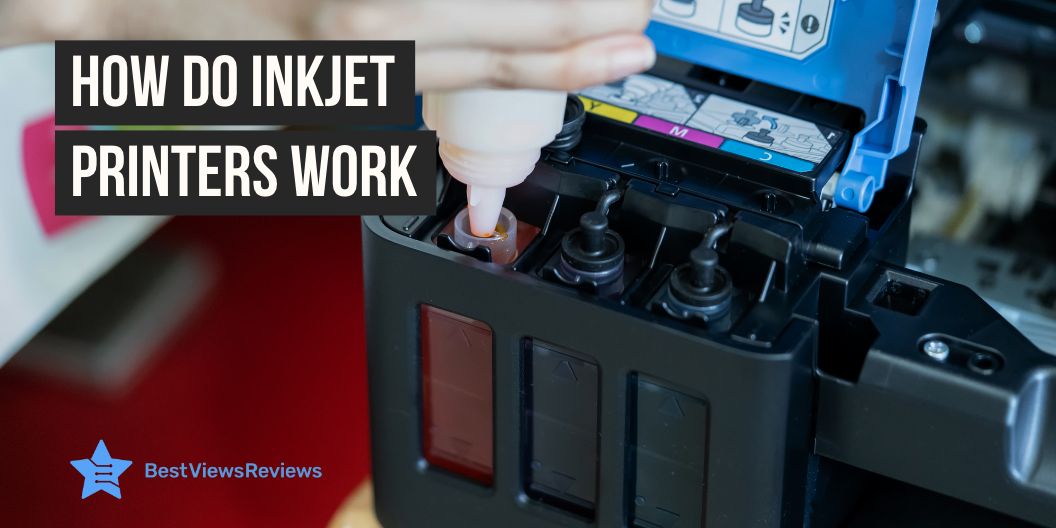
Inkjet printers are a popular option for home and business users who need excellent printouts for documents, photographs, or other types of printing. As they gain popularity and are used more often, many people wonder how inkjet printers work.

The inkjet printer creates images by pressing ink onto paper. The printer propels liquid ink droplets through a print head onto the paper. The ink dots are too small, usually between 50 and 60 microns. The printing method allows for a variety of colors and tones, making it ideal for printing graphics and photos. The dots are precisely positioned on the page to achieve a resolution of 1440×720 dots per inch.

The best inkjet printers are more efficient than other printers and require less maintenance. The ink is also more cost-effective than different types of printer ink, making them an excellent option for those on a budget. The good-quality ink cartridges for inkjet printers are available for under $25 with a yield of approx 200 to 250 pages.

How Do Inkjet Printers Work  

An inkjet printer works by propelling droplets of ink onto paper. There are two main technologies that most inkjet printers use: bubble jet technology, which involves heat, and piezoelectric technology, which involves vibrating crystals.

Two Main Inkjet Technologies

Thermal Bubble Inkjet Technology

The technology works by heating a small chamber of ink until it vaporizes, creating bubbles that rise to the surface. As the ink bubbles reach the top of the chamber, a tiny nozzle directs the ink onto paper, creating an image. This technology allows for precise control of ink droplet size and placement, allowing for accurate and detailed prints. The bubble jet print head has the capacity to release 300 to 600 direct droplets through tiny nozzles. You can find printers from Canon and Hewlett-Packard based on this technology.

Piezoelectric Inkjet technology

Piezoelectric inkjet printing technology is a reliable and efficient way to create printed materials. It works by vibrating tiny piezo crystals inward when they receive a tiny electric charge. The crystals eject a small amount of ink onto the substrate, creating the desired output. When the crystal is vibrated outwards, it pulls more ink from the reservoir. This technology is mostly found in Epson printers.

How Do Inkjet Printers Work: Step-by-Step Process?

  1. When the print command is clicked with an inkjet printer, the print job is sent to the printer.
  2. The printer will then prepare itself for printing. This includes loading any paper that is necessary and warming up the ink cartridges.
  3. When the printer is idle, it will run a short clean cycle to ensure that the print head is clean.
  4. If the job is a color print, the printer will automatically calibrate the colors to ensure a perfect print.
  5. Once it is ready, the printer will begin printing the document. Depending on the complexity of the document, the printing speed can vary. Like, a printer can have a printing speed of 19 pages per minute for black and white prints, whereas for colored print out it may produce 1 print per minute.
  6. After the printing job is complete, the printer will eject the paper and go into standby mode.
  7. The user can then remove the printed document from the output tray and proceed with their task.

What are the Basic Working Parts of an Inkjet Printer?

Print Head Assembly:

Print Head: The print head forces the ink onto the paper by using a series of nozzles, which are activated when the printer is in use. It is composed of two separate parts, the ink reservoir and the print head itself. The ink reservoir holds the ink that is necessary for printing and the print head is responsible for controlling the flow of ink onto the paper.

Ink Cartridges: Ink cartridges are responsible for supplying the ink needed for printing. They are typically made of plastic and contain a variety of colored inks. The cartridges are inserted into the printer and must be replaced when they run out of ink.

Print Head Stepper Motor: The stepper motor controls the back-and-forth movement of the print head. It is a small motor that is connected to the print head and controls its movement.

Stabilizer Bar & Belt: The stabilizer bar helps in providing a stable platform for the print head to rest on. It connects to the stepper motor which allows the print head to remain steady while it is in use.

The belt offers a smooth surface for the print head to move across. It has a construction of rubber or plastic. It allows the print head to move smoothly from side to side and up and down.

Paper Feed Assembly:

Paper Tray/Feeder: The paper tray or feeder is the part of the printer that holds and supplies the paper to the printer for printing. It is generally located at the top or bottom of the printer and is adjustable to accommodate various sizes of paper. You should make sure the paper is correctly loaded and that the feeder is adjusted according to the paper size in order to avoid jams or other printing issues.

Rollers: The rollers are the components of the printer that move the paper through the printing process. They are inside the printer and are made of rubber or other materials that can grip the paper and move it through the printer.

Paper Feed Stepper Motor: The paper feed stepper motor controls the speed and direction of the paper as it moves through the printer. It is responsible for accurately maintaining the speed of the paper so that it can be printed properly.

Power Supply: The power supply provides the necessary power to the printer in order to operate the various components including the rollers, paper feed stepper motor, and control circuitry.

Control Circuitry: The control circuitry sends signals to the various components to ensure that the printer functions properly. It also decodes the information that comes from the computer.

Interface Ports: The interface ports connect the printer to other devices such as a computer or other external devices. Parallel ports are common in most printers, but in the new models, you can also find USB ports or SCSI ports. The wireless inkjet printers support wireless connectivity. You can also look for models like Canon Pixma TR150 that support wireless mobile printing through Airprint and cloud support.

Inkjet Printer Uses

Inkjet printers are a useful addition to your home office space or your study setup. You can also use inkjet printers to boost your creative skills. The uses of inkjet printers are as follows:

  1. Printing documents and images with high quality and accuracy
  2. Creating personalized items like mugs, t-shirts, and mousepads
  3. Producing high-resolution photos for professional and personal use
  4. Making customized labels and stickers for business or personal use
  5. Printing 3D objects using specialized inks and materials
  6. Producing banners and posters with bright colors and sharp details
  7. Printing on specialty materials like canvas, and fabric
  8. Creating artwork and graphics for use in advertising and marketing

Conclusion

Inkjet printers are not only easy to use, but also provide a variety of helpful features for users. Knowing how inkjet printers work can provide you with a better understanding of the features and how to make use of them. Some common features of inkjet printers are Wi-Fi and USB connectivity, and the auto-duplex print feature.

Inkjet printers are now an essential part of everyday life and can provide users with a reliable way to print documents and photos quickly and easily. With some basic knowledge, users can take advantage of the features offered by their inkjet printer and enjoy the convenience and dependability that it provides. The inkjet Bluetooth printers also feature Bluetooth connectivity to offer more convenience.

BestViewsReviews helps you find the best-selling inkjet printers on the market by rating and reviewing them on the basis of quality, convenience, and durability. Get unbiased, honest reviews of products before you buy.

How To Add A Printer To A Mac

How to add a printer to a mac

Knowing how to add a printer to a Mac will ensure that your printer is connected correctly and efficiently. Well, it is an easy process that can be completed in just a few simple steps. Depending on the type of printer you have, you may need to connect it to your Mac via a USB cable, or you may be able to connect wirelessly. Once you have your printer connected to your Mac, you will need to install the printer’s driver, which allows your Mac to communicate with the printer. After that, you can add the printer to your Mac and start using it.

Brother is a popular brand in the world of printers. It offers excellent quality, durability, as well as reliability. Read our blog on the advantages of buying Brother printers.

How to add a printer to a mac?

Via USB cable

  • Connect the printer to your Mac computer via the USB cable.
  • Make sure the printer is powered on and also the USB cable is securely connected.
  • Tap on the Apple icon in the upper left corner of the screen, then select System Preferences.
  • Click Printer & Scanners.
  • Click the plus (+) icon to add a printer.
  • Select your printer in the list of available printers like the Epson wireless printer and follow the onscreen instructions to complete the setup.

Via WPS

  • Press and hold the WPS button on your router for 3 seconds.
  • On your Mac, open System Preferences and click Printers & Scanners.
  • Click the plus (+) icon to add a printer.
  • Select your printer in the list of available printers as well ad follow the onscreen instructions to complete the setup.

Via IP Address

  • Connect the printer to your Mac computer via an Ethernet cable.
  • Make sure the printer is powered on and the Ethernet cable is securely connected.
  • Click the Apple icon in the upper left corner of the screen, then select System Preferences.
  • Tap on Printer & Scanners.
  • Click the plus (+) icon to add a printer.
  • Select your printer from the list of available printers and also follow the onscreen instructions to complete the setup.

Getting a printer for your iPhone also makes your life convenient. You can print documents, assignments, photos, as well as many more things if you have a printer. Read our blog on the best printers for iPhone to know more.

Bluetooth printer to Mac

  • Check the system requirements: Before adding a Bluetooth printer to your Mac, make sure that your Mac supports Bluetooth.
  • Activate Bluetooth on your Mac: Go to the Apple menu and select System Preferences. Select Bluetooth and make sure that the Bluetooth is turned on.
  • Turn on your printer: Turn on your printer and also make sure that it is in discovery mode. This allows the printer to be discovered by your Mac.
  • Add the printer: Go back to the System Preferences and select Printers & Scanners. Click the + button to add a printer. Your Mac will search for available printers.
  • Select the printer: Select your printer from the list of available printers. When prompted, enter the passcode (if applicable) for the printer.
  • Print a test page: Once the printer is added, try printing a test page to make sure that the printer is working correctly.
  • Enjoy printing: Your Bluetooth printer is now ready to use with your Mac. Enjoy printing!

HP Designjet T120 Inkjet is also a great model that supports wireless connectivity that helps connect smartphones or tablets to print from anywhere.

How to add an Epson printer to mac?

  • First, make sure the Epson printer like the Epson inkjet printer is turned on and all the cables are connected.
  • Open the System Preferences and select the Print & Scan option.
  • Click on the + sign to add a new printer.
  • Select your Epson printer from the list of available printers.
  • Click on the Add button to add the printer to the list of available printers.
  • If prompted, enter the name of the Epson printer and click Add.
  • Select the printer from the list and click the Use or Print Using menu.
  • Select the driver for your Epson printer from the list of available drivers.
  • Click the Add button to add the printer to the list of available printers.
  • The Epson printer is now added to your Mac and you can use it to print documents.

The customer reviews of Epson EcoTank ET-2720 claim that it’s compatible with Alexa and Google Assistant which makes it easy to operate by voice commands.

Why is my Mac not finding my wireless Printer?

There are several reasons your Mac might not be finding your wireless printer like Canon wireless printer. First, you should make sure that your printing device is connected to the same Wi-Fi network that your Mac is connected to. If you are using a dual-band router, make sure your printer is connected to the same frequency as your Mac. You should also make sure that your printer is turned on and that the Wi-Fi connection is enabled.

You should also try restarting both the printer as well as your Mac if your printer is connected to the same network as your Mac but still not visible. If that doesn’t help, you should check that your printer’s firewall isn’t blocking the connection. If it is, you can either disable the firewall or add your Mac’s IP address to the whitelist.

Finally, if you’re still having trouble, you should try connecting your Mac directly to the printer via a USB cable. This will allow you to install any necessary drivers if needed. Once the drivers are installed, you can also try setting up the wireless connection again.

HP all-in-one laser printer’s reviews show that it keeps your office connected with built-in wireless capabilities, and also lets you print from your smartphone or tablet without a network using Wi-Fi Direct

Why can’t I add a printer to my mac?

There are several reasons why you may not be able to add a printing device to your Mac.

  • Printer compatibility: The printer you are attempting to add may not be compatible with your Mac. To ensure compatibility, check the printer’s website for a list of supported operating systems.
  • Drivers: You may need to install the printer’s drivers before you can add a printer like Kyocera printer to your Mac. Check the printer’s website to see if there are any drivers available for your Mac.
  • Network connection: The printer must be connected to the same network as your Mac. If the printer is not connected to the same network, you will not be able to add it.
  • Software: You may need to install specific software in order to add the printer to your Mac. Check the printer’s website to see if there are any software packages available for your Mac.

Printers have become a necessary device for students when it comes to completing assignments as well as tasks. Go through our blog on the best printers for students to know more.

Conclusion

Adding a printer to a Mac is a straightforward and simple process. With the help of the printer setup utility, you can easily configure the printer, choose the correct protocol, and select the correct driver. Once the device is connected, you can also print documents from your Mac. Also, if you are having trouble connecting the printer, you can use the Wi-Fi setup feature to connect the printer wirelessly. With a few simple steps, you can easily add a printer to your Mac.

BestViewsReviews helps you find the best inkjet printers on the market by rating as well as reviewing them on the basis of quality, convenience, and durability. Get unbiased, honest reviews of products before you buy.

All About Handheld Printer

inkjet printers

A handheld printer is a small, portable printer that can be used to print documents and images on the go. These printers are ideal for mobile professionals who need to print documents while away from the office. They are also perfect for students who need to print out assignments. There are many handheld printers available on the market, so finding the right one according to your needs is important.

The inkjet Bluetooth printer comes with features such as printing, scanning, faxing, and copying and is perfect for small offices or homes. Read our other blog and know the best inkjet Bluetooth printer of 2022.

Factors To Consider While Purchasing A Handheld Printer

There are a few key factors you’ll want to keep in mind when it comes to choosing a handheld printer. Here are four things to consider before making your purchase:

Printing Speed

One of the most important factors to consider when choosing a handheld printer is printing speed. How fast do you need your printer to be? You’ll need to make sure you choose a model that can handle your printing needs. Always look for a printer that can handle high-volume printing.

Printing Size and Supported Materials

Another important factor to consider is the size of the prints you want and the types of materials you’ll be printing on. Some handheld printers are only capable of printing on standard letter-size paper, while others can print on larger formats like legal-size paper.

Design

Choose a model that’s ergonomic and easy to use when it comes to the design of your handheld printer. You’ll also want to make sure the printer you choose is compatible with the type of computer you have.

Multi-language Options

You’ll want to make sure you choose a model that supports multiple languages. This is especially important if you’re looking for a printer that can be used in an international setting.

What Are The Applications Of A Handheld Printer?

Handheld printers are becoming increasingly popular as they offer a convenient and portable printing solution. Some common applications for handheld printers include:

  • Printing documents on the go: Handheld printers are ideal for printing documents such as boarding passes, tickets, or contracts while on the go.
  • Printing photos: Many handheld printers include the ability to print photos, making them a great option for printing out memories from your last vacation or party.
  • Labeling: Handheld printers can be used to label items such as files, boxes, or containers. This can be a great way to organize your home or office.
  • Scanning: Some handheld printers include the ability to scan documents or photos. This can be a convenient way to digitize important papers or to share photos with friends and family.

Benefits of Handheld Printer

Portable And Lightweight

A handheld printer is a great option for those who need a portable printer. These printers are small and lightweight, which makes them easy to carry with you. You can easily put these printers anywhere.

Increase Productivity

Handheld printers can help you to be more productive by allowing you to print documents quickly and easily. This can be a great time saver for those who need to print multiple documents.

Affordable Option

Handheld printers are an affordable option for those who need to print documents. These printers are typically less expensive than traditional printers, making them a great option for those on a budget.

Best Handheld Printer to Buy

BENTSAI Portable Intelligent HD Handheld Inkjet Printer

The BENTSAI Handheld Inkjet Printer comes with 4.3 Inch LED Screen. This printer is a great product for those who need to print labels on the go. It is easy to use and very portable so you can take it with you wherever you go. The printer has a resolution of 300DPI and can print in both black and white. It is also compatible with Linux operating systems.

BESHENG Handheld Printer PT2000SE Handheld Inkjet Printer

The BESHENG PT2000SE is a versatile and portable handheld inkjet printer that is perfect for any office. This printer can print labels, production dates, barcodes, QR codes, logos, and more with its quick-drying ink cartridge. Its scanner type is portable and its resolution is 600 x 600 DPI, making it a great choice for any business. This printer supports 1 to 4 lines of printing and has a font height of 0.118 inch-0.49 inch.

v4ink BENTSAI Portable Handheld Mobile Inkjet Printer

The BENTSAI Portable Handheld Mobile Inkjet Printer is a versatile and easy-to-use printer. It comes with a 4.3-inch HD LED touch screen. This printer allows you to easily print QR-codes, barcodes, production dates, logos, and even DIY stickers. It is also compatible with any PC or smartphone, making it a versatile and convenient option for any office.

WELCZEK WK-01 Portable Handheld Printer

The WELCZEK WK-01 Portable Handheld Printer is a compact and easy-to-use printer that is perfect for on-the-go printing. It features a 5-inch touch screen for simple operation and can print labels, barcodes, and variable data with a printing height of 0.08-0.5 inches. It also has a built-in scanner for scanning and copying documents. The WK-01 supports 20 languages and has a handwriting function for added convenience.

v4ink BENTSAI Portable Handheld Mobile Inkjet Printer

The v4ink BENTSAI Portable Handheld Mobile Inkjet Printer is a great choice for those who need a reliable and easy-to-use printer. It features a 4.3-inch HD LED touch screen that makes it easy to produce QR-code barcode production date DIY logo print on card bag box ornament sticker label and other prints. It is also compatible with a variety of devices, including PCs, smartphones, and more.

How do I care for my handheld printer?

You know how important it is to keep it well-maintained if you own a handheld printer. Here are some tips on how to care for your handheld printer:

Keep the printer clean. Try to daily wipe down the exterior of the printer with a soft, dry cloth. You can use a mild soap and water solution if the printer is very dirty. Be sure to dry the printer completely after cleaning.

Store the printer in a cool, dry place. Avoid storing the printer in direct sunlight or in a humid environment.

Use only high-quality paper. Make sure to use only high-quality paper while printing. Try to use paper that is designed for use with your specific printer.

Follow the manufacturer’s instructions. Be sure to read the owner’s manual that came with your printer. This will provide you with specific instructions on how to care for your particular model.

By following these tips, you can help ensure that your handheld printer will provide you with years of trouble-free use.

Do I Need A Computer To Use A Wireless Printer?

No, it is not necessary to have a computer to use a wireless printer because the wireless printer can connect with Wi-Fi or Bluetooth. So, you can easily connect it with your smartphone.

A wireless printer scanner is a device that can print from a PC or mobile device. Read our blog and know the top 10 wireless printer scanners for yourself.

Conclusion Of Handheld Printer

A handheld printer is a type of printer that can be held in the hand. They are small and portable, making them ideal for use in a small office or home office settings. Handheld printers are typically less expensive than traditional printers, and they offer a variety of features that make them ideal for use in a variety of settings. A portable printer is a machine that works on inkjet printing technology to deliver full-page prints. Check our other blog and know the top 5 reasons why you need a portable printer.

BestViewsReviews rates and reviews the best inkjet printers and top-rated receipt printers based on quality, convenience, and durability.

Photo Paper For Printer: An Exclusive Guide

photo paper for printer

Photo paper for the printer is a type of paper that is specifically designed for use with a printer. It is usually made of a high-quality glossy or semi-glossy material that is designed to produce high-quality prints. Photo paper is thinner and heavier than regular paper, to make it look more real in the photo. A Polaroid printer prints photos as they are taken using a self-developing film. Read our exclusive guide on polaroid printers and know almost everything.

Best Photo Paper For Printer To Buy

Fujifilm Instax Mini Link Smartphone Printer

The reviews of the Fujifilm Instax Mini Link Smartphone Printer show that it is a great device to print photos from your smartphone. The printer uses dye-sublimation technology to produce high-quality, glossy prints. This printer allows you to add fun filters and frames to the photos that make them attractive. It comes with a printing speed of about 12 seconds, which ensures quick operation. It also features Bluetooth compatibility that allows printing photos easily.

Canon SELPHY CP1300 Compact Photo Printer

The reviews of Canon SELPHY CP1300 Compact Photo Printer show that it is a great choice for any home or office. It uses dye-sublimation / thermal transfer technology to produce high-quality prints. The printer is compact and wireless, making it easy to use as well as carry. The bundle comes with the canon color ink and paper set, making it easy to get started printing right away.

Phomemo M02S 304dpi Pocket Printer

The reviews of Phomemo M02S 304dpi Pocket Printer are positive because this upgraded HD Bluetooth thermal photo printer prints black and white photos with crisp, clear detail. This printer is best for printing photos, journaling, gift-giving, and more. The compact design makes it easy to take with you on the go, and the rechargeable battery means you can print without being tethered to a power outlet.

Phomemo 300dpi Pocket Mobile Pocket Printer

The Phomemo 300dpi Pocket Mobile Pocket Printer is a great device for photo printing, graffiti, learning, and work. This printer is compatible with iOS and Android, and it features a max resolution of 300 dpi and a dye sublimation / thermal transfer. The printer also has a black and white color option, and it comes with 4-inch x 6-inch print media. It is the best option for anyone who needs a portable, compact, and wireless printer.

Fujifilm Instax Share SP-2 Mobile Printer

The Fujifilm Instax Share SP-2 Mobile Printer is a sleek and compact printer that allows you to print high-quality photos from your smartphone or tablet. The printer uses dye-sublimation technology to produce vibrant and realistic colors and has a maximum resolution of 300 dpi. It’s easy to use and take with you on the go with the wireless and rechargeable printer.

Canon IVY Mini Photo Printer

The reviews of Canon IVY Mini Photo Printer are good because it comes in a compact size that makes it easily portable. This model prints 2 inches x 3 inches photos with peel and stick backing and offers convenience. It features Bluetooth technology that allows to print by connecting the devices. This printer is compatible with mobile devices running iOS 9.0 and Android devices running Android 4.4.

Read our informative blog on the difference between Canon vs HP printers based on ink costs, speed, output quality, and paper handling.

Types Of Photo Paper For Printer

There are different types of photo paper for printers available on the market, and each type has its own unique set of features and benefits. Some most popular types of photo paper include glossy photo paper, semi-gloss photo paper, and matte photo paper.

Glossy photo paper is the most popular type of photo paper for the printer. This type of paper is shiny and reflective, and it produces prints that are very vibrant and detailed.

Semi-glossy photo paper is a less shiny version of glossy photo paper. This type of paper produces prints that are less reflective than glossy photo paper, but they are still very sharp and vibrant.

Matte photo paper is the least shiny type of photo paper for a printer. This type of paper produces prints that are have a more natural look.

Method To Insert Photo Paper For Printer

  • Open the printer’s paper tray.
  • Fan the edges of a stack of photo paper to avoid paper jams.
  • Insert the photo paper into the printer’s paper tray with the glossy or printing side facing up.
  • Depending on your printer, you may need to select the paper type and size in the printer’s settings menu.
  • Print your photos as usual.

Things You Should Consider While Buying Photo Paper For Printer

Paper Sizes

The size of the paper is one of the first considerations. It’s usually a good idea to have some standard 4-by-6-inch or 5-by-7-inch paper available. This is the ideal size for scrapbooks and albums. Choose between 812-inch-by-11-inch, 13-inch-by-19-inch, or 11-inch-by-17-inch paper for larger displays like wall frames, calendars, and posters.

Paper Weight

Manufacturers of photo paper offer a variety of weights to meet your demands. The higher the quality of the photo, the heavier the paper. Use top-grade paper for photographs that you want to last a lifetime. Consider getting a lighter paper for everyday shots. This paper makes it easy to fold the images and saves money on postage.

Paper Finish

There are a variety of surface finishes to choose from. Choose from high gloss, soft gloss, matte, satin, or luster finishes to give your photos a unique look. It’s essential to keep in mind that matte picture paper absorbs more ink than glossy photo paper, so the photo’s quality may suffer. The glossy paper produces a consistent finish with strong color contrast. The matte finish is generally preferred for framing images.

What Is The Best GSM Of Photo Paper For Printer?

The best GSM photo paper is 120 gsm. There are a few factors you need to consider when it comes to choosing the best GSM of photo paper for a printer. The first is the type of printer you have. Some printers work with specific types of paper, so you’ll want to make sure you choose a paper that’s compatible with your printer. Also, consider the quality of the paper. Higher-quality paper will produce better-looking prints, so it’s worth paying a little extra for a better-quality paper.

Is Glossy Or Matte Better For Photos?

There are pros and cons to both glossy and matte photo paper. Glossy paper will make your photos appear shiny and vibrant, while matte paper will give them a more muted look. Glossy paper is the way to go if you are printing photos that will be displayed in a bright area. Matte paper is better if you are printing photos to have a more natural look.

Conclusion

Photo paper for printers is used with printers and scanners. This type of paper is the best to produce high-quality prints from digital photographs. It is available in a variety of sizes and finishes and can be purchased online or in stores that sell electronic equipment. An Epson photo printer is an inkjet printer that can produce high-quality photographs on white glossy papers. Check our blog on the Epson photo printer and know the 5 benefits of owning them.

BestViewsReviews rates and reviews the best computer printers and top-rated inkjet printers based on quality, convenience, and durability.