External Hard Drives: The Ultimate Guide to Backup and Storage

External Hard Drives

In today’s digital age, where our lives revolve around photos, videos, documents, and apps, running out of storage is a common headache. Whether you’re a student, professional, or creative, having a reliable solution to store and back up your data is essential. This is where external hard drives come into play.

External hard drives are portable, easy to use, and offer a simple, effective way to expand your storage capacity and safeguard your files. From backing up precious memories to freeing up space on your laptop, these devices are a must-have for anyone who values their data

In this ultimate guide, we’ll dive into everything you need to know about external hard drives. How do they work, why do you need one, and how do you choose the best one for your needs? Whether you’re a tech newbie or a seasoned pro, this guide will help you make informed decisions about your storage solutions. Let’s get started!

Why Do You Need External Hard Drives?

Over time, your laptop or desktop can slow down as it gets clogged with files. That’s where external hard drives come in. Here’s why they’re essential:

Expand Your Storage Space :

Running out of storage on your computer or smartphone? An external hard drive provides extra space to store your files without deleting anything. Whether it’s your favorite movies, work documents, or a massive photo library, you can keep it all safe and accessible.

Backup Your Important Data :

Imagine losing years of precious memories or critical work files due to a system crash or accidental deletion. Scary, right? External hard drives act as a reliable backup solution, ensuring your data is safe even if your primary device fails.

Portability and Convenience :

Need to carry large files between work and home? External hard drives are compact, lightweight, and easy to transport. They’re perfect for students, freelancers, and professionals who need to access their data on the go.

Speed Up Your Device :

When your computer’s internal storage is full, it can slow down performance. By moving files to an external hard drive, you free up space and help your device run faster and smoother.

 Secure Your Data :

External hard drives offer a secure way to store sensitive information. Unlike cloud storage, which can be vulnerable to hacking, an external drive keeps your data offline and protected.

How to Choose the Right External Hard Drives For You

Choosing the best external hard drive doesn’t have to be overwhelming. By focusing on a few key factors, you can find the perfect match for your needs. Here’s what to consider:

Compatibility :

Not all external hard drives work seamlessly with every device. Before buying, check if the drive is compatible with your operating system—whether it’s Windows, macOS, or Linux. Some drives come pre-formatted for specific systems, while others offer cross-platform compatibility.

Seagate Portable 5TB External Hard Drive HD – The Seagate portable drive lets you store and access 5TB of data on the go with ease. It works seamlessly with both Windows and Mac, just drag and drop to backup files. The setup is simple; connect it to your computer for instant recognition without extra software. With plug-and-play functionality, the included 18-inch USB 3.0 cable ensures quick and hassle-free use.

Durability :

Your external hard drive should be built to last, especially if you plan to carry it around. Look for drives with rugged designs, shock resistance, and water resistance if you’re often on the move.

Western Digital WD 5TB My Passport Portable – This slim and durable drive lets you carry important files wherever you go. With up to 6TB of storage, it holds photos, videos, music, and documents with ease. The included management software offers smart backups and ransomware protection. Password protection and hardware encryption keep your files secure, backed by a 3-year limited warranty.

Portability :

If you need to carry your external hard drive often, size and weight matter. Compact, lightweight drives are perfect for students, professionals, or anyone who’s always on the go.

SAMSUNG SSD T7 Portable External Solid – The T7 Portable SSD is built for creators, offering fast speeds and durability to back up any project instantly. With PCIe NVMe technology, it delivers read/write speeds up to 1,050/1,000 MB/s—nearly twice as fast as the T5. Its compact design holds up to 4TB of data, making it perfect for large files, gaming, and 4K 60fps video recording. Compatible with PCs, mobile devices, and cameras, it’s a reliable tool for any workflow.

Transfer Speed :

Nobody likes waiting hours for files to transfer. The speed of your external hard drive depends on its connection type. USB 3.0, USB-C, and Thunderbolt connections offer faster data transfer rates compared to older USB 2.0 models.

Fantom Drives VENOM8 2TB SSD NVMe Gen 4 M.2 2280 – The VENOM8 SSD delivers ultra-fast speeds of up to 7,400MB/s, making it perfect for gaming, video editing, and 3D rendering. Designed for high performance, it works as a PS5 2TB upgrade, loading games faster and storing over 50 titles. Compatible with Gen 4 motherboards and backward with PCIe Gen 3,2,1, it suits PC and laptop gamers, editors, and creatives. Built with 3D NAND TLC, DDR4 DRAM Cache, and advanced error correction, it ensures reliability and speed.

Backup Software :

Many external hard drives come with built-in backup software, making it easier to automate your file backups. This feature is a lifesaver if you’re worried about losing important data.

SanDisk Professional 2TB G-Drive ArmorATD – This USB-C (5Gbps) drive offers quick file backup and storage with transfer speeds up to 130MB/s. It’s compatible with USB 3.0 and Thunderbolt 3, ensuring seamless connectivity. The premium anodized aluminum enclosure provides durability, while the easy-grip bumper adds extra protection. Built tough for professional use, it’s a reliable choice for secure data storage.

Top Uses for External Hard Drives

External hard drives are more than just a piece of hardware; they’re a powerful tool that can simplify your digital life. Here are the top ways you can use an external hard drive:

Backup Your Important Files :

One of the most common uses for external hard drives is creating backups of your important data. Whether it’s family photos, work documents, or your favorite music collection, losing files due to a computer crash or accidental deletion can be devastating. An external hard drive acts as a safety net, ensuring your data is securely stored and easily recoverable.

Free Up Space on Your Computer :

Over time, your computer’s internal storage can fill up with large files like videos, games, and software applications. This can slow down your system and make it harder to organize your files. By transferring these files to an external hard drive, you can free up valuable space on your computer and keep it running smoothly.

Carry Your Data Anywhere :

External hard drives are portable, making them perfect for people who need access to their files on the go. Whether you’re a student carrying assignments, a professional traveling for work, or a photographer transporting high-resolution images, an external hard drive lets you take your data with you wherever you go.

Expand Your Gaming Library :

Gamers know how quickly game files can eat up storage space. Modern games often require hundreds of gigabytes, which can overwhelm your computer’s internal drive. An external hard drive is an excellent solution for storing your gaming library, allowing you to keep all your favorite games in one place without compromising your computer’s performance.

Create a Media Hub :

If you’re a movie buff, music lover, or photography enthusiast, an external hard drive can serve as your personal media hub. Store your entire movie collection, music library, or photo albums on a single device, and connect it to your TV, stereo, or computer whenever you want to access your media.

Share Files Easily :

Need to share large files with friends, family, or colleagues? External hard drives make it easy to transfer data without relying on slow internet uploads or cloud storage limits. Simply copy the files to your external drive and hand it over—no waiting required.

Protect Sensitive Data :

For those who handle sensitive or confidential information, an external hard drive can provide an extra layer of security. You can store private files offline, reducing the risk of cyberattacks or unauthorized access. Some external hard drives even come with built-in encryption for added protection.

Maintaining Your External Hard Drives

To ensure your external hard drive stays in top condition, proper maintenance is key. Here are some practical tips to keep your device running smoothly:

Handle with Care :

External hard drives are sensitive to physical damage. Always handle them gently and avoid dropping or bumping them. When not in use, store them in a protective case to shield them from dust and accidental impacts.

Keep Them Cool :

Heat is the enemy of electronics. Ensure your external hard drive is placed in a well-ventilated area to prevent overheating. Avoid leaving it in direct sunlight or near heat sources like radiators.

Safely Eject Before Disconnecting :

Always eject your external hard drive properly before unplugging it. Abruptly disconnecting the device can lead to data corruption or damage to the drive’s internal components.

Regularly Update Firmware :

Manufacturers often release firmware updates to improve performance and fix bugs. Check the manufacturer’s website periodically for updates and install them as needed.

Run Diagnostic Tools :

Most external hard drives come with built-in diagnostic tools. Use these tools to scan for errors, check the drive’s health, and fix any issues before they escalate.

Avoid Overloading :

While external hard drives offer ample storage, it’s best not to fill them to capacity. Leaving some free space ensures better performance and reduces the risk of data fragmentation.

Backup Your Backup :

Even the most reliable external hard drives can fail. To safeguard your data, consider creating a secondary backup on another drive or using cloud storage as an additional layer of protection.

Frequently Asked Questions

1. Which Type of External Hard Drive is Best?

The best external hard drive depends on your specific needs. If you’re looking for affordability and large storage capacities (up to 10TB or more), an HDD (Hard Disk Drive) is ideal for general use and backups. On the other hand, if you need speed, durability, and portability, an SSD (Solid State Drive) is a better choice, especially for gamers or professionals. For most users, an HDD is sufficient, but if you prioritize performance, an SSD is worth the investment.

2. What’s the Difference Between HDD and SSD External Hard Drives?

HDDs use spinning disks to read and write data, making them slower but more cost-effective for large storage needs. SSDs, however, use flash memory, which makes them faster, quieter, and more resistant to physical damage. While SSDs are more expensive per gigabyte, they’re perfect for those who need quick access to data or work with large files. For everyday use, an HDD is often enough, but if speed and durability matter, go for an SSD.

3. Can I Use an External Hard Drive with Both Windows and Mac?

Yes, you can use an external hard drive with both Windows and Mac, but there’s a catch. Most external hard drives come pre-formatted for either Windows (NTFS) or Mac (HFS+). To use the drive on both systems, you’ll need to reformat it to a compatible file system like exFAT. Keep in mind that reformatting will erase all data on the drive, so always back up your files before making any changes.

4. How Do I Back Up My Computer to an External Hard Drive?

Backing up your computer to an external hard drive is simple. First, connect the drive to your computer using the provided cable. Next, decide whether you want to perform a manual backup by dragging and dropping files or use an automatic backup tool like Windows Backup or macOS Time Machine. For added convenience, schedule regular backups to ensure your data is always protected. This process not only saves space on your computer but also safeguards your important files against data loss

Conclusion

External hard drives are an essential tool for anyone looking to safeguard and manage their digital data effectively. Whether you’re backing up important files, freeing up space on your computer, or transferring large amounts of data, these devices offer a reliable and convenient solution. By understanding the differences between HDDs and SSDs, knowing how to use them across multiple operating systems, and learning how to back up your data, you can make the most of your external hard drive.
Top 5 8TB Hard Drive

8TB Hard Drive

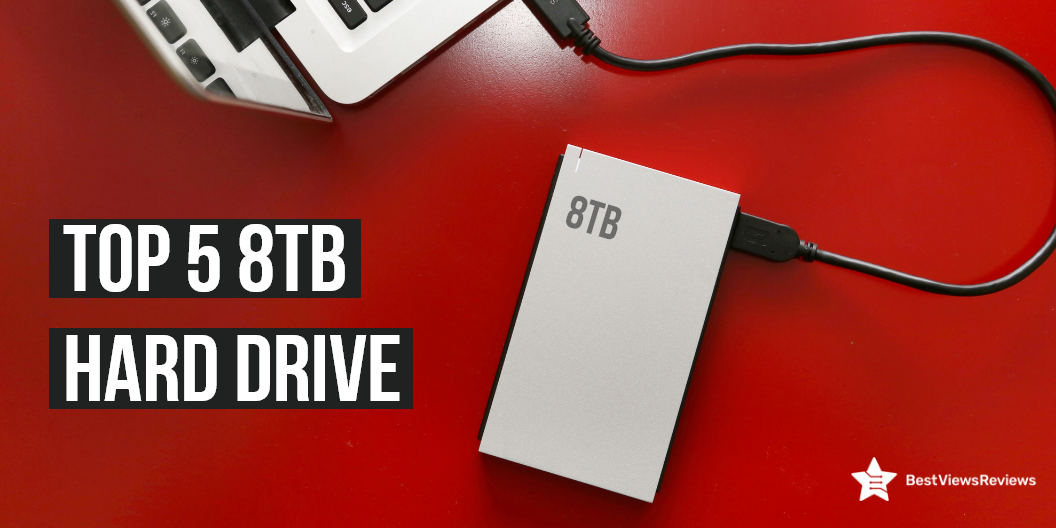
A hard drive is a type of data storage device that stores digital data on a spinning rigid disk. It is a common storage medium for computers as well as other digital devices. It is an essential component of all computers, mobile devices, and servers. Hard drives primarily use magnetic media for storage, although flash memory, optical disks as well as other technologies. A hard drive’s storage capacity is usually measured in gigabytes (GB) or terabytes (TB). 8TB hard drive is pleasant for storing tons of data. It contains a lot of space and can store up to 250,000 photos taken with a 12 mp camera. You can also check our informative blog on external hard drives and get all the answers to your questions.

Top 5 8TB Hard Drive to Buy

WD_BLACK 8TB D10 Game Drive

The reviews of WD_BLACK 8TB D10 Game Drive are good because of its faster speed. It speeds up to 250 MB/s and also comes with active cooling technologies. It comes with the type-A USB charging port for gear charging. This model comes with 259 megabytes per second reading speed. This hard drive is compatible with PlayStation, Xbox, PC, & Mac.

Seagate 8TB External Hard Drive

Seagate 8TB External Hard Drive comes with a simple drag-and-drop option and this USB device simplifies backup. It includes a USB 3.0 cable as well as an 18-watt power converter for easy file transfer. This external hard drive is compatible with computers running Windows.

Seagate Desktop 8TB External Hard Drive

Seagate Desktop 8TB External Hard Drive comes with an 18-inch USB 3.0 cable as well as an 18-watt power converter for easy file transmission. Only Windows machines are compatible with the external hard drive. The external USB device makes backup simple and comes with a simple drag and drop. It has a fast reading speed of 120 megabytes per second.

WD 8TB My Book Duo Desktop Hard Drive

WD 8TB My Book Duo Desktop Hard Drive comes with a lot of storage with auto as well as a system backup. It comes with a USB 3.0 charging port for charging your gears. It has 130 megabytes per second reading speed. This model is password protected and has 256-bit AES hardware encryption.

LaCie d2 Professional 8TB External Hard Drive

LaCie d2 Professional 8TB External Hard Drive comes with 8TB of storage as well as speeds up to 240MB/s and it helps to easily modify and archive projects. It comes with 240 megabytes per second reading speed. This model comes with a 5-year warranty. Connect to USB-C and Thunderbolt 3 PCs with ease, and experience lower noise and vibration levels.

Factors to Consider While Purchasing an External Hard Drive

Storage

An external hard drive is the finest mix of price and storage capacity when compared to alternative backup solutions such as cloud storage services, network-attached storage, and so on. Before you go out and buy one of the various hard drives on the market, you need first to determine your essential requirements as well as backup targets.

Durability

You should consider its durability and reliability when purchasing a hard disc. Most hard drives come with a two or three-year warranty. As a result, if you use the drive for long-term storage rather than regular, continually updated backups, it will protect your data for the next many years. You have the option of selecting a drive based on the brand’s reputation.

Transfer Speed

Plan to back up huge data, such as ultra-clear videos, on your recently purchased external hard drive, then a USB 3.0 driver is the best option. A USB 3.0 driver is far greater than a USB 2.0 drive. Purchasing an external disc with a USB 3.0 connection will speed up your backup process.

Package of Additional Software

Some hard drives arrive with a fantastic software bundle reinstalled. These added features must be able to compensate for poor performance and enhance our overall experience. Some advanced hard drives, for example, can automatically perform, manage, and encrypt data backups. This type of drive will be ideal for use.

Comparison Between External HDD Vs SSD

Hard disk drives (HDDs) and solid-state drives (SSDs) are storage devices used for storing files, documents, and other data. Both HDDs and SSDs store data on magnetic hard disk platters or flash memory chips, respectively. HDDs are mechanical devices that physically spin around the disk platter, while SSDs have no moving parts. SSDs are faster, more durable, and more reliable than HDDs.

Which Brand of Hard Drive Lasts the Longest?

LaCie d2 Professional Hard Drive comes with 5 years warranty that makes it long-lasting. It also comes with 240 megabytes per second reading speed. You can check it on amazon and it will also provide you more options.

How Much Does an 8TB Hard Drive Cost?

8TB Hard Drive will cost you more than $300. It will store lots of data in it and will remain for years with you.

Conclusion

Hard Drive really boosts your computer’s performance as well as has plenty of space to store data, then an 8 TB hard drive is a great option. You’ll be able to access information much faster and have plenty of room to store everything you need. It’ll be easy to upgrade your storage with an 8 TB hard drive. Get all the answers to your questions by reading our other blog on an external hard drive for mac.

BestViewsReviews rates and reviews hundreds of best computer hard drive bags & cases and top-rated computer hard drive enclosures based on their speed, durability, and performance.

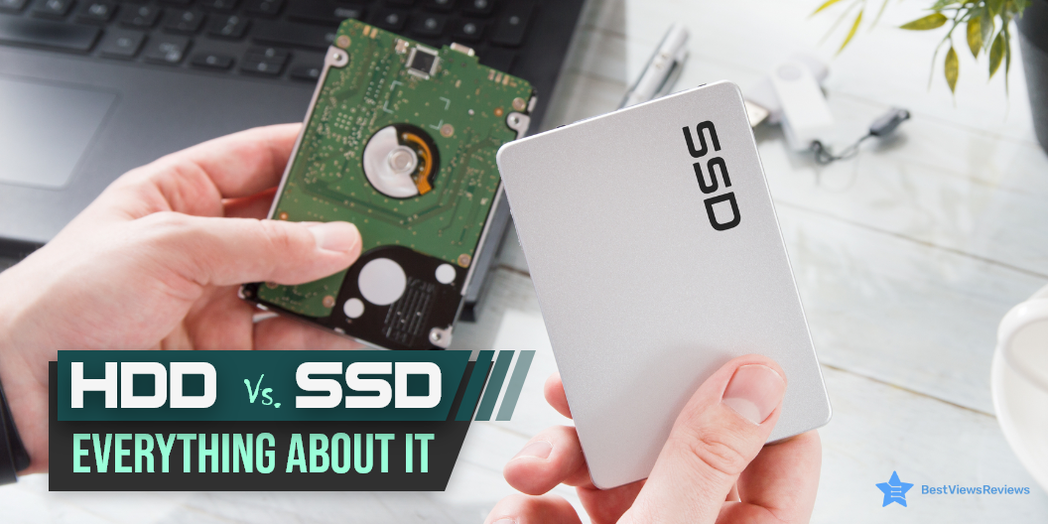
SSD Vs HDD: Everything About It

HDD Vs. SSD

SSD Vs HDD is a common dilemma that people face while upgrading computer hardware. They are external devices that maintain the performance of your computer. While HDD refers to a hard disk, an SSD refers to non-volatile memory. An SSD often replaces the HDD when the computer or laptop takes a lot of time to respond to functions.

This blog intends on highlighting everything about SSD Vs HDD that you should know. It explains the concept of using these hardware units for laptops or desktops.

What is an HDD?

HDD or hard disc drive is hardware that is present inside a PC or laptop. They have spinning discs that store data. They have several heads that read the data on the disc and allow the computer to perform the command. HDD provides a backup to thousands of photos, videos, and files. The Seagate Portable External Hard Drive is a perfect storage device to store up to 2 TB of data.  

What is an SSD?

SSD or solid-state drive is an external device where data is stored in integrated circuits. Their compact size makes them a suitable option for laptops and tablets. An SSD card reduces the command and function time significantly. You don’t have to wait for the platter rotation to run the command.

SSD Vs HDD: What Makes them different

Speed

SSDs like Western Digital have no moving parts and are completely dependent on an electrical circuit to do their job. When it comes to speed, SSD offers a better speed as compared to HDD. This results in fast response during actions like starting up, rebooting, and service startup.

HDDs are affordable and can be used to store larger files that expand into terabytes. This device is an excellent alternative for cold data. Cold data refers to old data or files that have been on your laptop for a long time. In HDD Vs. SSD, SSD has a better speed.

Storage and Reliability

SSD’s are available in many capacities that range between 120GB to 4TB. Hard drives offer much more than that and can range anywhere between 250GB to 14 TB. When it comes to storage, HDD top’s the user’s preference. Reviews of Toshiba Canvio Basics show that this model has a storage capacity of around 1 TB.

Reliability, on the other hand, is more with SSD cards. This is because they are not influenced by any malfunctions easily like thermal heating or vibrations. SSD uses less power and keeps the system idle, often. The battery life of a PC is saved with SSD.  All these benefits are not available in HDDs as they come with rotating heads.

Gaming Experience

Gaming computers often require SSDs more than HDDs. The SSD increases the speed of the PC. This reduces the response time and system glitches. SSDs also reduce the loading time. When it comes to gaming, an SSD card wins.

Capacity

HDD and SSDs come with flexible capacities that can be created by formatting them. Their capacities range between 128GB to 2TB. If you require more capacity, then the costs can go up marginally. An excellent example of an ideal HDD is Toshiba Canvio Basics. It has got good reviews for its high-speed USB 3.0 port.

Price

SSDs are expensive than legacy hard drives like Crucial MX500. For example, a 500 GB HDD can cost you somewhere around $25 to $50 while an SSD card of the same capacity may cost you between $60 and $150.

How Fast are SSDs as Compared to HDDs?

When compared with sequential data, SSDs are 56 times faster than HDDs. SSDs are 226 times faster than HDDs reading rate in 4K operations. The system, equipped with an internal SSD is faster than a system equipped with HDD.

Importance of SSDs for Laptops

  • SSDs require less power as they do not have any moving parts. This leads to better battery life.
  • SSDs are shock and damage-resistant. An HDD has moving parts. Dropping the laptop might damage it and lead to data failure.
  • SSD cards are versatile and can be used in combination with HDDs in hybrid laptops.

How Long Do SSDs And HDDs Last?

SSDs usually last around 3,000 writing cycles. The SSD functions by dividing the data equally among all cells. This minimizes cell death resulting in a long-lasting functional SSD.

The HDDs last for a min of 3 to 5 years. Some HDDs of high-build quality can even last for 10 years. Reviews of SAMSUNG (MZ-V7E1T0BW) 970 EVO SSD are positive because of its  5-year limited warranty.

Which is Better for Gaming: SSD Vs HDD?

Good games often come with high-resolution videos, audio characters, models, etc. Having a laptop that performs fast and efficiently is crucial. Professional players often refer to an SSD rather than an HDD. An SSD can boost performance and speed, making them great for games. HDD also offers many benefits. Read our blog to know about the benefits of having an external hard drive.

Key Takeaway:

HDDs are budget storage options but they tend to make your laptop slow. You can use an SSD to operate your primary programs like operating systems, applications, and frequently used files. An OS requires a lot of space to operate freely and load the computer.

Keeping your PC solely dependent on a hard drive is not a great idea. If you are on the lookout for external hard drives for mac, read our blog to know all about them.

BestViewsReviews ranks and rates hundreds of internal hard drives and external hard drives based on build and mechanism, size and speed, and noise.

External Hard Drives: All Your Questions Answered

external hard drive

External hard drives are external storage devices that can transfer and store files, documents, and various data from laptops and keep them safe. It is an effective backup device and comes with storage capacities ranging from 500 GB to 1 TB or more. The problem of overloading laptops or computers is way too common. A hands-on solution to this is an external hard drive. It also allows you to create extra storage for computers that are short on storage capacities. External hard drives also allow you to share information between systems easily. You can read through our blog External Hard Drive for Mac if you are a mac user and want to know more mac specific information.

Benefits of Having an External Hard Drive

Storage Capacity

External hard drives offer a large capacity making it convenient to store heavy files and data much effectively as compared to flash drives. You can easily get hard drives with a storage capacity of up to 10 TB or even more for professional use.

Backup Drive

An external hard drive offers you a convenient way of backing up your data. You can keep your large files safely in these drives. External drives provide secure and one-stop backup to all the crucial data which might be at risk due to windows malfunctioning or cybercrimes.

Improved Performance

External drives offer a good speed while transferring data. They are quite easy to use and do not require any special software to start functioning. These devices are flexible and are compatible with all kinds of operating systems without any difficulty.

Portability

External hard drives are compact devices that can be carried around conveniently. This means that you can carry your important files and crucial data to your meetings or presentation easily. Many hard drives are designed to slip in your pockets with ease.

Longer Life

External hard drives have higher durability and longer life than other storage devices. These storage units can easily last for up to 5 years. The average lifespan of most hard drives is a minimum of 3 years. This allows you to keep your data in the same drive for a long time. External hard drives are also quite affordable as compared to the amount of storage they provide for your crucial data.

Can I Download Software Into my Computer Using an External Hard Drive?

You can download and install software using an external hard drive. This can only be done once the software has been downloaded and you are about to run it. You can go to download and change the storage location of the software and place it in the external folder. Downloading and installing any software through one external drive might not allow you to use that software on a different workstation. You may require other special software for that.

Can I Download Games into an External Hard Drive?

Yes, you can download and install the games into an external hard drive but there are certain limitations to it.

  • The games will load slower than usual if the speed of the external hard drive is lesser than the internal drive speed.
  • You won’t be able to play the game whenever the external hard drive containing the game is not connected to your laptop
  • If the external hard drive is damaged, then you will have to install the games again
  • The game will crash and you will have to start all over again if the external drive gets disconnected in between the play mode.

How Long Does an External Hard Drive Last?

An external hard drive like Toshiba Canvio Advance lasts for around 3-5 years. This durability depends on many factors like the quality of the hard drive, make, and model. Brands also play an important role in durability. It is important to keep your drives protected from physical damage. We recommend you replace the hard drives every couple of years to protect the data.

What If the External Hard Drive Fails?

An external hard drive fails because of many factors. There could be read/write failures or internal defects. In such cases, the hard drive needs to be repaired before any data transfer is attempted.

Can I Use a USB Stick as an External Hard Drive?

The answer is Yes. You can use a USB stick as an external hard drive, provided the USB is connected to the laptop. The USB stick helps you can perform all functions that an external hard drive does like saving, downloading, and deleting. Read our blog to know everything about photosticks.

What is the Difference Between a Flash Drive and an External Hard Drive?

Mechanism

External hard drives use electro-mechanical data that makes them sustainable to damage, unlike flash drives that are non-volatile memory and prone to damage.

Storage Capacity

External hard drives have a larger storage capacity as compared to flash drives. External hard drives come in capacity between 500 GB and 10 TB or more, whereas flash drives are available in capacities of between 2 GB and 56 GB or more. The reviews of WD Elements Portable External Hard Drive show that it comes with a massive capacity of 2TB.

Portability

A flash drive is a tiny device that can fit in any compact space, making them convenient, portable, and ergonomic. External hard drives also offer the same except they are a bit heavier and bigger than flash drives.

What is the Best External Hard Drive?

An external hard drive that is secure, speedy, efficient, sturdy, and ergonomic is the best. Reviews of WD 10TB Elements Desktop Hard Drive suggest it as one of the best external hard drives. This drive comes with a massive memory of 10 TB with exceptional compatibility and a secure backup mechanism. You can transfer your data quickly in this hard drive model.

You can also look for other options like the top-ranking WD 4TB Gaming Drive that is compatible with PS4 devices to offer you a seamless gaming experience. This model has got good reviews for 4 TB storage capacity and lightweight design weighing just 0.57 pounds. It is a must-have storage device for you, especially if you are a gamer.

The other high-quality drive is Toshiba HDTB410XK3AA that has got excellent reviews for its sleek profile design with a matte. This drive has 1 TB of storage capacity that is ideal for personal, gaming, and business use. It uses USB 2.0 for quick data transfer and requires no external AC power cord for its setup.

Conclusion

It is important to have a good hard drive as most of the professional and personal lives revolve around digital and electronic media. These drives can store massive data keeping them safe and secure. You can carry these storage units everywhere with you. The versatile features and ergonomic design make external hard drives one of the best back-ups to go for as far as data is concerned.

BestViewsReviews rates and reviews hundreds of top-selling photosticks and high-quality internal hard drives on the basis of durability, performance, and quality.

External Hard Drive for Mac: All You Need to Know

hard drive for Mac

An external hard drive for Mac is absolutely essential today. The Macbook comes with pre-defined storage, which can be run out of easily. The stored data is very important and we simply cannot afford to lose it. Cloud storage is gaining popularity, but data security breaches make us all paranoid. The answer to all these miseries is an external hard drive!

The external hard drives not only let you free up space on your boot drive but also help you save your data and protect it. There’re a few things to be kept in mind while using your hard drive with your Mac. In this blog, we’ll walk you through all the essentials you need to familiarize yourself with before starting using an HDD. If you are looking for a more general guide then check out our blog External Hard Drives: All Your Questions Answered.

There are many options when choosing an external hard drive, if are looking for high storage capacity then the Toshiba Canvio Advance 4TB and the WD 4TB Gaming Drive even works with Playstation 4. But if you really want that extra storage and 4TB is not enough for you then check out the Seagate Desktop, it offers 8TB of storage meaning that you will not be needing more storage for a long time. If you don’t want to make a big commitment and want a smaller external hard drive then check out the 2TB WD Elements and the 1TB Toshiba Canvio Basics they are both compatible with difference devices and come with the latest USB 3.0.

How to Format a Hard Drive for Mac?

Some external hard drives are directly compatible with your Mac and you do not require to do anything additionally. However, most drives work on the FAT32 file system. While Mac supports FAT32, there’s a chance of losing some precious data. Hence, it’s advised to format your drive to the Macbook OS Extended for optimum compatibility. To format your hard drive, repeat the following steps:

  • Connect your external drive and launch Disk Utility
  • Select your device and choose ‘1 partition’. Next, click the Options button and ensure that the partition scheme is GUID
  • Follow all the default steps after this and your disk will be formatted for your Mac

Why is my Mac not Reading my External Hard Drive?

This could be happening because of many reasons. Firstly, it’s very important to make sure that the connections are tight. Sometimes restarting your Macbook helps as well. There’s also a possibility that the USB ports have malfunctioned. In the end, it’s recommended to check your drive on another system to arrive at a definite conclusion.

How to Backup Mac to the External Drive?

Mac’s time machine app helps you back your entire data to your external hard drive. You simply need to connect the drive to your Mac and open the time machine app and select your preferred device and the data will start getting transferred immediately.

How to Partition the Hard Drive?

It’s always recommended to take a backup before partitioning your hard drive. To partition your hard drive, repeat the following steps:

  • Click the partition button on the Disk Utility app on your Mac
  • Click on the Add button
  • Name your partitioned volume
  • Choose the file system format from the format menu
  • Adjust the size of your partition
  • Click apply, partition, continue and done

Conclusion

External hard drives are very important if you want to store your data safely. You should keep all the above-mentioned steps and tips in mind to use your hard drive smoothly. Go to Bestviewsreviews to check out more products that might interest you.