
Memory Vs Storage: What is the Difference?

Memory Vs Storage

Computer memory vs storage is the basics of a computer, but comes with confusing concepts. Storage and memory are the two key components of PCs and computers. Both systems work together with a CPU on a PC or laptop to access and process data. Let’s learn how memory and storage differ in this blog post.

Memory Vs Storage: What is the Difference

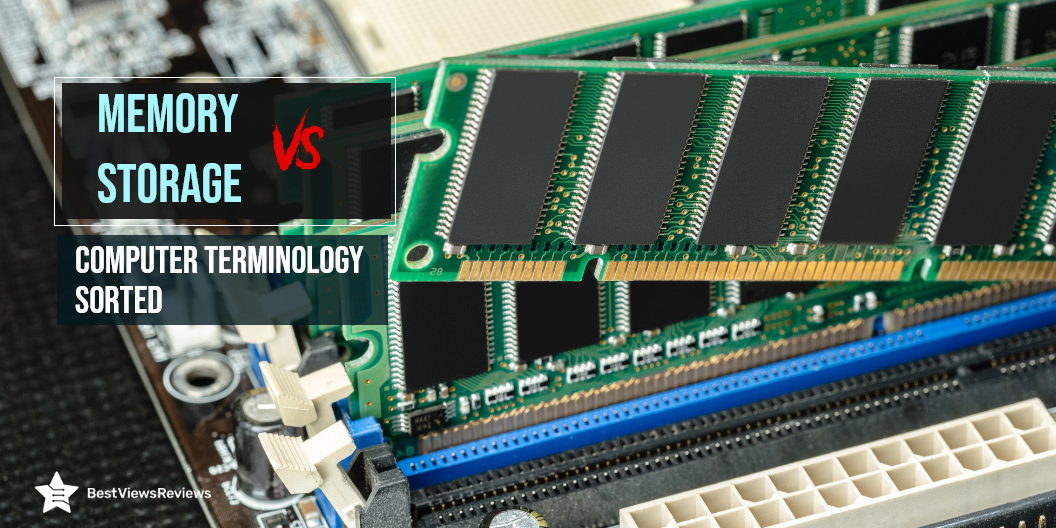
RAM is the main memory of your computer. This is a workspace that computers use to complete their tasks. A lot of what you do on a computer uses RAM to store information while it’s working, such as opening an app, opening a document, or any action. Modern computers are pre-installed with 4, 8, 16 or more gigabytes of memory. Most laptops have 8GB of RAM, but the most powerful gaming laptops can have up to 32GB.

Computer storage is the means by which you can store and access data over a long period of time. Hard drives or solid-state drives are common types of storage. The various applications, operating systems, and files are stored in storage for an indefinite period of time. An ideal example can be memory cards that are external storage devices for long-term data storage.

Storage Vs. Memory

Data Retention

Memory, or the RAM, stores the data temporarily until the system is in use. The storage, however, keeps the data secure, even when your system is in ‘off’ mode. A good example of external storage is the Sunany USB Flash Drive 256GB.

Capacity

In general, the larger the memory module, the more you can have running at the same time. RAM capacities of 2-4 GB were standard for computers with Vista and XP. It is enough memory to run a single application. A storage device’s capacity like the Apple MFi Certified 128GB refers to the amount of disk space it offers. Data volume is a measure of how much data a computer system contains. An example would be a computer with a 500GB hard drive that has a 500GB storage capacity. Four 1TB drives provide 4 terabytes of storage on a network server. If you plan on buying RAM for your Mac system our blog is a must read to help you choose the best.

Cost

RAM is expensive than storage. A single GB of RAM can cost you approximately $8, whereas a single GB of storage will be available for as low as 10 cents. The capacity of RAM is limited as compared to storage like the Toshiba Canvio Basics 4TB

The best price for 500 GB and 1 TB computer SSDs is between $0.25 and $0.30 per GB, according to Amazon. We assume the cost of SSD storage for computers is approximately $0.25 per GB. HDDs cost 7.6 times as much per GB as LTO tapes, whereas the raw capacity of LTO tapes costs 12.5 times as much.

Speed

If you’re looking for a memory speed, choose DDR4 memory that runs at or close to 2,400MHz—or 2400MT/s, as it appears on the packaging or online. When buying DDR3 RAM, users should look for devices operating at least 1,866MHz, and closer to 2,000MHz.

Typically, a desktop hard drive (HDD) of a terabyte writes data at 80MBPs (megabytes per second) and a laptop hard drive writes at 60MBPs (megabytes per second). SSDs (Solid State Drives), are capable of greater speeds, from 300 to 500+ Mbps, depending on the model. A good example is WD 2TB Elements Portable External Hard Drive HDD.

Memory Vs Storage- Ideal Capacity

Application speed and performance are directly related to the amount of memory available in your system. RAM performance is determined by the speed of the memory as well as the capacity. RAM expands your PC’s ability to manipulate data. A low RAM capacity can cause your applications to run slowly. You can select from a variety of RAM capacities as listed below.

2-4 GB

One application can be run at a time with this capacity, and it is ideal for Windows XP or Vista.

4-6 GB

You can navigate the web, send e-mails, and work with Microsoft Office applications using this amount of RAM.

6-8 GB

It supports the simultaneous display of multiple apps at the same time and is suitable for casual games or multimedia files.

More than 8 GB

A memory of 8 GB or more is recommended for professional gamers and those who work with high-end multimedia files. Samsung’s Original 8 GB is rated in this category, given its efficiency and high performance.

Memory Vs. Storage- Final Verdict

To summarize, storage and memory are two separate concepts. People often confuse the terms “MEMORY” and “STORAGE” when using computers every day. They often use one term for the other. Memory and storage are both measured in the same units of measurement: bytes, kilobytes, megabytes, etc. Essentially, both memory and storage are places where you put data, but they handle it differently.

Memory and storage perform separate functions in a computer, despite their connection. Storage maintains long-term data and other files while memory meets temporary data access needs. The next time you hear a fellow novice saying that they have a memory of 500 GB, explain to them that it’s the storage instead. BestViewsReviews rates and ranks the leading computer memory and memory card readers options based on compatibility, build quality, and user satisfaction.
How to Choose a RAM for Your Mac

RAM for Mac

Do you think it is time to upgrade the RAM for your Mac? Is your MacBook running slower than usual? Is it no longer welcoming any new applications?

If the answer to all of these questions is yes, then its time to go a better computer memory to give you the efficiency that you have always desired. Upgrading your RAM is the most affordable way of keeping up the efficiency of your beloved Mac computer.

Is RAM for a Mac Different from Other Laptops?

Technically, there is no difference between the RAM for standard laptops and MAC Laptops. RAM, the random-access memory, works to deliver data and other operations quickly. If your Mac has inadequate RAM for all the applications you have installed, the response time will suffer and the applications will take a lot of time to load. This will make your experience bitter. However, before blaming it on your PC, check the RAM. Upgrading the RAM with OWC 64GB  will add more functional years to your device.

Before you make the decision to take the plunge, you should know precisely when an upgrade will help! So let’s begin with some quintessential questions.

Questions to Ask Before Buying RAM for Mac

  • Is it running slower than usual?
  • To work and load intensive apps like Photoshop or iMovie, Is it struggling a lot?
  • Is multitasking long gone?
  • Does rebooting your computer takes up an unreasonable amount of time?
  • Is something wrong with the display?

If most of these answers are positive, it’s time for an upgrade. However, there are some things you should look out for, before going for an upgrade. You can also use your AirPods with your mac devices. Read our blog to understand how to connect AirPods to MacBook.

Check if Upgrading the RAM is Possible

  • The first thing to do is check whether the RAM for your Mac can be upgraded or not.
  • To do that, go to the Apple Mac menu and choose “About this Mac”. Get an overview of your device along with complete RAM specifications.
  • Secondly, look out for the memory, DDR, and frequency of your device.
  • Figure out the number of slots you are choosing by selecting “Memory” in the header. Finally, go through Apple’s list to be aware of what RAM your system is capable of handling.

Avoid going for an upgrade if you don’t face any of the listed issues. Merely making it faster just for the sake is overkill!

Things to Consider Before Buying RAM for Your Mac

Brand

Brand name plays a crucial role in picking up any computer part. RAM that comes from a trusted and reliable brand undergoes necessary tests to evaluate its efficiency. So, don’t get lured by a price cut and pick something less reputable.

Warranty

Even if you get your hands on the best brand, things can always go wrong. While investing ensure that the RAM comes with a warranty that can cover you for a certain period.

Reliability

To minimize any potential errors, always go with a reliable brand or dealer, read all the reviews about the product, and ensure whether the RAM is compatible with your system or a system similar to yours.

How Much RAM is Sufficient for Your Mac?

A 16 GB RAM like Timetec 16GB KIT(2x8GB) or A-Tech 16GB (2x8GB) RAM is sufficient for you if you hardly use any intensive applications like video editing apps, for instance. If you feel the need to make your computer ‘future proof’, you can go for a higher capacity RAM. This will depend on the maximum RAM capacity your device can support. Bear this in mind before investing.

One of the most recommended products for your Mac, in general, is OWC 8GB (2x4GB) PC3-12800 DDR3 and for a more specific requirement like gaming, you can go for Timetec 32GB KIT(2x16GB) for Gaming and High-Performance. We suggest you read through the blog that helps you evaluate the capacity of RAM required for your Your Gaming PC.

Verdict

To conclude, it’s a good idea to have more RAM than you require, instead of having any less! But it’s a balance that you have to decide as too much memory may go waste. This blog should help you identify a lot of things about your PC if you were thinking of investing.

The CPU cooler is also an important part of the MAC. You can check the best CPU coolers for Intel core i9-11900k it helps to keep the CPU cool and prevents it from overheating.

BestViewsReviews recommends and reviews the best computer memory options and hundreds of Touch Screen Laptops based on popularity and performance.

How Much RAM For Gaming Do You Need?

how much ram for gaming

A RAM (Random-access memory) is a form of memory that holds information and working data for your PC temporarily. Once you open a program, the OS sends the data into this memory. Data in RAM clears out after the system is shut down. Your machine may struggle to process multiple programs together if you don’t have sufficient memory in your system. Low RAM memory results in lagging and slower applications.

It’s common to wonder how much ram for gaming is required. This blog highlights the difference between RAM and VRAM and gives a detailed buying guide. We also have a blog on the best gaming laptops, read through to know more about your options.

RAM Vs. VRAM

RAM is an important factor to consider while upgrading your Gaming PC, or building it from scratch. The good memory capacity allows your system to access the stored data quickly. It results in no choppy frames rates or poor performance. One of the best RAM available is Crucial DDR3 RAM. The reviews of Crucial DDR3 RAM suggest that it helps you store enough files in the desktop memory and process the applications quickly.

VRAM is a video card that has a dedicated memory to store image data. It is different from the usual RAM. It primarily works on improving the quality of graphics on the display screen. You should have a good VRAM along with a good RAM capacity for top gaming performance.

How to Select the Right RAM?

Selecting the right RAM can be a hassle. You need to pick the right model, with sufficient memory capacity. Read our blog to know how to buy the right ram for your mac devices.

8GB RAM

8GB RAM like the Crucial RAM 8GB DDR3 is ideal for playing simple games. This memory doesn’t work in the newer PCs or specifically the gaming PCs. Most of the popular games have 8 GB as the minimum requirement. Going higher on memory is a good idea for gaming PCs.

16GB RAM

A 16GB memory supports a wide range of popular games. It is usually enough for all kinds of games, except for the popular ones with heavy graphics. 

32GB RAM

A 32GB RAM is ideal for performing multiple tasks while running your games. You can play your age while playing some music in the background. This RAM is enough for the majority of games, but the extra space will “future proof” your gaming PC in case a new version comes out.

64GB RAM

The 64 GB RAM is useful for people with hyper-sized files or enthusiastic video editors. PC games are more dependent on VRAM for their advanced visual features, along with GPU. This RAM is suitable for professional use and heavy multitasking. It delivers high gaming performance.

What are the Factors to Look for While Buying RAM?

DDR Designation

Memory sticks are made on DDR (Double Data Rate) technology. They work twice per clock cycle. DDR4 and DDR3 are the most common versions but they are not compatible with each other. This prevents you from plugging a DDR4 RAM stick into a motherboard that has slots for DDR2 or 3. Crucial 8GB Single DDR4 has positive reviews for its faster speed and responsiveness.

Clock Speed

This represents how many clock cycles a RAM can perform every second, and is calculated in megahertz. The higher the value gives the seamless gaming experience. Make sure you don’t plug memory sticks with different clock speeds.

Number of Slots

Look at the number of slots on your motherboard before buying memory. The dual-channel memory helps your PC to use two sticks simultaneously. Always buy two memory sticks like in Crucial 16GB Kit (8GBx2) rather than a single 4 GB for a better gaming experience.

Other Factors

Other factors like processors and the perfect graphics can also affect your gaming PC performance. The speed of your CPU will dictate how rapidly the data can be generated. A system with a discrete GPU can deliver better visuals, even with less capacity. We recommend you but the right memory after considering honest customer reviews.

Conclusion

A RAM directly impacts your PC performance and efficiency. You need to identify your requirements while picking the right RAM size. Based on customer reviews 16Gb RAM is ideal for gaming and multitasking. You can go with 8Gb RAM for regular use. Make sure you consider the above-mentioned factors before making any final purchase. You can also check the best RAM for core i9-11900K, it can speed up your PC.

BestViewsReviews recommends and reviews hundreds of PC games and accessories like PC game headsets on the basis of performance, capacity, and ease of installation.