How to Choose the Best Printer Stand?

Printer Stand

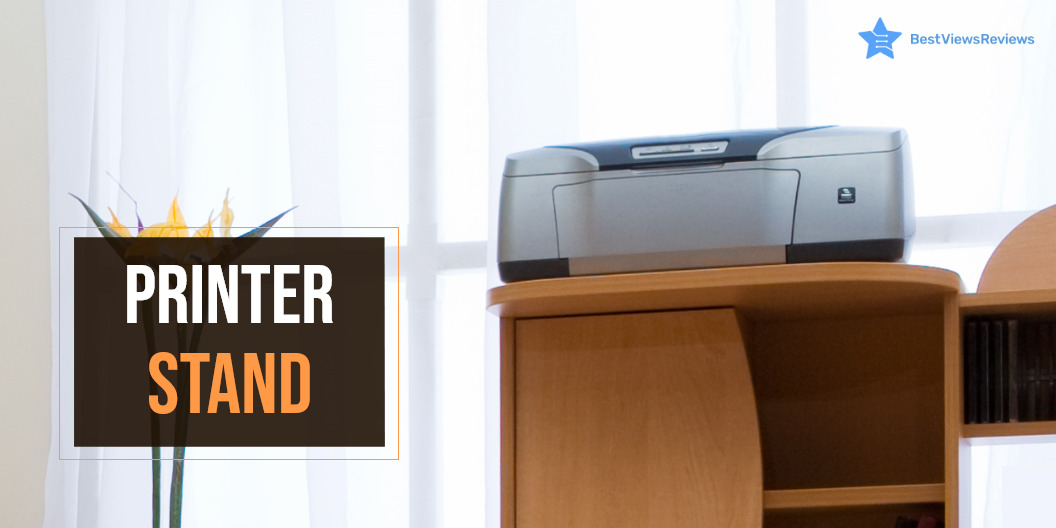
A printer stand is a short platform that helps you to store a printer. You can place it either under the table or separately. It helps you save some desk space by allowing you to store the printer-related goods in one area. They are common in small offices and homes where home printers are used.

Why Do You Need a Good Printer Stand?

A good and functional stand will allow you to place the printer conveniently. It will save you counter space and stay organized. You can also store printer essentials like cartridges and paper for convenient printing. A quality stand will complement the current set-up too. The stand is available in various shapes and sizes to fit any printer. You can also keep the best inkjet Bluetooth printers on these stands.

Things to Consider Before Buying a Printer Stand

Closed Vs. Open Stand

The open style offers easy access to the printer. You will not have to move the printer constantly when using this style. The open stand offers unrestricted access below the table too.

A closed stand with a single or double door is a good option if you print occasionally. If you don’t want the printing machine to be visible all the time, this is the ideal option. The disadvantage of a closed stand is the inconvenience of moving the gadget every time you need to connect to it.

Low or High-Standing Printer Stands

The height of a modest stand is typically around 40-50 cm. It is ideal for under the table, countertop, or shelf. The printer consists of one shelf and limited printer space. It doesn’t include casters or wheels but is small and light to carry around.

A high-standing stand comes in both closed and open designs. It is available in wooden, metal, or glass materials. It has between 2 or 3 shelves. The stand also has taller and broader storage spaces. A high-standing one is also expensive. The cost depends on the material and design.

Storage Space

Printer and printer supplies require decent storage space. Go with a stand that has multiple compartments. This will allow you to organize and store the printer and supplies like cartridges, papers, paper clips, etc.

Cable Management, Connectivity, And Power Inlet Hole

Printers are available in both tethered and wireless designs. If you have a wired printer, go with a style that allows easy passage of wires without the risk of tripping you. The closed wooden printer stands come with holes to allow the wire to pass through. If you are facing an issue with setting up your printer, read our blog on common printer problems. It will help you identify the problem.

Measure the Set-up Area

A key consideration is to measure the area where you intend to place your printer. It’s always a letdown to buy a piece of furniture only to discover that it doesn’t fit. It is advisable to leave half inches on each side to assess the margin of error.

Suitability with the Interior Design

Go for a printer stand that blends well with your decor. This is an important consideration if you place your printer stand in a particular area of your living room. For example, a steel stand will look out of place in a room with wooden furniture.

Buy the Best Printer Stand

VASAGLE Printer Stand

The reviews of Safco Printer Stand are good because it offers plenty of storage space for supplies on the side shelf. It has great wheels, making it easy to move around. The large capacity of this stand can hold all the essentials and more. This stand is made of high-quality metal to offer high durability. It comes with a wire design that goes with any kind of interior.

HOOBRO Printer Stand

The South Shore Printer Stand provides convenient access to a printer. It has a 2-Door, 1 Adjustable Shelf, and 1 Spacious Drawer with rolling wheels that make it the best storing option. This sleek printer cart can blend in with any existing decor while keeping your workspace tidy. This model also comes with a 5-year warranty.

FITUEYES Large Printer Stand

The eMerit Large Printer Stand comes with 3 storage compartments to store the printer and avoid cable mess. This stand is also an ideal storage solution for speakers, phones, and keyboards. It features an attractive design with non-slip rubber feet to prevent your work surface from scratches and scuffs. This gives a clean and tidy look, regardless of the cables and wires.

Safco Printer Stand

The reviews of Safco Stand show that it is compact and lightweight. It adds a stylish touch to any office. The printer stand features a sturdy steel frame construction with molded-in grooves. This offers stability and maneuvering. The two swivel caster wheels allow mobility. The under-desk stand has a powder-coated finish and is available in black.

The HUANUO Printer Stand

The OROPY Stand stores your desk essentials. It keeps your work area neat and organized. One can use the revolving stand as a bookshelf, printer shelf, storage shelf, or simply as a decorative shelf. It is an ideal solution to keep your desktop organized and free from clutter. It has got good reviews for its dark brown color and vintage style.

Conclusion

Every printer needs a storage area. A quality printer stand is a must-have for anyone who doesn’t have enough desk space. You can use the stands for more than simply printers. Remember to check the dimensions and weight of your printer before purchasing a stand. Read our blog on reliable printer brands, if you are on the lookout for an efficient printer. It is done to make sure they match up with your intended purchase.

BestViewsReviews rates and ranks hundreds of best printers based on technical support, build, quality, and user satisfaction.
All You Need to Know About Small Printer

small printer

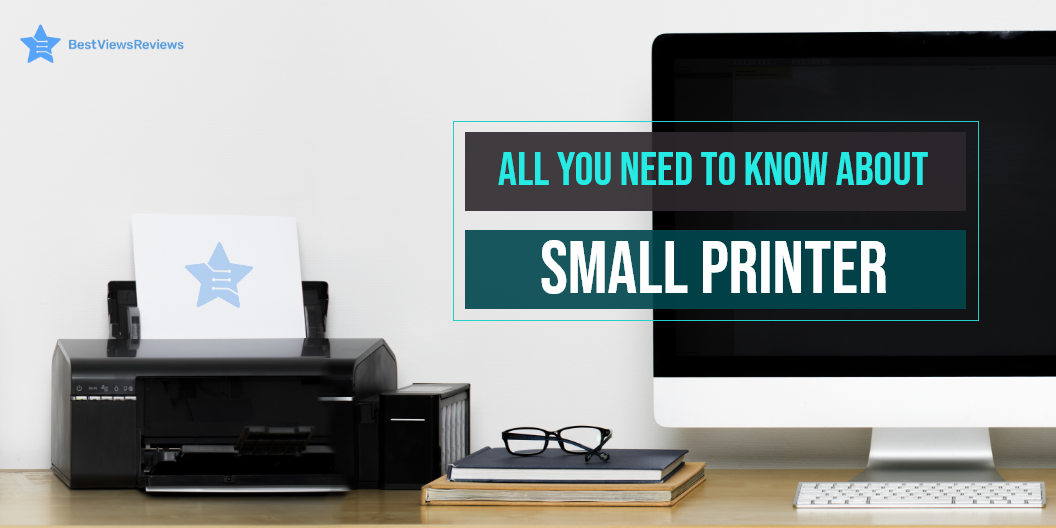
A small printer is a portable device that works on the same principle as that of an inkjet or laser printer. It has small dimensions, measuring around 6 inches wide by 18 inches deep by 10 inches tall. The dimensions can vary as per brand and manufacturer. This device is easy to use and set up, which makes it an ideal buy for your home office space. The compact size, lightweight design, and connectivity features are the primary reason behind its increasing popularity.

Buying a small printer is not that easy. It requires considerable time, effort, and research. To make your shopping experience hassle-free, we have crafted an informative guide, below. Check it out.

What to Consider When Choosing the Best Small Printer

Wired vs. Wireless

A small printer is available in wired as well as wireless technology. The wireless connectivity is good for portable handling and keeps you away from the clutter of wires and cables. This device can be connected via Bluetooth or Wi-Fi. Some models also feature a Wi-Fi direct option that connects with local computers and smartphones easily.

Wireless connectivity is undoubtedly a convenient way of connecting your printers, but it can be slow too. There are always some chances of network interference, network error, or a lag in connection. A wired connection requires cables and wires, but it often delivers fast and accurate results.

Quality

The quality of the printer is denoted in Dpi terms. Dpi is dots per inch that a printer forms to create a good-resolution print. In simple words, a high dpi number will mean a higher print resolution. Inkjet printers usually have a dpi ranging from 300 to 720, while laser printers have better resolution capabilities with 600 to 2,400 dpi.

Inkjet printers can print colorful and high-quality photographs. Laser printers are ideal for printing detailed and precise text. Check the dpi of your chosen model before you purchase it. Choosing between laser and inkjet printers can be tough. Read our blog to know if a laser printer is better than an inkjet printer.

Speed

The printing speed matters in deciding the right model. Laser printers like Brother Compact have good printing speed and can print from 20 to 100 pages per minute depending upon the model and print size. The inkjet printer can print about 16 pages per minute. Check the tray space of the printer you want to purchase as well since a larger tray will result in less frequent reloading, but it may result in increased printer size.

Maintenance Cost

Maintenance cost mainly includes ink or toner replacement costs. The maintenance cost can be more with a laser printer, but the per-page cost for printing is comparatively less. This is because a laser printer can print up to 7000 pages in one toner, while an inkjet small printer can give only 135 to 1,000 pages. The reviews of Brother Compact Monochrome show that this model can easily print around 2000 pages in one toner. Whatever model you select, make sure you check the maintenance cost, running cost, and overall cost that you may have to face in the long run. Read our blog to know about common printer problems and their easy fixes.

Connectivity

Other than a wired and wireless connection, you should check some other connectivity features too. Some models can connect with smart home systems and audio control devices like Alexa. This offers better convenience and ease of use. They also have separate SD card ports to support external storage access. It allows you to print your photos directly from your SD card.

Portability

The main idea behind a small printer device is portability. You should look for models like Canon® SELPHY™ CP1300 that are easy to carry and have lightweight designs. You can check for exact dimensions in the product description section. The model you buy should not weigh more than 5 or 6 pounds.

What Smart Features Do a Small Printer Have?

A small printer can have a lot of advanced features depending on the brand and type. Some models can connect to built-in apps for providing convenient and wireless usage. The LED display with a touch control feature lets you give quick and accurate commands. You can also track and monitor ink levels in various small printer models.

How Long Does a Small Printer Last?

A small printer device can easily last around 3 to 5 years, but with proper care and maintenance, the overall lifespan can be increased. Most models come with a limited warranty of 1 year, but the premium models can include an extended warranty of up to 3 years.

What Is The Best Small Printer For Home Use?

The HP DeskJet 3755 is the best small printer for home use. It has a compact and lightweight design with Bluetooth and Wi-Fi-direct wireless connectivity features. This printer comes with a sheet output tray that can hold up to 25 sheets at a time. The input tray can contain up to 60 sheets. It measures 15.86 x 6.97 x 5.55 inches in size and weighs just 5.13 lb.

The Canon Pixma TR150 Wireless Mobile Printer has also got excellent reviews for convenient home usage. It comes with wireless capabilities and can print directly from your smart devices or phones. This model features a 1.44-inch OLED display and an optional battery.

Conclusion

A small printer is a compact, yet useful device for your regular home-office tasks. This printer fits in your compact workspace and quickly delivers high-quality prints. The operation is mostly smooth and quiet. It is good to know all about inkjet printers before choosing any model. We recommend you buy models that are from trusted and reputed brands.

BestViewsReviews rates and ranks hundreds of computer printers on the basis of build quality, print quality, and ease of use.

All You Need to Know About Bluetooth Printer

Bluetooth Printer

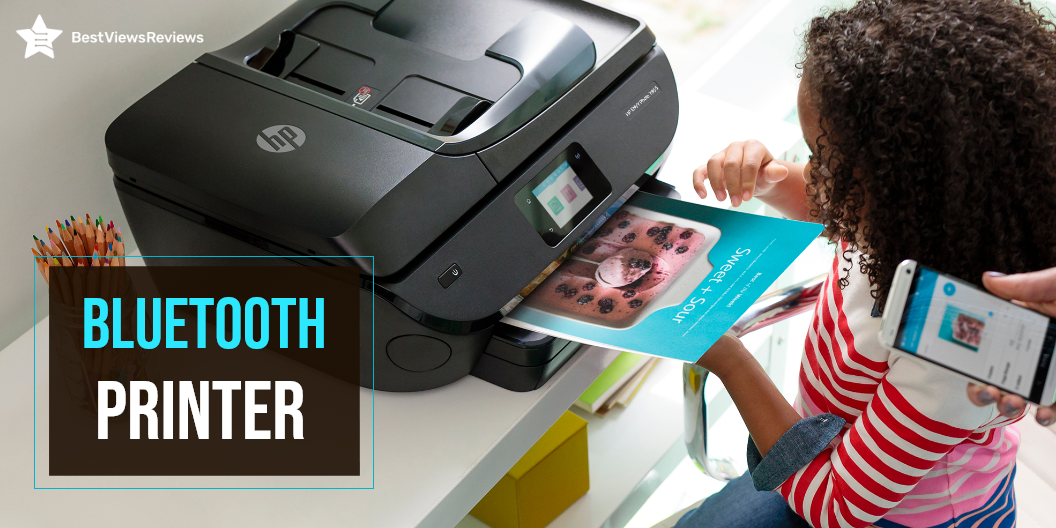
A Bluetooth printer is a wireless printer that connects to a computer or other Bluetooth device. It can then print conveniently. A Bluetooth printer is different from a printing device. A printing device connects to the computer via a USB cable.

The Bluetooth printers can print wirelessly from your computer. A printer connected via Bluetooth supports the ability to print to multiple devices at once. If you are on the lookout for a regular printer, BestViewsReviews has shortlisted the top-rated inkjet Bluetooth printers. They are reviewed on the basis of print quality, compatibility, and support.

How Does a Bluetooth Printer Work?

Printers use Bluetooth technology to enable wireless and cordless printing. The computer can send print jobs directly to the Bluetooth printer without wired connections. You may send print jobs at a data transmission speed of up to 3 Mbps. The speed is fast and can connect to any location. It will be possible to print from many PCs to a single printer using this Bluetooth network. This printer network will function similarly to a network created using your house Wi-Fi.

How Do I Connect to a Bluetooth Printer?

Step 1: Check the Compatibility

Check to see if your printer supports Bluetooth. There are printers that support Bluetooth, and there are others that require an adapter. You can buy Bluetooth printer adapters online or at electronics stores for an affordable price.

Step 2: Connect the Adapter

Set up your adapter. It will install itself to connect one end to your computer and the other end to your printer.

Step 3: Active the Printer

Activate the printer. Ensure it’s plugged into a functional socket and that the printer’s electricity is switched on ideally.

Step 4: Activate Bluetooth in the Computer

Switch On your computer and open Bluetooth devices. Next, move to the control panel and open Bluetooth Devices after you’ve installed your Bluetooth adapter.

Step 5: Connect the Printer to the Computer

Add a printer to connect to the Bluetooth printer. This method is less secure but is simple to understand. Tick the “Turn to discover on” and “Allow Bluetooth devices to connect to this computer” in the settings tab. The printer and computer should automatically detect each other and begin operating.

Step 6: Add the Device

Add the device manually. Select “Add Device” from the device’s menu and follow the installation tutorial to locate your printer.

Step 7: Final Installation

Use the wizard to “Add Printers.” You may also add a printer by going to “Start” and selecting “Printers and Faxes,” then “Add a Printer.” When the wizard appears, pick “Bluetooth printer,” and Windows will automatically look for your printer. If you are not able to connect, read our blog on how to troubleshoot a printer.

Can you Use a Bluetooth Printer without Wi-Fi?

You can use Bluetooth to transfer data from one device to another without a Wi-Fi connection. Several devices require Wi-Fi to function properly. There are some Bluetooth devices that do not work without Wi-Fi. You might need to use Wi-Fi to transfer documents from your computer to your printer over a LAN. You do not need a Wi-Fi connection if you have a Bluetooth printer.

What is the Cost of a Bluetooth Printer?

Bluetooth printers range in price from $25 to $75. You pay according to how much ink you put into your printer. Bluetooth and Wi-Fi are both wireless solutions. There are two primary reasons these technologies differ. You may get equivalent print output if you buy compatible ink cartridges – you could save up to 60% by doing so.

Check the type of ink cartridges–or refill options–available when buying a new Bluetooth printer. The alternatives you can choose from depending on the model and feature you are using. You may need a refilling kit for some ink cartridges. Kits like this can save you money while also serving as a fail-safe if you run out of ink when you least expect it.

Is a Wireless Printer the Same as a Bluetooth Printer?

No, they both differ in the following ways.

Range

Since Wi-Fi has a range of around 300 feet, you may put your printer in a central location where everyone can use it. It will allow you to keep your printer close to your Bluetooth-active devices. •

Transmission rate

Wi-Fi transmits data at a fast 55 Mbps. It allows you to print rapidly and deliver larger files to the printer without slowing down the network. Bluetooth is a little slower than Wi-Fi, but it’s widespread in portable devices like cell phones and digital cameras.

Buy Best Bluetooth Printers

The Kodak Bluetooth Printer

The Kodak Dock Plus lets you create and share with ease. Connect a compatible iOS or Android device and print directly from your phone or tablet. You can use the free Kodak Smile app to edit and enhance your photos. This instant printer uses 4pass technology to print flawless photos instantly. You can also print and share via text, email, or social media.

HP ENVY 5055

The HP ENVY 5055 is compatible with iOS and Android devices. You can print through your Smartphones and tablets. The printer supports Bluetooth and Wi-Fi and allows you to print directly from your computer or the cloud. It has a wide range of printing paper support, including 4 x 6 inches, 5 x 7 inches, and 8 x 10 inches. This printer has got good reviews for its Auto-Duplex technology that prints on both sides of the paper.

HP OfficeJet 250

The reviews of HP OfficeJet 250 show that it is an all-in-one portable printer that can scan, copy, and meet your portable printing needs. It supports various sizes to print letters, legal statements, envelopes, and photos. This printer has a 2. 65″ color touchscreen, auto document feeder, and more. The Bluetooth printer is compatible with Windows, Mac, and Linux.

Canon Pixma TS6320

The Canon Pixma TS6320 print, scans, and copies with ease and efficiency. This printer has a mobile printing solution that enables you to print directly from your Smartphone or tablet with the Canon PRINT app. The PIXMA printer can print up to 15 pages per minute in black and white. It also has auto 2-sided printing for convenient copying and scanning. The printer features an auto-duplex printing feature that saves paper and ink. It has got good reviews for its 1.44” OLED + LED status bar.

HP OfficeJet 5255 Wireless All-in-One Printer

The HP OfficeJet 5255 Wireless All-in-One Printer has a 35-page auto-document feeder and automatic two-sided printing that offers convenience. It comes with the HP Smart app that allows you to print and scan remotely. This model has Dual-band Wi-Fi for a stable and reliable wireless connection.

Key Takeaway

Bluetooth printers are convenient, easy to use, and efficient. It’s, however, important to be aware of security concerns. You must create your own Bluetooth password for every network you create. Data is only accessible to authorized users, thereby reducing the risk that sensitive information is lost or misused.

BestViewsReviews helps you find the best products on the market by rating and reviewing them on the basis of print quality, function, and user satisfaction. Get unbiased, honest reviews of products before you buy.

Printer Repair: Common Printer Problems

Printer repair

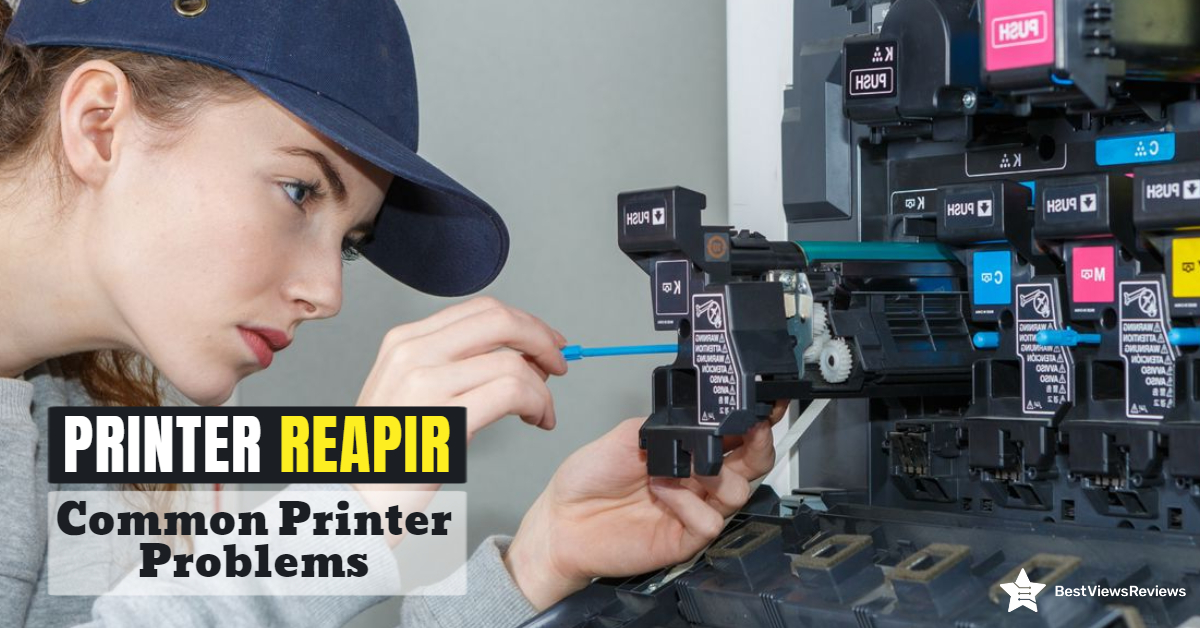
Businesses and households alike require printer repair services. The printer produces many items, including books, brochures, posters, and pamphlets. It can often experience common problems or can start malfunctioning. You can repair your printers even using basic troubleshooting methods in such cases. The printer’s improper operation can affect your productivity and work quality.

We have covered a variety of common printer problems and some easy printer repair methods in this blog. Reading this will help you fix your printer without any professional help.

What Are The Common Printer Problems And How To Troubleshoot These Printer Problems?

Printers can house so many problems but you can fix most of them with basic troubleshooting and printer repair methods. For example, when you are trying to print an important document, the printer can print blank pages. The printer can also take a long time to print your document. A list of common printer issues and the likely solutions are given below.

Printer Repair When the Printer Is Not Turning On

It can be a common problem with any branded printer. When the printer doesn’t turn on, it can be because of many reasons. First, you need to check if the wall outlet is working well. You can check it by plugging in some other electric device and see if it’s working. If your wall outlet is fine, you can try to restart your printer after 30 to 45 minutes. The problem can also be in your printer’s power cord.

Paper Jam

Printers are great until they jam. Sometimes an overfill paper tray can cause a paper jam. It is also possible for these errors to occur if we feed the paper incorrectly. Foreign particles like dust can also cause it. To treat this problem, you can fan your printer to clear out all the dust or dirt. You can remove the stack of paper and re-insert them manually. Feed thick sheets or papers through a bypass tray. You can read through our blog to learn about printer jam causes and solutions.

Reviews of Brother Compact Monochrome Laser Printer show that this model is less prone to frequent paper jams.

Prints Slowly

It is possible for the printer to print slowly if there is a lot of printing going on. There may also be another reason, such as setting the output print quality above the standard mark or using the printer in duplex mode. You can reset your printer’s settings from advanced to basic. Make sure your printer doesn’t take remote print commands from multiple devices at the same time. The Epson WorkForce WF-3520 has got good reviews for printing from multiple devices like tablets, computers, etc.

Printing Faded Documents

All printers, including inkjet printers like HP DeskJet 2755e, are prone to become less productive as time goes on. The ink runs out, the print heads start clogging, and you can no longer print high-quality print copies. Faded prints can be because of low toner level, low-density settings, or print head blockage. You should check if your ink cartridge is fully loaded.

Increase the toner density settings of your printer. If your printer is still printing faded documents, the possibility is high that the ink cartridge is blocked. You can clean the ink cartridge 3 or 4 times at an interval of 2 hours. Once done, re-install the ink cartridge properly.

Printer Repair if Not Connecting to Wi-Fi

There are plenty of reasons a printer like Epson EcoTank ET-2760 may not be connecting to your Wi-Fi network, but the most common reason is that the printer is on a different network than your router. Put the printer on the same network and it should connect with no problems. You should also check your router settings and specs. Make sure it supports 802.11n and offers connectivity of a 5GHz band. The reviews of Canon Pixma TR150 claim that this device supports USB and cloud printing.

Printer Repair when Printing Documents With Streaks

Printing documents with ink streaks is a common problem that many people have experienced. The basic cause of this problem is the use of low ink cartridges or improper release of ink from the ink cartridges. You can replace your low-ink cartridges. If it doesn’t help, you can clean your cartridge and then reinstall it.

Conclusion

A new printer can cause several problems. It can get clogged, it can start printing with streaks, and many more. When you know simple fixes to these problems, your life becomes easier. We have explained some common problems and printer repair methods. Following them will help you keep your printers in a well-working state.

We suggest if your printers do not get fixed with basic troubleshooting, replace them with a new inkjet printer model. Read our informative buying guide on the best inkjet printers.

BestViewsReviews rates and ranks hundreds of printers based on tech support, value for money, ease of use.

The Best Inkjet Bluetooth printer of 2022

Inkjet Bluetooth printer

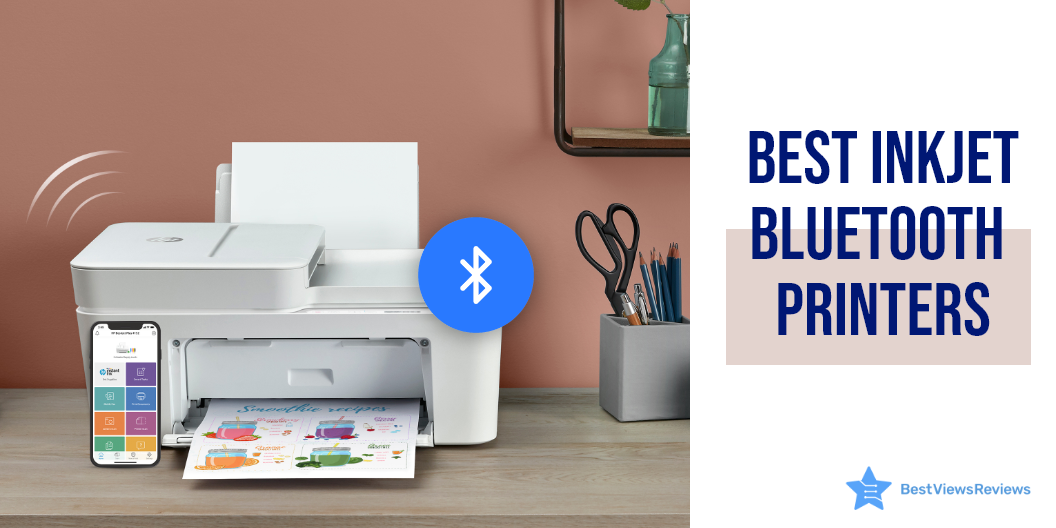
The inkjet Bluetooth printer comes with features such as printing, scanning, faxing, copying and are perfect for small offices or homes. From small business concerns to mega professional working spaces, a printer is a must-have gadget. The features and size do change as per the demands of printing.

The speed and durability of modern printers make them popular with both commercial and home users. The need to have a printer around has never been more with the global economic scenario leaning towards working from home,

The market has dozens of options and brands, each offering newer models and functional features. Make your decision easier. We have taken the liberty to highlight some of the factors that you should consider before investing in an inkjet printer. We suggest you read the blog that tells you about the factors that make inkjet printers a suitable option.

Factors to Consider Before Buying Inkjet Bluetooth Printers

Price

The price plays a major role when deciding to invest in something as significant as a printer. Printers may vary between $200 and may go up to a few hundred dollars depending on the features, but they may not last long.

You can spend a few hundred dollars to get a good printer with multi-features for your needs. An all-in-one inkjet printer may have a higher upfront cost will save you a lot of money in the long run. 

Speed

Speed is essential when you are planning on printing frequently. For office needs to go for printers that provide a print of 30 pages per minute. Home printing needs to go for the ones that offer 20 pages per minute.

Larger inkjet printers often offer a good printing speed with detailed texts and clearer images.

Features

Some people who required scanning and copying go for printers that are multi-functional and versatile. All-in-one printer is a good choice for your multiple printing and copying needs.

All-in-one printers demand a higher upfront cost. You will save on the maintenance of different gadgets like a scanner or printer in the long run. This will save you a lot of dollars on electricity and maintenance. Investing in an all-in-printer is ideal in such cases.

Security

In this digital world, cyber-attacks are a major threat. It is important to understand the security feature of the printer if your printer is connected to your computer with the internet. At the time of printing sensitive information, the data is left exposed. This may be a target of malware. The newer models of printers come with built-in software to protect them from attacks. Read the product description carefully before the purchase.

Paper Requirements

Inkjet printers usually print a standard letter or A4 letterheads easily. Larger printers can print documents of a larger size, like tabloid papers. It is advisable, therefore, to identify your requirements before the purchase. Read about the product before investing if you are planning on buying online.

Ink and Tone Requirements

It is advisable to choose the toner and cartridge capacity based on your printing requirements. The frequent users advise going with 12 TB of native capacity and for general users a 9 TB native energy is ideal. Make sure to choose a paper tray as per your printing need.

Brands

Go for printers that are branded as they consist of quality parts, and come with a good warranty period. In case of breakdown, the parts will be easily available for good brands. Before purchasing, you should read the warranty carefully. The two most popular printer brands are Canon and HP. Choosing between Canon Vs HP Printer can be tough. Read our blog on Canon vs HP printers and choose the perfect one for you.

Technology

The Inkjet Bluetooth printers are equipped with advanced technology such as NFC, Bluetooth, and wireless technology. Many of them also come with respective apps for improved usage. Go for printers that are compatible with the simplest of OS and offer the above features while printing.

Now that we know the things to look out for, let us take a look at the basic differences between laser printers and inkjet printers. Make sure to check out the most reliable printer that helps you make an informed decision.

How Do I Connect a Bluetooth Printer?

Bluetooth is a smart wireless technology that allows your computer to discover and share gadgets. It’s simple to connect a printer to a Bluetooth device.

1st step

Check to see if your inkjet printer supports Bluetooth. Some printers come with this feature whereas others require adapters. An affordable Inkjet Bluetooth printer adapter can be found online or in an electronics store. An affordable Bluetooth printer adapter can be found online or in an electronics store.


2nd Step

Setup your adaptor. It will install itself if you connect one end to your computer and the other end to your printer.


3rd step

Activate the printer. Make sure it’s plugged into a functional socket and that the printer’s electricity is on.

4th step

On your computer, open Bluetooth devices. Go to the control panel and open “Bluetooth Devices” after you’ve installed your Bluetooth adapter.

5th step

Automatically add a printer. This method is less secure, but it is simpler. Make sure the options “Turn discover on” and “Allow Bluetooth devices to connect to this computer” are checked in the settings tab. Your printer and computer should automatically detect each other and begin operating. 

Can I use a Bluetooth printer without Wi-Fi?

Bluetooth printing is a useful function if your phone doesn’t have Wi-Fi. It allows you to print photos directly from your phone without having to connect any cords. You must first pair your phone and printer before printing through Bluetooth. The steps involve putting your printer’s Bluetooth menu to ‘Discovery Mode,’ and then searching for other Bluetooth devices on your phone. Your phone has located the printer, you must enter a four-digit passcode to complete the connection.

Your phone and printer will remember this passcode after the pairing process is complete so you won’t have to enter it again. Simply place your phone within the Bluetooth range of your printer to print from your phone. Open the photo you want to print, and select the Bluetooth option. You can find it in the photo gallery on your phone, where you can pick ‘Send To’ or something similar. Then, as the transfer method, you choose Bluetooth and your printer as the target device.

Best Inkjet Bluetooth Printers

HP OfficeJet Inkjet Bluetooth Printer

The reviews of HP OfficeJet Inkjet Bluetooth Printer are simple to set up, compact, and economical. It’s packed with features and capabilities to help you get more done at home, at the office, or in a small business. This wireless color inkjet all-in-one printer produces high-quality output, allows you to print, copy, scan, and fax with confidence, and allows you to print wirelessly from your desktop, laptop, smartphone, or tablet. This helps to save paper by printing on both sides.

The Canon PIXMA TS6320 Wireless Inkjet Bluetooth Printer

The Canon PIXMA TS6320 is a low-cost multifunction printer designed for low-volume home offices. The TS6320 is roughly halfway up the Pixma TR series line and it has a nice combination of convenience and productivity capabilities. This includes an automated document feeder (ADF) for delivering multi-page documents to the scanner. It can carry a lot of paper in two input sources and has good mobile device support. 

The Canon TS6320 Inkjet Printer

The Canon TS6320 is a colorful and small multi-function printer that is simple to set up and use. The TS6320 is ideal for printing documents and photos from your smartphone, including square images. Thanks to wireless connectivity, you can set up your printer in minutes and start printing right away with the Canon Print app. The modern design includes a 1.44″ OLED screen and a built-in status bar. You can see what’s going on with your printer at a glance without having to stop what you’re doing.

The Star Micronics TSP143IIIBi Inkjet Printer

The Star Micronics TSP143IIIBi Inkjet Printer is built to save time and offer a hassle-free experience of printing, scanning, and copying everyday documents. Get better range and more reliable connections using Bluetooth, a built-in USB port. The Bluetooth with self-reset enables you to get a better range and faster, more reliable connections. Choose high-yield cartridges to get a better value for frequent printing.

HP ENVY 6055e All-in-One Wireless

HP ENVY 6055e All-in-One Wireless comes with 6 monthly warranty. It connects through Bluetooth, Wi-Fi, USB. Self-healing Wi-FiTM allows you to stay connected while reducing disruptions. The optional HP+ system allows your printer to anticipate your needs, ensuring that it is more secure, productive, and ready when you are. 

Conclusion

Once you own gadgets like inkjet printers or computer printers for your printing needs, the cost of outsourcing from professional printers will reduce greatly. Inkjet printers have added features like good printing quality, speed, technology, etc. which make them a quite sought-after option.

BestViewsReviews rates and ranks the best laser printers and Bluetooth printers based on build quality, overall performance, and print quality.

Advantages of Buying Brother Printer

brother printer

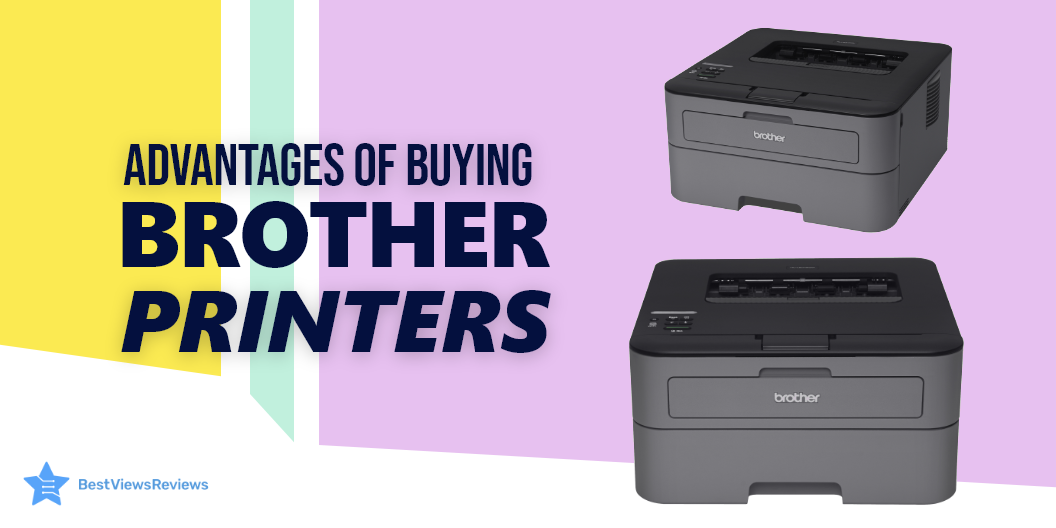
Brother is a popular brand in the world of printers. It was established in the 1960s and is popular for its innovative features. Brother printers offer excellent quality, durability, and reliability. They are easy to use and connect. You can connect them to your PC, laptop, or phone via the USB or Wi-Fi interface.

This allows you to print wirelessly from a remote location. These printers also support cloud printing. You can print from popular cloud storage like Dropbox, Google Drive, and more. An inkjet printer is a suitable buying option, but make sure you know what factors make this unit a must-buy item.

High-Quality Output  

Brother printers produce the best prints with their technology. Their quality output makes them a popular choice among graphic designers. Consumers use Brother toner to maximize the yield for the best results. A model like Brother HL-L8360CDW gives you high-quality color printing.

Wireless Printing  

There are many Brother printers with wireless and cloud printing capability, such as Brother MFCL2750DWXL has excellent reviews. This can be extremely useful as you can conveniently scan your documents from your devices and send the file to your printer directly.  

Hassle-free Installation and Easy Use  

Brother printers are extremely easy to install and use. This makes Brother HLL2395DW an absolute favorite among consumers. The intuitive interface and comprehensive manuals help you set up this gadget in just some minutes.   

Brother also offers free assistance for a period of two weeks after your purchase to resolve any issues you might run into.  

Reliable Driver Support  

The support that Brother provides is exceptional if your driver version has become outdated. Updates can be downloaded regularly using the driver software. It is also straightforward and easy to follow.  

Faster Printing Rate  

Brother printers have a fast printing rate. They also maintain the quality of your prints while printing them fast. If your work is hectic, brother printers like Brother MFCJ450DW can print up to 7000 copies without requiring you to change the toner.  

Integrated Features 

Most brother variants also work as scanners and fax machines. This compatibility helps you save money as well as space. It provides you with everything in one single machine. The advanced reliable system of your Brother printer can fulfill all your needs.  

Brother Printer FAQs

How Many Pages can a Brother Printer Cartridge Print?

A brother cartridge printer is a cost-effective solution to your printing needs. Your new brother printer can come with a starter, standard, and high-yield toner cartridge. The starter cartridge is the most basic one and can easily give you 1,000 A4 size printouts. The standard cartridge can print up to 1,500 A4 size sheets. Look for a high-yield toner cartridge to print approx 2500 A4 size sheets.  

Does Brother Printer Come with Toner?

The answer is yes. Most brother printer models include toner cartridges for convenient printing. The toner cartridge can vary from starter to high yield, depending on the model and price. The Brother MFC-J1205W model comes with a starter toner cartridge but contains only black, cyan, magenta, and yellow color.

Conclusion  

Brother printers are must-have gadgets for maintaining high productivity in your offices and workspace. The accessible customer support, durable quality, and ease of use make Brother, one of the most reliable brands in the market.

Choosing between Canon vs HP printer can be a tough buying decision. Check our blog to understand which brand is better before making any final selection.

BestViewsReviews rates and ranks hundreds of laser printers and computer printers on the basis of ease of use, compatibility, and overall performance.

Printer Jam Causes and Solutions

printer jam

A printer is an output device that connects with your PC, tab, and phones for generating graphical printouts. This device is crucial for your day-to-day tasks. A functional printer is important for maintaining high productivity and efficiency. Most printers offer functions such as printing, scanning, faxing, and copying. They are convenient to use but regular usage can cause printer jam problems. The printer will malfunction as a result, causing time and productivity loss.

The reasons for the malfunctioning of printers are often minor and can be fixed with easy hacks. The common problems with printers are paper jams, low responsiveness, and streaky prints. You should know the causes and solutions of printer jams. You can also go for the laser printer like Brother Compact Monochrome Laser Printer have great reviews because it allows you smooth printing with no difficulty.

Common Cause of Printer Jam and How to Fix Them

Paper Jams  

Paper jam is a common issue that can occur if the papers are misaligned or overloaded on the paper tray.  

To resolve this, repeat the following steps: 

  • Open your tray and ensure that the paper is aligned
  • Remove the complete stack of papers and align it again properly
  • Ensure that you’ve loaded the sheets as per your printer’s paper capacity
  • Adjust the paper-type setting in your printer for using a different type of paper
  • Try to reboot your printer if all these steps do not resolve your issue.

Small pieces of paper can get stuck inside the rollers during the jam. Remove the duplexer and check inside the roller.

A model like HP DeskJet 2755e Wireless inkjet printer comes with HP+ that adds additional functionality to your printer, making it easier to print from any device or app with no paper jam.

Printer Driver Version  

The printer driver is the software that converts the data into a format that the printer can understand. You may encounter a problem if the version of your printer driver has become outdated. To fix this, download the new version and uninstall the older one to reestablish the smooth connection again.  

The reviews of the Epson WorkForce Wireless All-in-One Color Inkjet Printer are positive because it has both wired and wireless connectivity, making it easy to connect.

Overloaded Printer Queue  

A print queue is the list of printer output jobs. It maintains a log of pending and active printing jobs by storing the status in a reserved memory area. The queue can get confused if you delete, reorder or postpone your printer jobs. This causes your driver to halt its operations. 

Some quick fixes to resolve this issue include deleting the jobs, turning off your printer, and turning it ON again. You can also open Windows Services if you’re using Windows. Find the Print spooler option to stop all the jobs which might be confusing your printer.  

Clogged Printhead 

The printer ink can dry up in your printer head and clog the parts. You can consider cleaning your cartridge with a microfiber dishcloth absorbent. Let the cartridge get dry for reloading. You can also run the printhead cleaning option for using your software to resolve this problem. We recommend you go with only reliable printer brands.

How Do You Reset Your Printer?

The printer settings when changed can cause trouble while printing. Resetting your printer to the default setting is a good move. Follow the below-listed steps to reset your printer.

  • Find the menu option on the control panel of your printer
  • Click on the menu button and navigate using up/down arrow keys
  • Select the printer option.
  • Navigate to the reset printer option under the menu bar
  • Press 1 to select yes
  • Click on “reset all” and press okay

Conclusion

A printer is an important addition to your office or home workspace. Knowing the quick fixes to common problems like printer jams can help you save from the hassle of printer repair. These tips are effective on almost all printers. Read our blog to know more about common DIY printer repair hacks.

You should consider a few important factors while deciding on the final inkjet printer model.

BestViewsReviews rates and ranks hundreds of computer printers and inkjet printers based on build quality, ease of use, and portability.

HP or Epson Printer: Which is the Better Choice?

HP or Epson printer

Are you confused about what to buy between the HP or Epson printer? Well, you will get all your queries answered here! Both printers are durable, high-quality, and have unique features. HP stands out for its ability to produce high-quality and glossy prints, whereas Epson has a wide display screen. Epson printers may have quite an expensive price range, but in the long run, they prove to be more cost-effective than HP printer models. They both have high yields for black and color documents.

The choice is tough, especially with brands like Epson and HP, which provide innovative printers. Each brand offers you convenient features, and each is better than the other. This blog compares both printers based on some factors that you should consider before making a purchase.

HP or Epson Printer- A Comparison: Which is the best printer Epson or HP?

Print Quality: Which printer gives the best quality print?

Black and white text and full-color photos are part of most documents. Whereas the final output varies because of the quality of the ink and the paper you’ve used. HP generally offers the best print quality for home printing. For professional printing, Epson is often the preferred option. Epson printers like the Epson Expression Premium XP-7100 are more precise and have a wider range of color options. Epson is known for its superior photo printing quality, and its printers are mostly used by professionals.

Copying and Scanning

HP ENVY 6055e all-in-one wireless color printer is ideal for copying because of its smooth process. They capture precise details and provide consistent print quality. The printer takes the shortest amount of time to produce sharp copies. The variant is highly efficient.

Print Speed: Does a faster print speed affect quality?

Yes, a faster print speed can affect quality. For example, HP printers typically have a print speed of up to 30 pages per minute (ppm). This means that you can print a 10-page document in just over three minutes. While this is a fast print speed, but it may not always produce the highest quality prints. Epson has a higher printing speed for graphics printing. Epson’s speed is 5.1 pages per minute, while HP’s speed is 2.6 pages per minute.

If Epson is your choice, you can also read our blog to learn more about the benefits of owning an Epson photo printer.

The customer reviews of the HP OfficeJet Pro 7740 Wireless All-in-One Printer claim it offers fast black and color print speeds for enhanced operation.

Ink Capacity: Which printer is better in an ink tank?

HP printers have a sufficient ink capacity of up to 8,000 pages per ink cartridge. You can also use a variety of cartridges, including pigment and dye-based inks, which can help you get the best results for your printing. Epson also offers a large ink capacity, with some models offering 7,500 pages per cartridge for monochrome printing. Epson printers are known for their reliable and high-quality printing results.

HP LaserJet Pro is a great option to save ink as it includes HP Instant ink. It will save you up to 50% on ink consumption compared to other printers.

Printer- Design

Epson EcoTank ET-15000 printer offers cartridge-free printing with easy-to-fill super-sized ink tanks. There are tanks or eco tanks in front of the printer to offer convenient ink use. The idea is to place ink bottles into the printer instead of cartridges, which allows you to refill them with ink by pouring the ink into the tanks.

You will also receive a large amount of ink along with an EcoTank printer. This should last you a long time before you need to replenish it if you don’t print frequently.

Photo Printing: Is HP good for photo printing?

For everyday photo printing, HP printers are generally good. You can see a wide range of models that are reliable and produce good print quality. They are also relatively affordable and easy to use. For those who need more control over the output, HP also offers models with more advanced features and options. For professional or semi-professional photo printing, Epson is the preferred brand for its unique micro piezo heat-free technology.

If you’re still confused about different brands while choosing a printer for yourself, then do check out our blog to learn about the most reliable printer brands.

User-Friendliness: Which printer is the easiest to use?

Both Epson and HP printers offer user-friendly features, such as easy setup and intuitive software. When it comes to setup, Epson printers are generally considered as being the easier ones. They require fewer steps and less knowledge of the printer’s software and settings. On the other hand, HP printers often require to be more familiar with their software and settings.

Maintenance: – Which printer has the best service?

When it comes to maintenance, HP offers more options than Epson. HP has a wide range of support options, including online chat, phone support, and in-person service centers. Epson, on the other hand, only offers online support and limited phone support. Cleaning the printhead more often will save you a lot when it comes to print quality. It will help you save a few bucks as well.

Price: Which type of printer is the cheapest?

Both HP and Epson offer a wide range of prices. Generally, HP printers are cheaper than Epson printers, especially when it comes to entry-level models. HP typically offers more affordable inkjet and laser printers than Epson does. The price of HP printers ranges from 160 US dollars, whereas you can get above 200 US dollars.

HP OfficeJet 250 is a great option for the price factor. It is also available at a discount of $210 during the holiday season sale.

What type of printer is best for documents?

It depends on what type of document you are printing and how often you use it. An HP laser printer is probably your best bet if you are printing a lot of text-based documents such as letters, reports, and spreadsheets. Laser printers are fast and able to produce crisp, clear text on plain paper. They are also more cost-effective than inkjet printers over the long run. Since the cartridges last longer, you can get them cheaper to replace.

Whereas an Epson inkjet printer would be the better choice if you are printing photos or graphics more often. Epson inkjet printers are known for their efficient color prints, so you can use them effectively for printing photos and other graphics.

Can I use HP ink for the Epson printer?

No, you cannot use HP ink with an Epson printer. HP and Epson are two separate companies, and they use different inks and printer technology. HP inks are designed to work with HP printers, and vice versa for Epson. Using the wrong type of ink could damage the printer. Moreover, doing so could even void the warranty. The inks may also not be compatible and could cause unexpected print quality issues. It is always best to use inks specifically designed for the printer you are using.

Which printer is best for high-quality graphics?

When it comes to printing high-quality graphics, it often depends on the type of graphics you are printing. Both HP and Epson have their own strengths and weaknesses when it comes to printing high-quality graphics. The resolution of HP printers often starts from 600 dpi. HP printers like HP LaserJet Pro are considered better for large-format graphics, such as photographs and posters. They use sophisticated inkjet technology that is capable of yielding high-quality graphics in large formats.

Epson printers are renowned for producing extremely accurate and vibrant colors. You can easily print at a resolution of about 4800 x 1200 dpi, which may vary according to the models. They use a range of advanced technologies to ensure that photographs and other graphics come out looking as close to the original as possible.

What is the life expectancy of an HP printer?

The life expectancy of an HP printer depends on a variety of factors, such as the model and type of printer, the quality of its parts, and how it is maintained. Moreover, HP printers are designed to have a durable life. They can last anywhere from 2 to 5 years or more with regular use as well as proper maintenance.

Conclusion  

The HP printer is undoubtedly an affordable option, but Epson is more cost-effective in its operation. Most of these brands offer their own advantages and disadvantages. HP printers are equipped with top-end technology. They are perfect for you if you have to scan large quantities of documents and use PDFs more often. It should be easier to purchase a printer when you evaluate the factors above. We hope you will find a printer that suits your needs.

BestViewsReviews helps you find the best inkjet printers and the latest computer printers on the market by rating and reviewing them on the basis of quality, convenience, and durability. Get unbiased, honest reviews of products before you buy.

HP Deskjet Vs HP Inkjet Printer: Which Is Better?

HP Deskjet Vs HP Inkjet Printer

Are you unsure about the choice between an HP Deskjet vs an HP Inkjet printer? Let’s discover the most suitable option for you. HP printers are one of the most popular on the market. You can print text and graphics as hard copies. These printers are renowned for their high quality and durability. HP offers two popular printer types, including DeskJet and InkJet.

You may find it quite complicated to choose between an HP Deskjet vs HP Inkjet printer. Both of these devices have their own advantages and disadvantages. The inkjet printer uses a spraying mechanism to pass ink droplets on the substrate. However, the printer uses an ink cartridge filled with dye-based or pigment-based liquid inks. On the other hand, HP Deskjet printers are specialized printers. The printer uses inkjet technology.

Know more about the things you need to know about an InkJet printer to get extensive details about its advanced specifications.

Compare and Contrast: HP Deskjet vs HP Inkjet printer

Pros of HP Deskjet Printer

Wireless Printing

Deskjet printer supports wireless printing. You can connect this printer to your tablets and phones via Wi-Fi connectivity. Most Deskjet models are compatible with the HP Smart app. It allows you to print any document or picture wirelessly from your cloud storage. However, some printers also let you connect with Bluetooth. Thus, you can have multifaceted access to wireless printing.

Instant Ink Ready

Instant Ink Ready is the premium service offered by HP to all its Deskjet printer customers. Whenever your printer detects a low supply, it will automatically help you receive a new batch of ink. You can also save up to 50% on ink.

Compact

The Deskjet printer has a compact design. This makes it easy to set up and use. You can install this device in your home or office workspace. It is lightweight and perfect for portable usage. This will be ample to fit in a small working space.

Cloud Printing

Cloud printing is the feature that allows you to access digital media directly from your cloud storage folders, such as iCloud, Dropbox, and Google Drive. You can scan your files directly from your phones or tablets. Further, you have the ability to share your files with your printer from cloud printing.

Cons of HP Deskjet Printer

Uneconomical Cartridge Costs

HP Deskjet printers are known for producing only high-quality prints. This requires high-end ink cartridges. It results in high running costs. These printer models are more expensive than inkjet models. The price range of Deskjet printers starts at $90. It may go beyond a few hundred dollars as well.

Set-Up Might Take Some Time

Wi-Fi connectivity is a convenient option. But it may cause you some hassle during the initial setup. The wired connection is quick but looks messy and unstable. HP mobile app offers you the feature of wireless print commands. But you have to be precise about your printing needs.

Pros of HP Inkjet Printer

Affordable

HP Inkjet printer is available at lower prices. The running cost, depending on ink usage is also less. The ink cartridge in these printers usually lasts long. It saves on your printing costs and gives you economical printouts.

Easy to maintain

The HP inkjet printers are easier to maintain and set up. You can install these top-quality printers anywhere. Besides, you can use them for copying, scanning, and wireless printing. They require less maintenance and generally offer long-lasting usage.

Find some factors to make inkjet printers as a suitable option for your regular use.

Cons of HP Inkjet Printer

Less Printing Capacity

The standard HP inkjet printers are not ample to handle high print loads. These printers lack the capacity to print large volumes and produce large printouts. This makes them less preferable for extensive printing.

You can also read our blog on the basic difference between Inkjet Vs. Laser printer to get an overall idea about them as well.

Top HP Printers to Buy

HP DeskJet 3755 Compact All-in-One Wireless Printer

The HP DeskJet 4155e wireless color all-in-one printer is a top-selling printer for your home printing needs. It offers multifaceted compatibility with Alexa for hands-free printing. Its compact design makes it sufficient to print up to 15 ppm in color and 19 ppm in monochrome. You can rely on these printers for your project work as well.

The HP Smart app offers you to scan from your smartphone. You can efficiently access cloud storage including iCloud, Dropbox, and Google Drive

HP Smart-Tank Plus 551 Wireless All-in-One Ink-Tank Printer

Another model in HP is HP Smart-Tank Plus 551 wireless printer has dual band WiFi and cloud print enabled features. You can also access voice-activated printing to make your printing work more productive. This printer comes with two years of spill-free refill bottles. So you can have mess free ink refilling. Besides, you can print up to 8,000 color pages or 6,000 monochrome pages.

HP DeskJet 2722 All-in-One Wireless Color Inkjet Printer

This HP printer model has been designed for the modern office or home. Its thermal inkjet technology will let you trace the logo design, images, and graphics on shirts as well. It features Wi-Fi and other wireless connections. This printer offers a maximum print speed of up to 5.5 pages per minute in color and up to 7.5 pages per minute in monochrome.

HP DeskJet 940C Color Printer

The HP DeskJet 940C color printer offers automatic duplex printing. This gives a reliable solution for home or office printing projects. You can print the color prints at a fully saturated resolution of about 2,400 x 1,200 dpi. Its 940C input tray could efficiently handle 100 sheets of 20-pound letter and legal paper sizes. The compact design makes it sufficient to fit in a small working space as well.

HP OfficeJet 3830 All-in-One Wireless Printer

The HP OfficeJet 3830 is an ideal printer for home use. It features the compatibility with Alexa’s voice control. This printer has a 2.2 inches touchscreen display to navigate the settings. The 35-page automatic document feeder offers the ability to print, copy, and scan multipage documents. This makes it faster to wind up your printing jobs. It offers original HP high-yield ink cartridges. It prints the documents with vibrant quality.

Conclusion

The HP Deskjet printer has the edge over the inkjet printer because of its higher capacity, quality, and convenience. Top-quality inkjet printers are better for their low price and efficient printing operations. You can choose from the HP Deskjet and HP Inkjet printers. Make sure it best fits your needs and budget.

We suggest you go with the Deskjet model for printing in large volumes. It’s also challenging to choose between Deskjet vs Inkjet printer. You should go with the type of printer that will suit your printing needs.

BestViewsReviews also offers reviews and ratings for the best-quality laser printers based on build quality and convenience. Get unbiased and honest reviews of several products to choose only the best product on the market.

Common DIY Printer Repair Hacks

printer repair

A printer is a hardware device that delivers output in a graphical or textual form. This machine can be subjected to wear and tear due to frequent usage. A problematic printer can affect your work productivity. It is important to ensure the smooth and efficient working of your printer devices. You can troubleshoot your printer with a few simple printer repair hacks. Inkjet printers are a popular type of printer that uses a jet mechanism to propel ink droplets onto the paper. Check our other blog and know everything about inkjet printers.

Printer Repair: Common Printer Problems and How to Fix Them

Lagging Printer Speed 

You can fix lagging inkjet printer speed in two ways. The first is to print the documents in the draft version. A draft version uses less ink and delivers dull pages at the fastest speed possible. The second DIY printer repair hack is only applicable if you are using a wireless printer. Try moving closer to the router to strengthen NFC signals. This will result in delivering high-quality prints at a faster speed. You can check a top-rated model like Brother MFCL2700DW Wireless Printer delivers high-quality prints with fast speed.

Reduced Print Quality 

The printer with reduced print quality can deliver partially visible documents. The reduced print quality can be because of printer head blockage. Many times, the printer head becomes blocked due to less use of the device. This makes the ink dry and stops the fresh ink from flowing and printing new pages. There are two solutions to this problem. 

The first step is to clean the print head using the functions of your printer and then test printing. The second is to use the printer frequently to prevent the ink from drying up. We recommend you clean the printer once in 15 days. It will help you get rid of the clogged head and prevent the accumulation of dried ink.

Cleaning a printer regularly is one of the most effective DIY printer repair hacks. Such hacks prevent the printer from malfunctioning and also extend its functional life. The top-quality Brother MFC-J870DW comes with 2 years warranty as well as does not need more care.

Printer Doesn’t Work at All 

The situation of the printer not printing at all is common and can happen due to minor or major issues. Follow the below-listed steps to check if the issue is fixable or not.  

  • Check if any unusual indicator or message light is blinking. In case there is, try fixing that first 
  • You can also switch off and on the printer to reset it 
  • Ensure that the plugs are inserted correctly 
  • Restarting the modem can also help if there is a problem with the signal in the wifi printer
  • There is a built-in troubleshooter in printers. You can try that if nothing from the above works

Prints With Spots or Horizontal Lines

The inferior quality prints containing horizontal lines and spots can be a problem. Such errors may happen due to many reasons. You can check a model like the Canon Wireless Color printer that prints 4800 x 2400 dots per inch with fine technology and offers incredible detail. The reasons are usually minor and can be fixed with some DIY steps. 

  • You can set the print quality to high if your printer is printing in draft mode.
  • Shaking the cartridge or replacing the cartridge will solve your problem
  • A clogged print head can also be a common reason for poor quality print 
  • You should adjust the printer nozzles for high-quality prints 

Frequent Paper Jams 

Paper jams are frequent and annoying printer problems. The reasons for paper jams are as follows.

  • It can be because of a loose object like stapler pins or paper clips 
  • Too much accumulation of dirt and dust also causes the printer to jam 
  • It can also happen due to too many papers in the feeding tray  
  • Jams are a result of feeding the paper at a wrong angle 

The first solution to this is to clean your printer and check the papers on the feeding tray. Another alternative is to stack fewer papers at once to avoid jams. We suggest you follow a manual feeding method, especially if it’s a photo print. A printer like Epson WorkForce is a top-selling printer and comes with a closing track that prevents it from dusting.

Computer Sending Print Job to the Wrong Printer

The computer, connected to many printers, might end up sending your print request to the wrong printer. Do not panic if this happens. Go to the Devices and Printers tab and change your preference for your default printer. This should fix the glitch and you should have uninterrupted printing again. 

Check a top-rated printer like Brother MFC-J805DW comes with a built-in wireless connectivity makes it easy to print/scan from various devices.

Conclusion

A good toner and ink can fix almost all common printer problems. The printer repair hacks stated above are simple to apply and can fix a stuck printer immediately. Inkjet printers are a one-time investment and are necessary for everyday printing. Read our other blog on an inkjet printer and learn all about inkjet printers.

Buying the right inkjet printer can be difficult. Read our buying guide on inkjet printers to buy the best inkjet printer model.

BestViewsReviews rates and ranks hundreds of best laser printers and top-rated computer printers based on print quality, overall performance, and ease of use.